Skip to content

3. Payload Setting ​

Goal: Register the mass and center of mass (X/Y/Z) of the add-on module in the RBQ app so the robot accounts for it while walking.

Prerequisites: Step 2, Rail & Spring Nut, must be complete — the module has to be physically mounted on the rail.

Before you start ​

  • Put the robot on flat, stable ground.
  • The RBQ app must be connected to the robot (Controller & Wi-Fi complete).
  • Measure the module's center of mass as X / Y / Z (m) relative to the center of the robot body.

Procedure ​

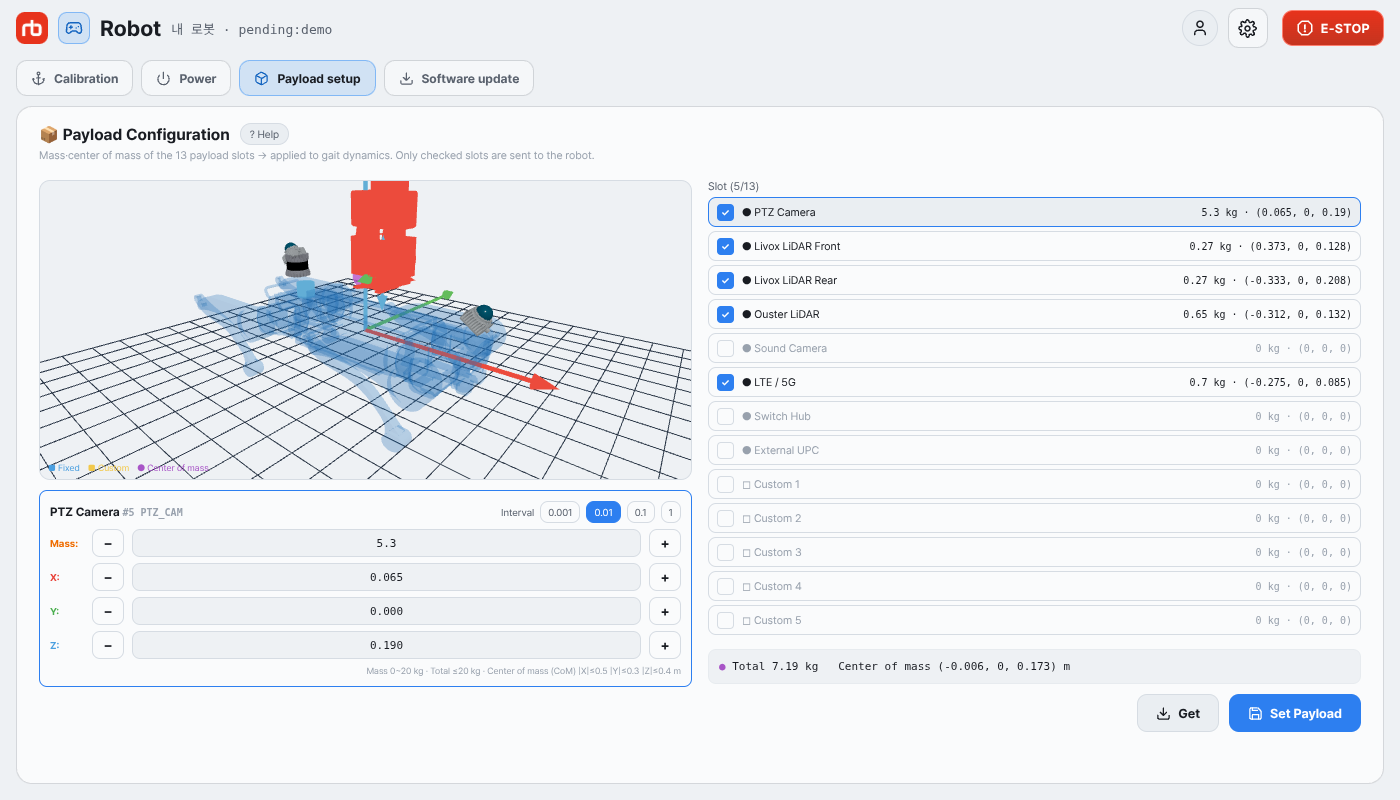
  1. Open Settings › Payload setup in the app. The Payload Configuration screen appears.
Robot parameters — Payload Configuration
Settings › Payload setup
  1. In the slot table on the right, tap the slot you want and tick its checkbox. Ticking it fills in the catalogue defaults the robot holds.

  2. Enter the values in the editor on the left:

    • Mass (kg) — mass of the add-on module
    • X / Y / Z (m) — center of mass in the robot coordinate frame

    Tap a field to type, or use − and +; the Interval chips (0.001, 0.01, 0.1, 1) set how much each press moves the value.

  3. Check the total below the editor for the combined mass and center of mass. Going over the limit turns it red and blocks sending.

  4. Press Set Payload and confirm with Apply. Unticked slots are sent with mass 0, which clears them.

  5. After applying, press Get to re-read the stored values and confirm them.

Buttons ​

ButtonFunction
CheckboxMarks the slot as mounted (unticking sends mass 0, clearing it)
IntervalHow much − and + move the value (0.001, 0.01, 0.1, 1)
Set PayloadApplies every edited slot to the robot, via a confirmation
GetRe-reads the values stored on the robot — edits in progress are discarded

NOTE

Registering the payload is not enough on its own — the next step, ZMP calibration, adjusts the posture so the robot balances under the new load.

Allowed ranges and error messages are listed on Payload configuration.

Next step ​

With the payload registered, run the ZMP calibration to rebalance under the new weight:

→ 4. ZMP Calibration

This user manual is intended for RBQ users.