Skip to content

Developer's Guide ​

Introduction ​

Welcome to the RBQ simulation, command, and deploy/update manual

This manual provides a comprehensive guide on how to simulate the RBQ robot, command it, and deploy your own algorithms to the real robot.

Ready-to-use simulator and operator app for developers ​

  • The RBQ robot can be simulated accurately using MuJoCo: "A fast and accurate physics engine suitable for advanced robotics simulation."

    📝 Developers can modify the simulation environment "playground" by editing the file: resources/model/rbq_environment.xml

  • You command and monitor the robot with the RBQ app — the same app you use on real hardware, so anything you rehearse against the simulator carries over unchanged.

    • It shows robot status and sensor state, and takes touch, gamepad, or keyboard input.
    • Get it from the Downloads page. The whole app is documented under RBQ App.

NOTE

This repository ships no on-PC control GUI. Earlier versions carried a bin/GUI maintenance tool; it is no longer published, and the RBQ app replaces it for every task in this guide.

Installation ​

  • This section explains how to install and set up the RBQ robot simulation and development environment from scratch.

Requirements ​

To run the RBQ simulation and deployment environment smoothly, the following requirements are recommended:

  • OS: Ubuntu 22.04 (x86)

    Ubuntu 22.04

  • Minimum PC specs:

    • CPU: Intel Core i7 - 12th Gen
    • RAM: 16 GB
    • Storage: 25 GB
  • Control Devices

    • Keyboard: W, A, S, D, Q, E keys, and the arrow keys
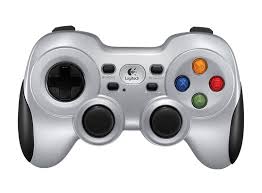
    • Joystick: Logitech Wireless Gamepad F710 (Recommended)

    Logitech Wireless Gamepad F710

1. Download the RBQ Repository ​

  • Clone the repository and navigate to the open-source package:
bash
git clone https://github.com/RainbowRobotics/RBQ.git
cd RBQ

All scripts, binaries, and SDK code are inside RBQ/. Run all commands from this directory.

Note: Pre-built binaries ship in bin-x86_64/ (and bin-aarch64/ for arm64). No compilation step is required.

▶ Simulation ​

  • The simulator runs in Docker — Docker is the only thing to install, and the script offers to install it when it is missing. The first run takes a few minutes to build its image. See MuJoCo.

  • Start the RBQ control modules and the MuJoCo simulator together from RBQ/:

bash
bash scripts/sim.bash --vision

NOTE: ARGUMENTS:

  • --help : Display help message and exit.

  • --vision : Run vision modules (e.g., vision sensors, climb stairs enabled).

  • --no-gui : Don't open the robot's web UI. Without it, the script opens http://127.0.0.1:8080 in your browser once the robot is up — sign in with rb / rainbow2026.

  • It runs in the foreground of this terminal; Ctrl-C stops it. If Docker needs sudo on this PC, enter your password when asked.

Initialize - Connect and Start the Simulated Robot ​

Start the RBQ desktop app on the same PC as the simulator. With no robot network around, the app finds the MuJoCo simulator on this PC by itself and connects — see Connection.

  1. Press Control on the hub to open the control home.
  2. Tap the green Auto Start pill, press Auto Start in the dialog, and wait for the sequence to report Done. Press Close.
  3. Press STAND on the motion card. The robot stands up and is ready for further commands.
  • 📝 Depending on the posture it starts from, standing up can take a second.

Drive the Robot ​

The motion card carries SIT, STAND, WALK, and STAIRS, and the dashed Motions button opens the full grid, where Wave and Run live. What the joysticks do depends on which motion is running — standing, they adjust posture; walking, they drive.

→ Motion commands has a per-gait axis table, and Control home covers the rest of the screen, including keyboard driving on a PC.

Real Robot ​

This section explains how to operate the real RBQ robot.

📖 For detailed operation steps, refer to the Operation Guide

1. Connect to the Robot ​

  • Connect your PC to the robot's Wi-Fi.

    📝 Wi-Fi SSID: RBQ_xxxx.

2. Start Robot Control in the App ​

Open the RBQ app and pick the robot in the robot list — see Connection. The status line reads Connected with the route once it is talking to the robot.

  • Press Control to open the control home.
  • Tap Auto Start, press Auto Start in the dialog, and wait for Done. The robot is now activated and ready for operation.

3. Commands are exactly the same as in simulation ​

  • 📝 It is strongly recommended to practice commanding the robot in the simulator first.

Web UI ​

The robot also serves its own page to a web browser on port 8080 — a quick way to check on it from a laptop without the app. The simulator serves the same page.

RobotAddress
Simulator on this PChttp://127.0.0.1:8080
Real robot, PC on the robot's Wi-Fihttp://192.168.0.10:8080

The browser asks you to sign in. The default account is:

  • Username: rb
  • Password: rainbow2026
PageWhat it does
DashboardRobot info, health, trip counters, PC status, a live table of the 12 leg joints (status, errors, temperatures, angle, torque, current), software update, and the state of each robot process
ControlMotion buttons (Model Walking, AI Motions), on-screen joysticks, Auto Start, emergency stop, and gamepad ownership. You can also drive with a gamepad plugged into the PC (press a button on it once so the browser sees it) or with the keyboard: W/S forward and back, A/D sideways, Q/E or ←/→ turn, ↑/↓ the right stick up and down
ConfigurationViews and edits the robot's settings files (motion.ini, hal-config.ini, Vision.ini, Streamer.ini)
System LogThe live log, the log for a chosen day, and Black Box sessions with playback and zip download

CAUTION

Control moves the robot exactly as the app does. Configuration writes the robot's settings files directly — change a value only when you know what it does.

Update the Robot ​

Robot software is updated from the app. On the Software update screen, press Send robot software — the robot deploys it as soon as the transfer completes, and the app then offers a reboot.

→ Robot Software Update

The app itself is updated from the This app section of the same screen.

→ App update

Without the app, use the Software card on the web UI's Dashboard: pick a release (or Install a file… for a downloaded RBQ-<version>.zip), press Update, and once it reports installed, press Reboot now. The browser downloads the release itself, so the PC needs internet as well as the robot's Wi-Fi.

CAUTION

Put the robot in the sitting state before restarting, and do not move it until the restart finishes. Running a mismatched binary and script combination can cause unexpected behavior.

scripts/deploy.bash is used for local development only — it copies freshly built binaries into ~/rbq_ws/ on the machine you run it on:

bash
bash scripts/deploy.bash --local
ArgumentMeaning
--helpDisplay help message and exit
--localDeploy to ~/rbq_ws/ on the same PC
--rbhHumanoid: deploy to ~/rbh_ws/ instead of ~/rbq_ws/ (also with --local). ~/RBH.bash, the robot's launcher, is installed only when missing and never overwritten
--pro [FILES...]Deploy only the named binaries

This user manual is intended for RBQ users.