Skip to content

Motion commands ​

Motion commands are sent from the motion card on the left of the control home. A short tap sends the command immediately; the button that matches the robot's current gait is highlighted.

DANGER

Every command here moves the real robot. Keep people, animals and obstacles at least 2 m away before pressing, and make sure the robot has completed Auto Start and stands on a stable surface.

Fixed buttons ​

ButtonWhat the robot does
SITFolds down into the sitting pose. Joystick input is ignored
STANDFrom sitting: stands up. From walking or stairs: stops and stands in place
WALKStarts the walking gait — the joysticks now move the robot
STAIRSStair gait: slower steps with the body leaning to the slope
DOCKINGWalks onto the charging dock by itself. The button is only there when docking is available — it is not offered on Rapid robots, and it disappears while the Dock scan vision toggle is on (the docking overlay on the video takes over)

Two of the buttons carry a small dot in the corner: long-press them to open a sub-list.

  • Long-press SIT → Static · Calib: ZMP Calibrate (balance calibration while standing still).
  • Long-press WALK → Dynamic Motions: Model Walk (the classic model-based walk), Wave and Run. Run is not offered on wheeled robots.

Sit ​

Sit

Stand ​

Stand

While standing, the joysticks adjust the posture instead of moving the robot:

JoystickInputRobot action
L stickForward / BackwardNose up / down
L stickLeft / RightRoll left / right
R stickForward / BackwardHeight up / down
R stickLeft / RightTurn left / right

Walk ​

Walk
JoystickInputRobot action
L stickForward / BackwardGo forward / backward
L stickLeft / RightGo left / right
R stickForward / BackwardPitch forward / backward
R stickLeft / RightTurn left / right

Stairs ​

Stairs
JoystickInputRobot action
L stickForward / BackwardGo forward / backward
L stickLeft / RightGo left / right
R stickLeft / RightTurn left / right

WARNING

On stairs and slopes, keep the approach slow and straight. Do not intervene by hand while the robot is adjusting its posture.

More motions ​

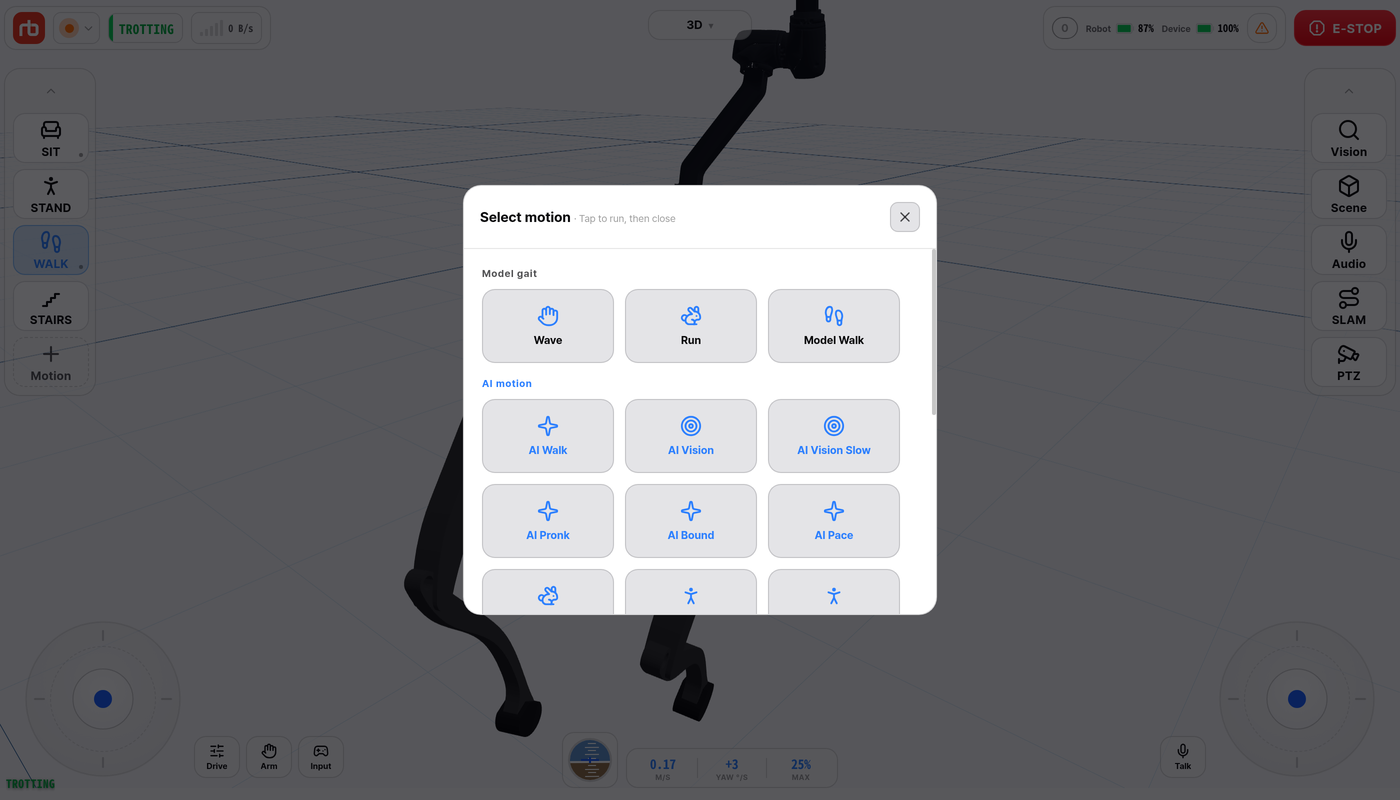
The dashed Motion button at the bottom of the card opens the Select motion grid (Tap to run, then close). Tapping a tile sends that motion and closes the grid.

Select motion

STAIRS and DOCKING are not in the grid — they are buttons on the motion card already.

Model gait

TileWhat the robot does
WaveWave gesture
RunFaster trot
Model WalkClassic model-based walking gait

AI motion

Gaits driven by the robot's learned (AI) policy. A tap runs the motion immediately.

AI motion

Several AI motions jump, run or balance on two or three legs. Stand the robot up first, keep at least 2 m clear on all sides, and use flat, non-slippery ground.

TileWhat the robot does
AI WalkWalking gait driven by the learned policy
AI VisionLearned walking gait that also uses the cameras to read the terrain
AI Vision SlowSame as AI Vision, at a slower pace
AI PronkHops with all four legs together
AI BoundBounding gait — front and rear leg pairs move together
AI PacePacing gait — legs on the same side move together
AI RunFast running gait
AI 2Leg L / AI 2Leg R / AI 2Leg FBalances on two legs (left, right or front pair)
AI 3Leg HLBalances on three legs with the rear-left leg lifted

Precision·Calib

TileWhat the robot does
ZMP CalibrationBalance calibration — same as the long-press item under SIT

What developer mode adds here is collected on Developer mode.

Docking

During docking the robot moves on its own. Do not push or steer it, and make sure the dock is placed correctly and powered. The robot stops and starts charging once it is on the dock.

Drive parameters ​

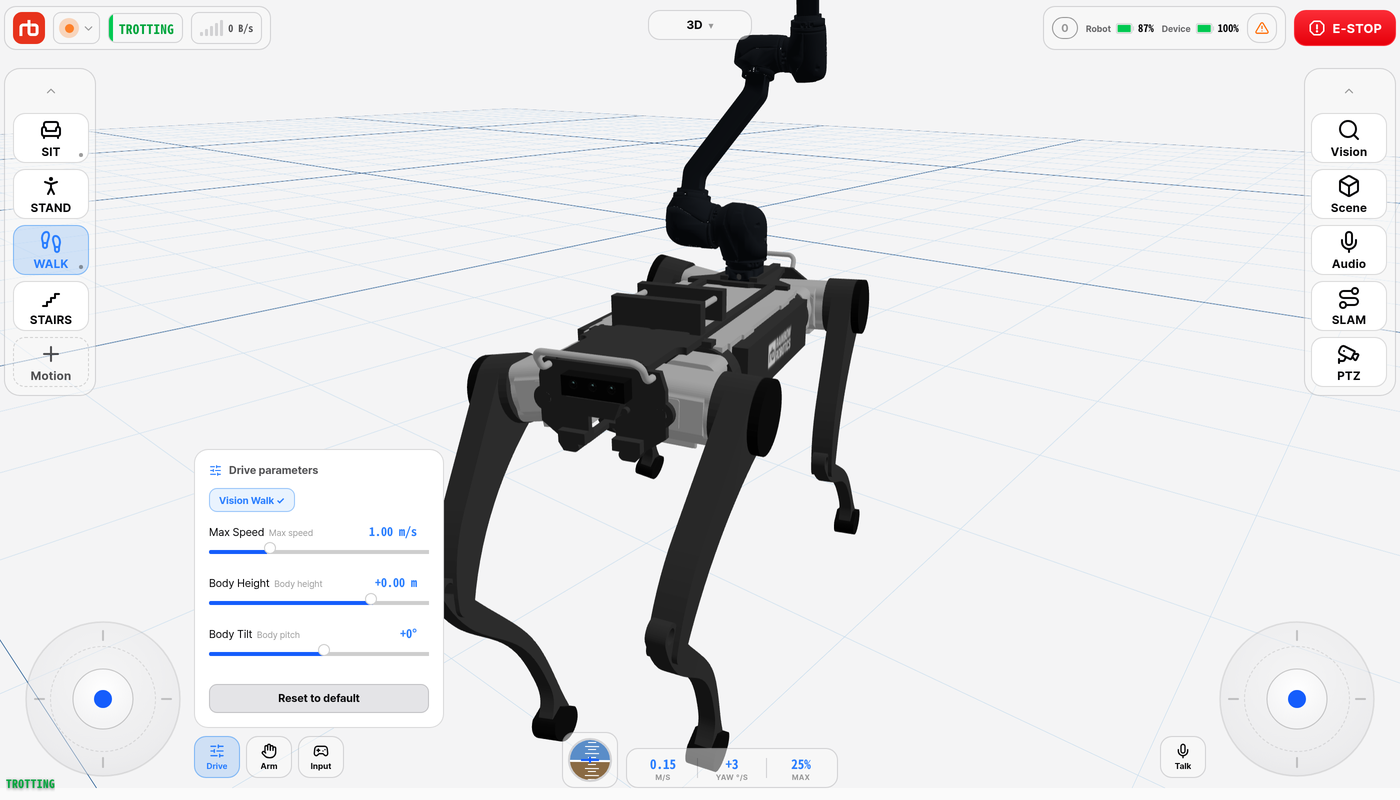
Tap Drive in the tool buttons next to the left joystick to open the Drive parameters popover.

Drive parameters

ControlRangeEffect
Vision Walkon / offUses the camera-assisted walking policy while in WALK. Switching it while walking changes the policy immediately
Max Speed0.50 – 2.50 m/sUpper limit of the walking speed the joystick can command
Body Height−0.25 – +0.10 mStanding height offset relative to the default
Body Tilt−25° – +25°Fixed pitch of the body while walking
Reset to default—Restores speed 1.0 m/s, height 0 and tilt 0

Slider values are sent to the robot when you release the slider, not while dragging.

Drive parameters

What developer mode adds here is collected on Developer mode.

This user manual is intended for RBQ users.