Skip to content

No camera view ​

The robot is connected, but no camera video appears in the app. Work through the steps below.

1. Check which source you are on ​

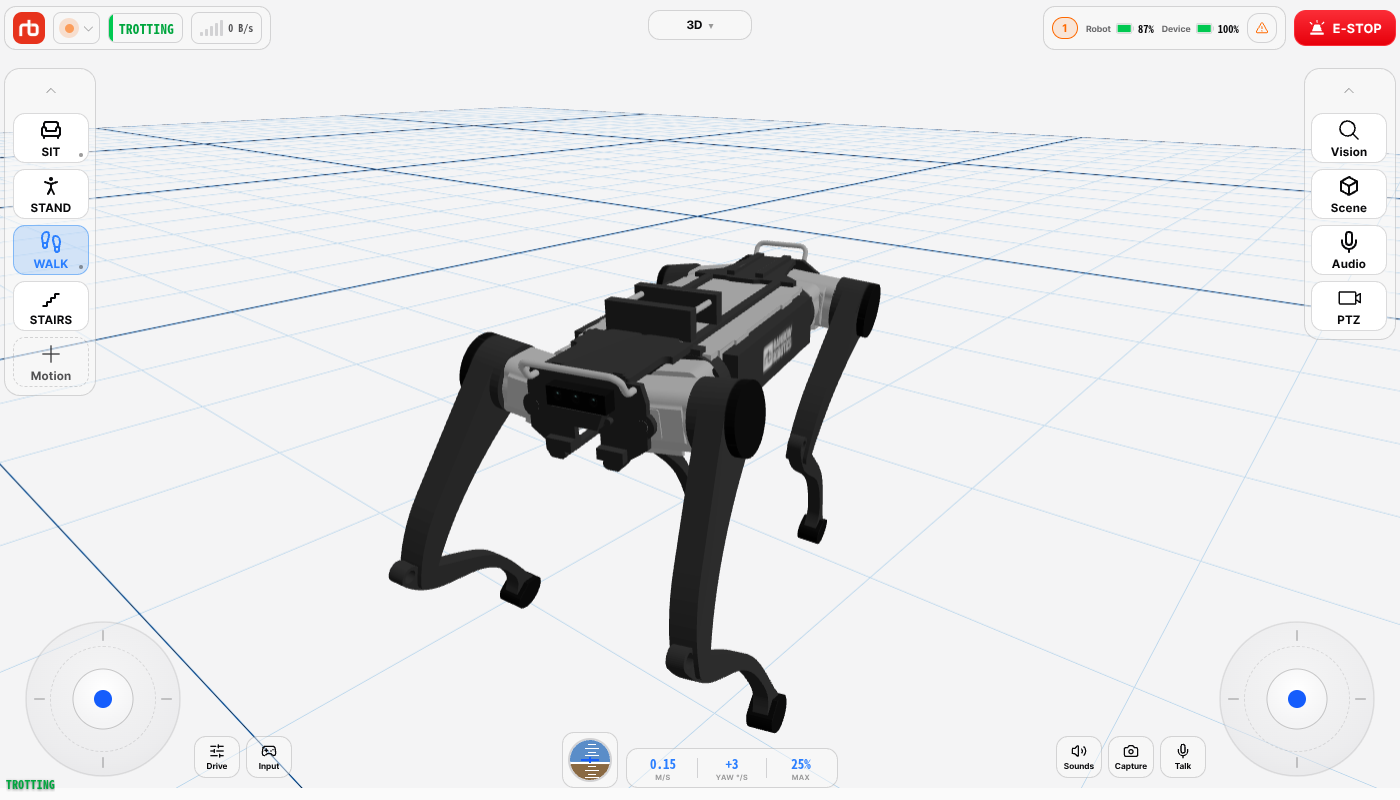
If the viewport is on 3D, it shows the robot's 3D pose rather than video — that is not a fault.

The viewport and its source name

Tap the source name above the center of the viewport to open the list and pick a camera source such as Front. The list contains only the cameras the robot actually reports, so if the source you want is missing, that camera is not reaching the robot — go to step 2.

Which devices each source needs is listed in Camera & Vision.

2. Check the vision status ​

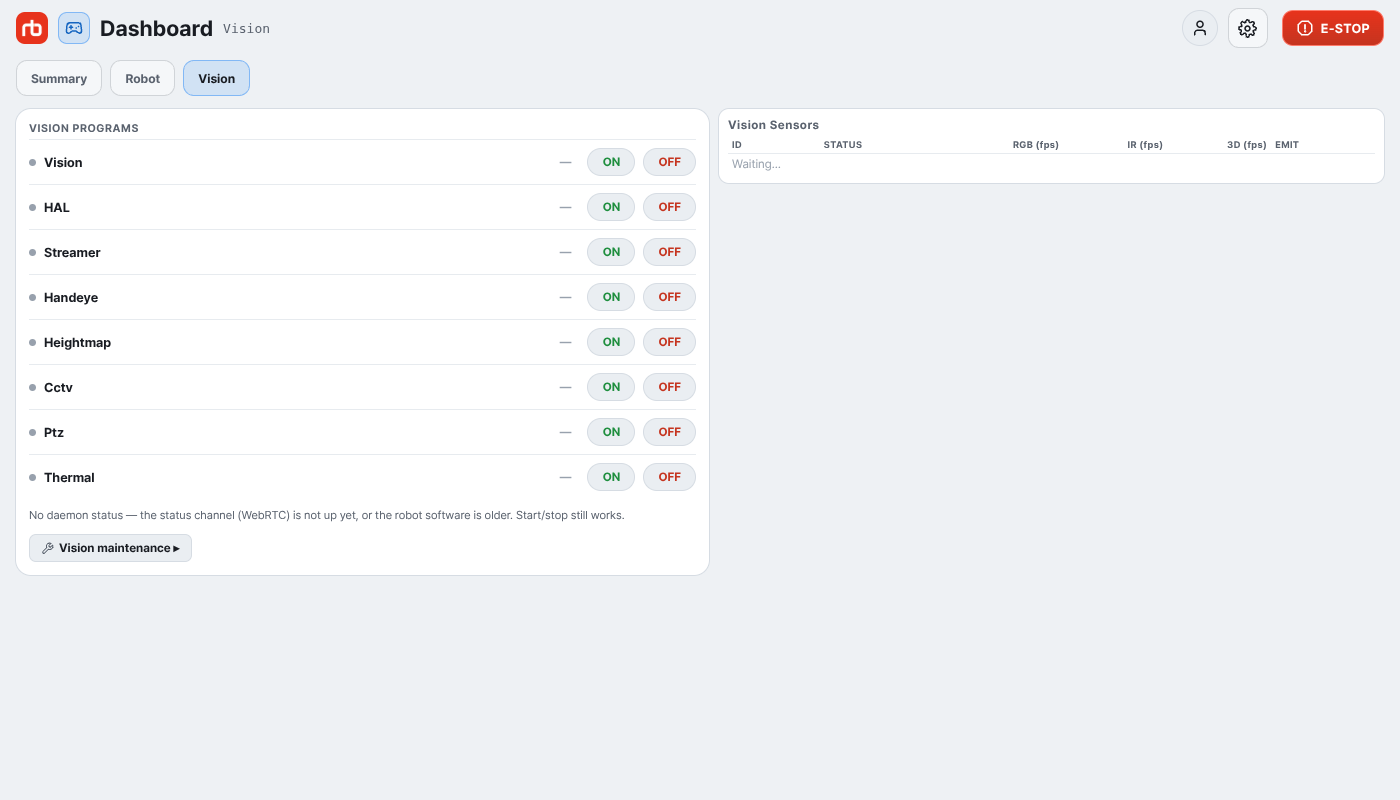
Open the Dashboard and go to the Vision tab — it is only visible in developer mode.

Dashboard vision tab

  • Look at daemon connection and sensor count first. With no daemon attached the whole video path is down.
  • In the Vision sensors table, check each sensor's STATUS and RGB / IR / 3D fps. An fps of 0 means no frames are coming from that sensor.

To start and stop the vision programs by hand, use Vision Programs under Maintenance → Vision (see Maintenance).

3. Check camera power ​

A camera with no power appears in neither the list nor the video.

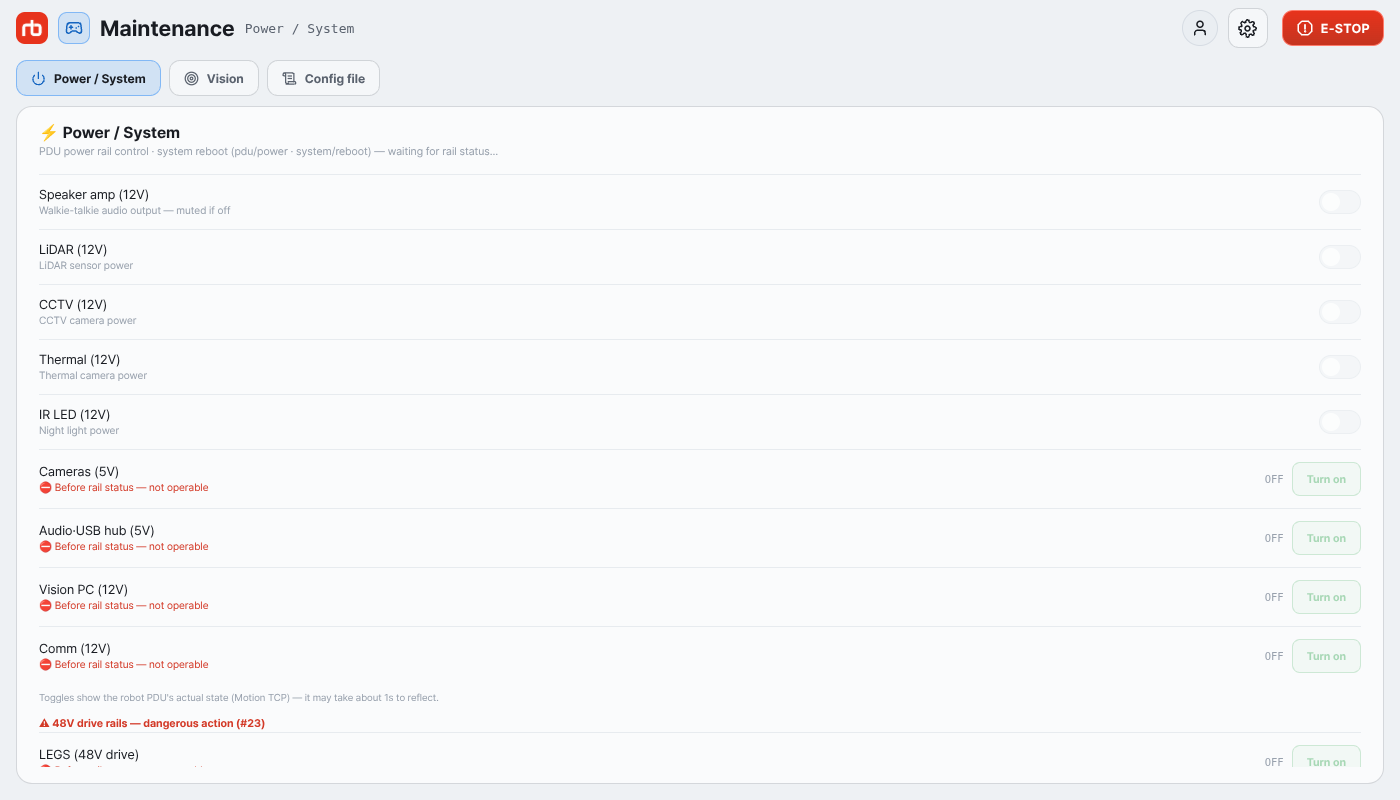
Maintenance power screen

Under Maintenance → Power / System, check that these are on.

ItemWhat it cuts
Cameras (5V)The body vision cameras — turning it off stops the video
Vision PC (12V)The vision PC — cuts the cameras, audio and part of the telemetry on this screen
CCTV (12V) · Thermal (12V)The color and thermal cameras of the PTZ unit

4. Try a lower resolution ​

On a weak wireless link the video may not come up at all. Tap the resolution tile on the Observation card at the right and drop to SQHD 540 or Economy 360.

5. Reconnect ​

If everything above is fine and there is still no video, make the connection again.

Go back to the hub with the logo at the top left, tap the robot name (▾), and tap the robot's row in Select robot to connect again. Once the dot is green and the status line reads Connected, check whether the video returns.

Right after a software update ​

Cause: After a robot software update without a reboot, the vision programs sometimes fail to start properly.

Fix: Reboot the robot — System reboot under Maintenance → Power / System.

CAUTION

Rebooting cuts motor power and the robot sags to the ground. Sit it down first, make sure it is resting on the floor, and do not move it until the reboot finishes.

Still stuck ​

Tell us how far through steps 1–5 you got, and which sensors showed 0 fps in the Vision sensors table.

→ Support

This user manual is intended for RBQ users.