Skip to content

Version rollback ​

When a new version causes a problem and you need to go back. Rolling back uses the same screen and the same steps as updating — pick a lower version from the list; nothing prevents it.

Before you roll back ​

  • Know the version number you want to go back to.
  • The app and the robot are separate targets. Decide which one you are rolling back.
  • Rolling back the robot requires a reboot, so work somewhere you can sit the robot down.

CAUTION

Robot software only takes effect after a reboot. Rebooting cuts motor power and the robot sags to the ground — sit it down first, make sure it is resting on the floor, and do not move it until the reboot finishes. While the robot is standing it ignores the reboot command and the app shows no error.

Rolling back the robot ​

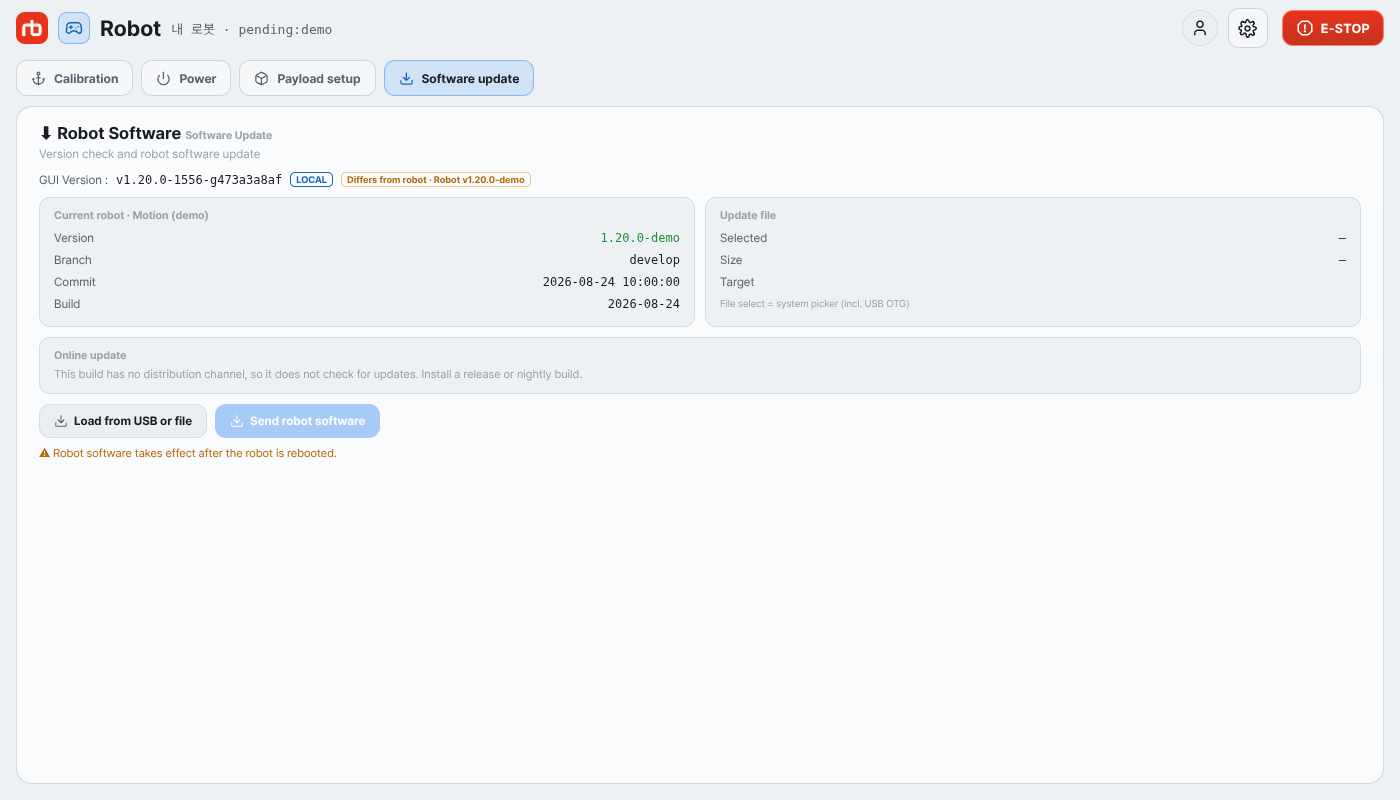
Maintenance → Software update

  1. Put the controller on a Wi-Fi network with internet (not the robot's).
  2. Open Maintenance → Software update.
  3. Press Check versions to fetch the list, then Download on the earlier version you want. The downloaded file stays on the device.
  4. Reconnect the controller to the robot Wi-Fi (the network starting with RBQ_).
  5. Check that the Update file card holds that version and that Target is Motion.
  6. Press Send robot software, then Send in the confirmation dialog.
  7. When the transfer finishes it offers a reboot. Sit the robot down, then press Reboot now.
  8. Reconnect and check that Version on the Current robot card is the version you rolled back to.

Every item on that screen is described in Software Update.

Rolling back the app ​

How you roll back depends on how the app was installed.

Install routeHow to roll back
Desktop · Steam DeckDownload the earlier version on the same screen, then switch to it with Install app on that row
Android (APK installed directly)Get the earlier APK from Downloads and install it
Google Play · App StoreStores do not offer earlier versions. If you must roll back, use the direct install above

The badge on the GUI Version line tells you which build you are on — no badge for a release, NIGHTLY for a nightly, LOCAL for a local build with no release channel. Only the last 10 days of nightly builds are kept, so you cannot roll back to a nightly older than that — pick a release version instead.

NOTE

Downloading a version needs internet; sending it to the robot needs the robot Wi-Fi. Download first, then switch networks.

Rolling back without internet ​

On a closed network, roll back from a file.

  1. Somewhere with internet, download the RBQ-<version>.tar.gz for the version you want and put it on a USB drive.
  2. On the software update screen press Load from USB or file and pick that file.
  3. Continue from step 5 of Rolling back the robot.

The file name must follow RBQ-<version>.tar.gz — the robot refuses anything else.

After rolling back ​

  • Check that the version on the Current robot card and the GUI Version are the ones you intended.
  • Stand the robot up and confirm the basic motions behave normally.
  • If there is no camera image, see No camera view.

Still stuck ​

Tell us the version before, the version you rolled back to, and the symptom that made you roll back.

→ Support

This user manual is intended for RBQ users.