Skip to content

Status Lights ​

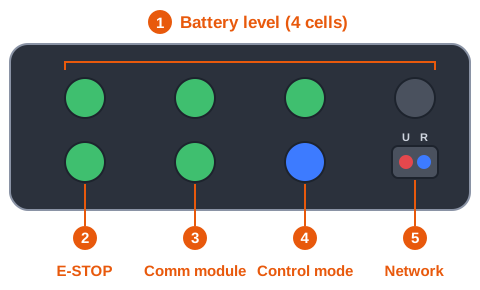
The lights on the top panel show the robot's state at a glance, even with no controller connected. The four cells of the top row are the battery level (1). The bottom row, from the left, is E-STOP (2), communication module (3), control mode (4) and network (5).

Top panel lights: 1 battery level (top row, 4 cells); bottom row from the left 2 E-STOP, 3 communication module, 4 control mode, 5 network
[ Top panel lights (schematic) ]
No.LightWhat it shows
1Battery (4 cells)Remaining charge, charging and battery faults
2E-STOPWhether the robot is in emergency stop
3Communication moduleWhether the robot PC can reach the communication module
4Control modeWho drives the robot, and docking
5NetworkData on the U-PC and R-PC network

For the first 10 seconds after power-on, every light except the network light is off.

Battery ​

The four cells show the charge left in both battery packs together. Each cell stands for 25 %, and a cell lights as soon as its share has started: 60 % lights three cells.

DisplayMeaningWhat to do
Green, steadyNormal. The number of cells is the charge left—
Red, steadyOne pack cannot be used: it is not detected, or the two packs are not sharing the load evenly. A pack that is not detected is left out of the charge, so the gauge shows at most two cellsCheck the packs in the app
One orange cell, fast blink10 % or less. The robot will shut down soonCharge now
All four red, fast blinkBattery protection is active: over-voltage, under-voltage, over-current, short circuit or overheatingStop the robot and check the battery in the app
All offNo battery information is coming inCheck the battery in the app

While charging ​

DisplayMeaning
Last lit cell, slow blinkCharging
All lit cells steadyCharging is complete (99 % or more), or the packs are full and charging has stopped
Last lit cell red, fast blinkCharging fault: the charging current has stayed below 0.2 A for 60 seconds while the charge is below 90 %. Check the charger or docking station connection

Battery health at power-on ​

If a pack's health (SOH) is below 80 %, all four cells light orange from 10 to 30 seconds after power-on. The pack still works, but it has aged. Plan to replace it.

Status lights ​

Each status light shows one thing. Green means normal.

LightGreen, steadyOther
E-STOPNormalRed, steady — emergency stop: the button, E-STOP in the app, a fall, or a critical fault. To recover, see Emergency Stop and Recovery
Communication moduleThe robot PC reaches the communication moduleRed, steady — the robot PC cannot reach the communication module, or the installed option reports a lost link (the dashboard's Option status card shows which). Check the module's power and cable
Control modeController modeBlue, steady — external control (SLAM or SDK) is driving the robot. Slow blink — docking, in the colour of the current mode

Robot PC starting or not responding ​

When the robot PC is off, the panel takes over the three status lights.

DisplayMeaningWhat to do
White, moving across the three lightsThe robot PC is startingWait. After a software restart this also appears for a short time
All three red, fast blinkThe robot PC is not responding: it stopped, or did not start within 2 minutesRestart the robot

Lamp test ​

The battery and status lights turn red, then green, then blue for 1.6 seconds when the robot software starts, and when you run Lamp test in the app (Maintenance). Use it to check that every light works.

Network light ​

The network light holds two small lights. Red blinks while data passes through the U-PC (user PC), and blue blinks while data passes through the R-PC (robot PC). The hardware drives this light directly, so it cannot be turned off. For the network layout, see Network.

This user manual is intended for RBQ users.