Skip to content

Dashboard ​

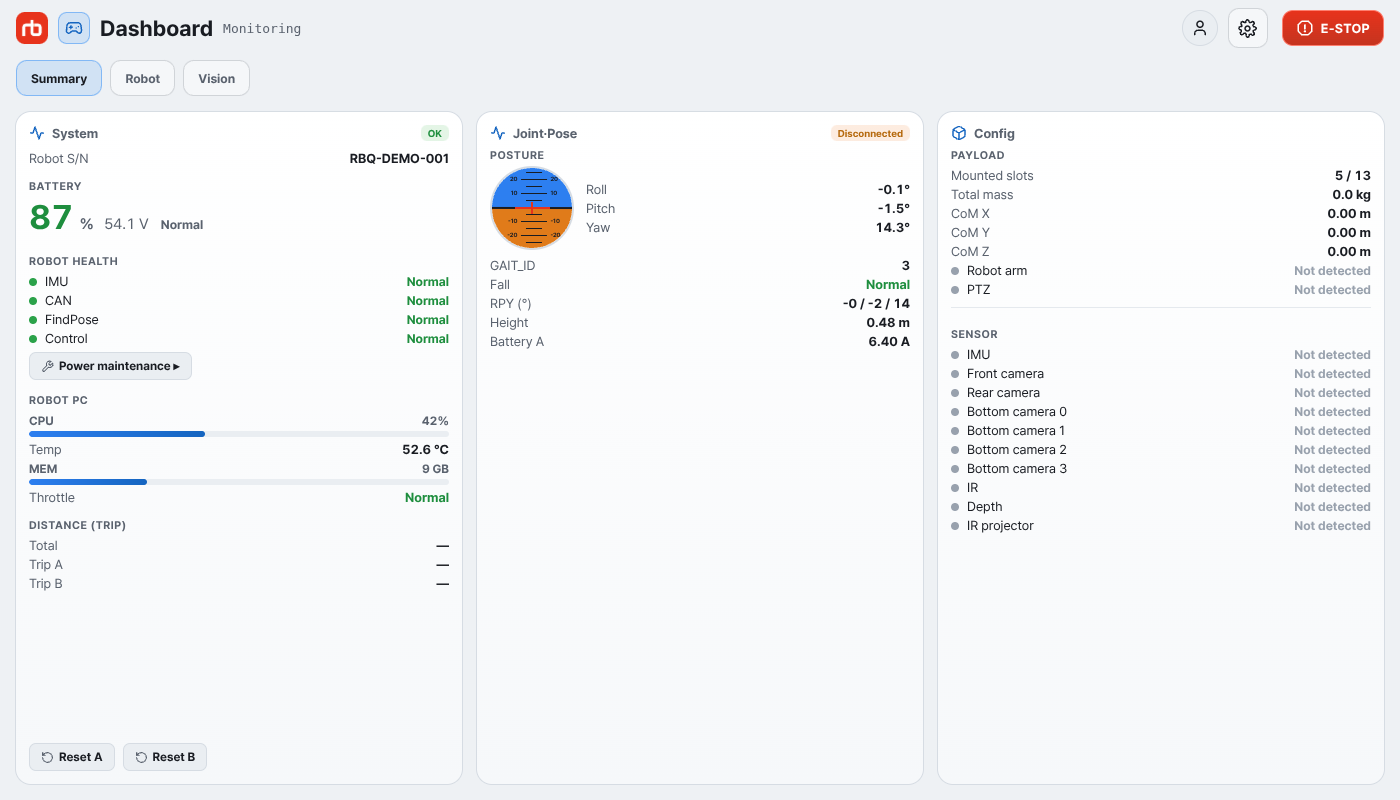
Open Dashboard with the Dashboard tile on the hub, which becomes active once the robot is connected. It lays the robot's live status out as cards, and in developer mode extra tabs add the robot state tables.

Dashboard summary

Summary cards ​

System ​

  • Robot S/N — the serial number of the robot you are looking at, at the very top of the card. It reads — while not connected, or when the robot runs older software.
  • DISTANCE (TRIP) — Total, Trip A, Trip B in m, with Reset A / Reset B buttons.
  • BATTERY — charge in % with the pack voltage and a status word:
    • Normal
    • Low — below 15 %
    • Low voltage — charge now — below 10 % and pack voltage under 47 V. The numbers turn red. Stop work and charge.
    • No signal — no battery data received (for example in simulation).
  • ROBOT HEALTH — IMU, CAN, FindPose, Control: each Normal or Check. The card badge reads OK when all are fine and Check otherwise.
  • ROBOT PC — CPU load bar, Temp, MEM bar, and Throttle (Normal / Throttled).

Joint·Pose ​

  • POSTURE — an artificial-horizon dial with Roll / Pitch / Yaw (only when the gyro widget is enabled in settings), GAIT_ID, Fall (Normal or FALL), RPY (°), Height in m, and Battery A (pack current).
  • The badge shows the control-link state: LIVE, Connecting, or Disconnected.

Config ​

  • PAYLOAD — Mounted slots, Total mass, and CoM X / Y / Z, followed by the attached gear, each Normal or Not detected: Robot arm and PTZ. RAPID-variant robots also list RCWS, RCGS, and CCTV.
  • SENSOR — IMU, Front camera, Rear camera, Bottom camera 0 – 3, IR, Depth, and IR projector, each Normal or Not detected.

A Radiation (KHNP) card appears only on KHNP-variant robots.

What developer mode adds here is collected on Developer mode.

  • Warnings and errors that affect these values are collected in Logs.

This user manual is intended for RBQ users.