Skip to content

Remote support (Chrome Remote Desktop) ​

To ask for remote support, email rbq.support@rainbow-robotics.com. The support team contacts you separately to set a time.

In remote support, you open one laptop on site to the team through Chrome Remote Desktop. The support engineer reaches the robot through that laptop. The steps run in order: prepare a laptop → connect it to the robot → install the program → hand over the access code.

⚠ Someone must stay by the robot during remote support

The engineer may restart the robot software or move the robot remotely. Until support ends, keep the area around the robot clear and keep one person beside it, ready to stop it at any time. See Emergency stop and recovery.

1. What you need ​

ItemDetails
LaptopWindows, macOS or Ubuntu, with the Chrome browser
InternetThe route the support team uses to reach the laptop
Robot networkThe robot's Wi-Fi (name starting with RBQ_) or a LAN cable into the switch hub
Google accountNeeded to install Chrome Remote Desktop
Person on siteSomeone at the laptop and by the robot, reachable by phone

2. Connect the laptop to the robot and the internet ​

The laptop has to be on the robot network and the internet at the same time. With only one of them, the support team can reach the laptop but not the robot.

RobotHow to connect
Has an LTE/5G moduleThe robot's Wi-Fi covers both
No LTE/5G modulePlug a LAN cable into the robot's switch hub, and take the internet from another Wi-Fi or a phone hotspot

Once connected, check that the laptop reaches the robot's motion PC.

bash
# Command Prompt on Windows, Terminal on macOS
ping 192.168.0.10

Replies mean it works. With no reply, check the robot's layout on Network diagram and make sure the laptop's address is in the 192.168.0.x range.

⚠ Keep the laptop awake

Sleep or screen lock drops the remote connection. During support, keep it plugged in, turn off sleep, and leave the lid open.

3. Install Chrome Remote Desktop ​

  1. In Chrome on the laptop, open remotedesktop.google.com/support.
  2. Sign in with a Google account.
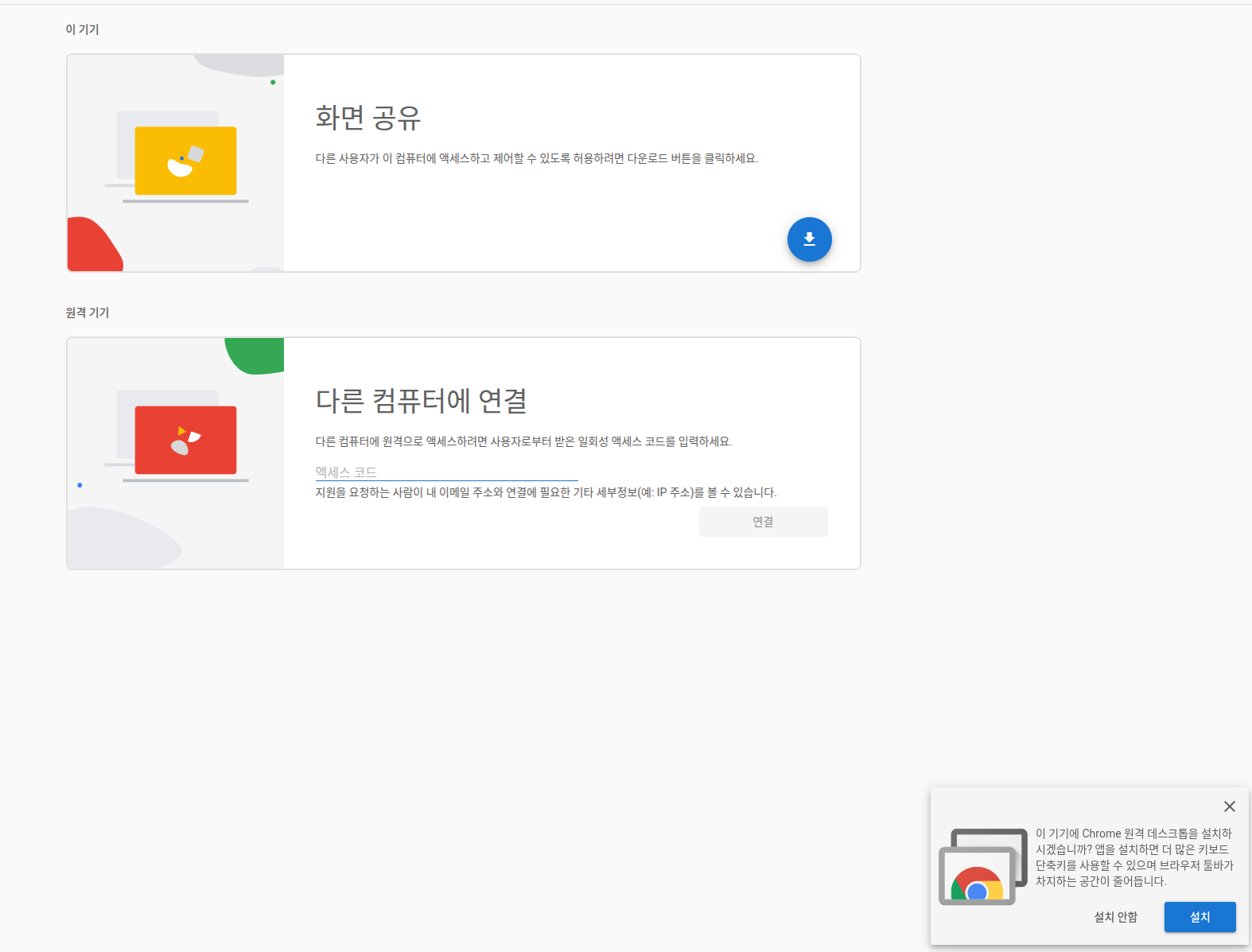
  3. When the Install Chrome Remote Desktop? prompt appears at the bottom right, press Install.
  4. Press the download button on the Share this screen card under This device, and install the extension and the installer as prompted.
  5. When the install finishes, a Generate Code button appears on the same card.
Chrome Remote Desktop — the Share this screen card and the install prompt at the bottom right
[ Install from the bottom-right prompt → download button on the Share this screen card ]

You install it once. From the next remote support on, start at step 5.

Installing on an Ubuntu laptop ​

On Ubuntu, the download button in step 4 saves a .deb file. Install it from a terminal.

bash
cd ~/Downloads
sudo apt install ./chrome-remote-desktop_current_amd64.deb

When it finishes, reload the Chrome page. A Generate Code button on the Share this screen card means it is installed. For details, see Use Chrome Remote Desktop on Linux in Google's official guide (Chrome Remote Desktop help).

4. Hand over the access code ​

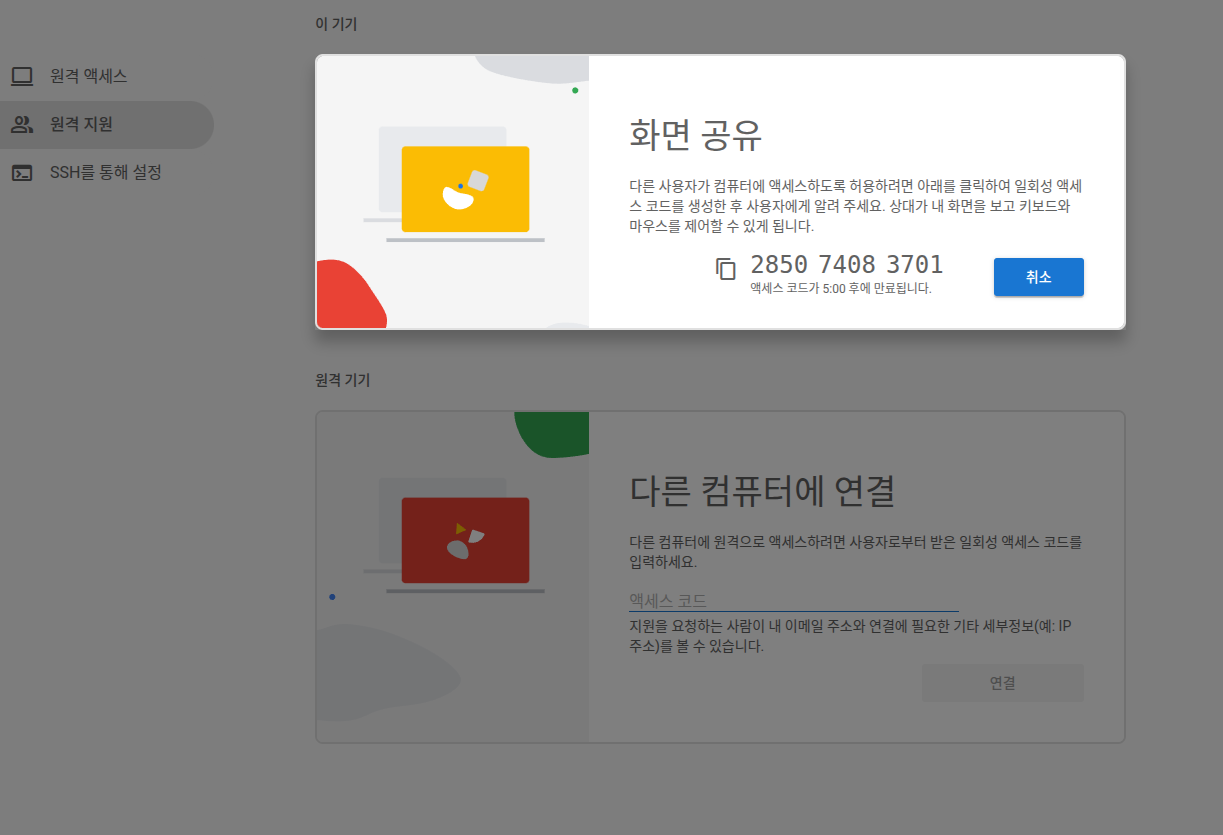
  1. While on the phone with the support team, press Generate Code.

  2. Read the 12-digit number on screen to the support team.

    Chrome Remote Desktop — the 12-digit access code on the Share this screen card
    [ The 12-digit access code and the time left ]
  3. When the team asks to connect, a confirmation appears on the laptop. Check the email address shown and press Share.

📝 The code is valid for 5 minutes

After that it disappears. Generate it once the team is ready to take it, and press Generate Code again if it expires. A code works only once.

5. During remote support ​

  • Do not touch the laptop's mouse or keyboard. Input from both sides gets mixed.
  • Do not drive the robot from the app unless the support team asks you to.
  • Every 30 minutes the laptop asks whether to keep sharing. If the team is still working, choose to continue. With no answer, the connection drops.
  • If the team says it will sit or restart the robot, check that nobody is near it and tell them.

6. Finish ​

  1. When the team says it is done, press Stop Sharing on the laptop.
  2. Start the robot again as the team instructs and check that it behaves normally.

Once sharing stops, the team can no longer reach the laptop. Next time needs a new code.

See also ​

This user manual is intended for RBQ users.