Skip to content

Joystick does nothing ​

Buttons such as sit and stand work, but moving the sticks does not move the robot. Usually either control is held elsewhere, or the app never picked up the gamepad.

First checks ​

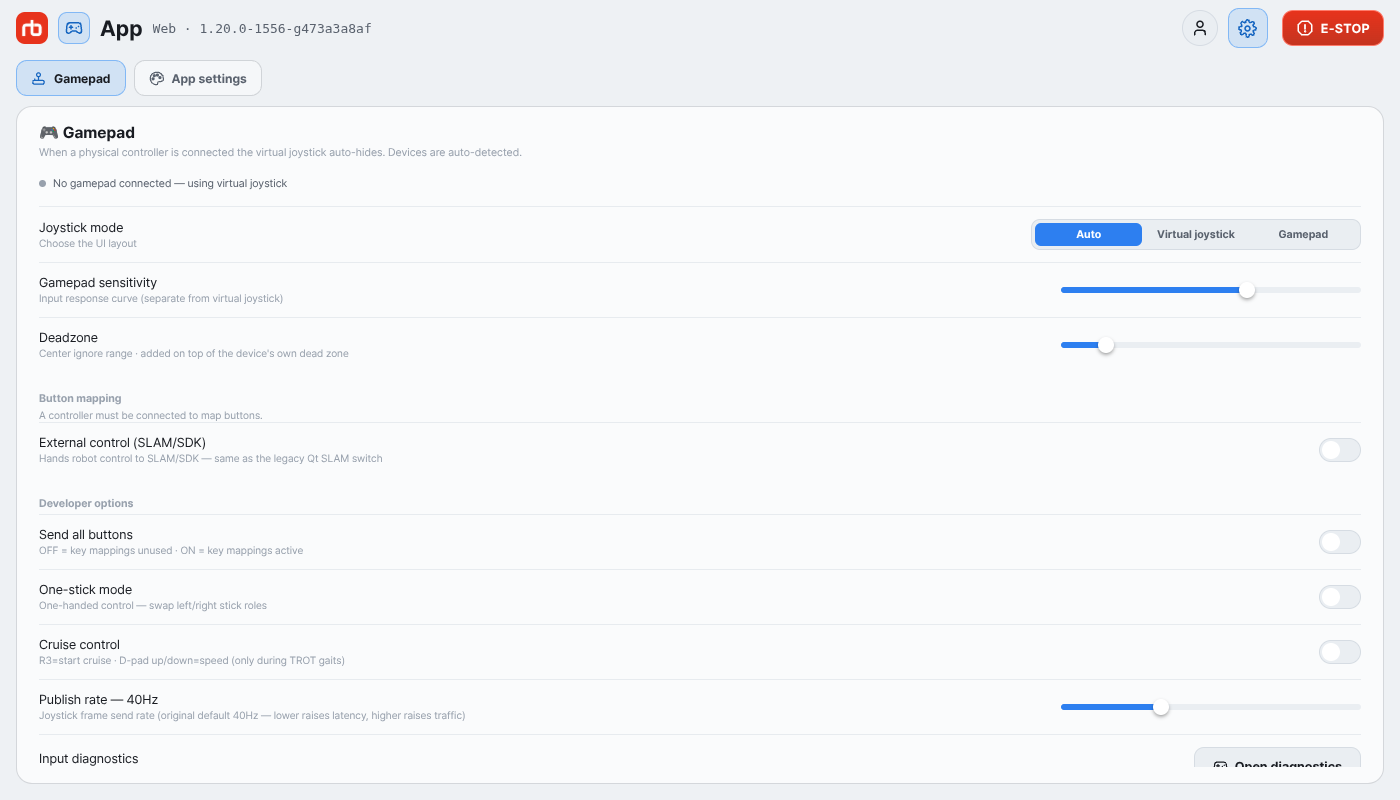
Open Settings → Gamepad. The status line at the top says exactly where you are.

Gamepad settings

Status lineMeaningWhat to do
Connected + device nameThe pad is being readGo to Ownership below
No gamepad connected — using virtual joystickThe pad was not picked upSee Pad not detected below

If Active profile: names the wrong device, the stick layout is off and controls behave oddly — build a profile for your device with the Mapping Wizard in Settings → Gamepad (developer mode required).

The pad is not detected ​

  • Press a button once. For privacy reasons, browser and desktop builds only expose a device after a button press. Moving the sticks is not enough — this is the most common false alarm.
  • Reconnect over USB or Bluetooth. On connection the app picks the device up immediately and hides the virtual joysticks.
  • Check the joystick mode. With Joystick mode set to Virtual joystick, the screen keeps the virtual sticks even with a pad attached. Set it back to Auto. The same choice is in the Input popover on the left card of the control home.
  • Steam Deck must be launched in gaming mode (or through the Steam client) for the built-in pad to be visible to the app. Launched directly from desktop mode, the pad is emulated as mouse and keyboard and the app never sees it.

The on-screen input moves but the robot does not ​

Cause: Another device holds ownership. The robot accepts input from one device at a time.

Fix: When another device holds it, after about a second the app switches to spectating and shows the Spectating button at the top center — tap it and choose Take control. See Spectating. If the button did not appear, tap the status chip in the top bar and look at the Ownership row of Overall system status: Take ▸ means this device is not the owner.

NOTE

With External control (SLAM/SDK) enabled in Settings → Gamepad, the robot follows an external program and ignores joystick input. The status chip in the top bar then shows SLAM. (The setting is visible in developer mode only.)

The robot stops mid-manoeuvre ​

Cause: If no joystick input arrives for more than one second, the robot zeroes every control input as a safety measure. A brief wireless dropout stops the robot where it stands.

Fix: Move closer to the robot and keep metal structures and walls out of the path.

NOTE

This is a safety feature, not a fault. It exists so the robot does not keep moving after the control signal is lost.

The sticks work but the buttons do not ​

By default the app forwards only the sticks and L1 · R1 to the robot. The other buttons are left out on purpose so a stray press cannot trigger a robot action — this is not a fault.

To attach actions to buttons, use Button mapping in Settings → Gamepad, or enable Send all buttons in developer mode. See Gamepad for the details.

It only fails in stair mode ​

Cause: Stair mode runs on camera data. With no camera image, the joystick can appear dead.

Fix: First check that the video is coming through — see No camera view.

If the video is fine and only stair mode fails, see Stair mode does not move.

Still stuck ​

Check whether anything appears in Logs → Real Time while you operate, and tell us what the status line in Settings → Gamepad said.

→ Support

This user manual is intended for RBQ users.