Skip to content

Developer mode ​

The app runs at the operator tier by default. Turning on developer mode adds diagnostic, configuration and maintenance features to the screens. Everything that only developer mode opens is collected on this page — the other pages cover what everyday operation needs.

CAUTION

Developer mode exposes commands that move the robot without the usual safeguards (joint lock, forced postures). Turn it on only when you need it, and read each warning before you act.

Turning it on and off ​

  1. Tap the profile button at the top right of the hub.
  2. Turn on the Developer mode toggle. The subtitle reads Password required to turn on.
  3. Type the password in the Developer mode password dialog and press Check. A wrong password shows Incorrect password and clears the field.

Turning the toggle off returns to the operator tier immediately.

WARNING

The password is issued individually by Rainbow Robotics. It is not printed in this manual — do not share the one you were given. To request it, use Support.

When an account sets the tier ​

Logging in with an access code (Log in with access code in the profile menu) sets the tier from your account. While logged in the profile menu shows the account and its level instead of the Developer mode toggle. Press Log out in the same menu to return to the normal tier.

The app checks the account with the server again each time it starts or comes back to the foreground. If the account was disabled or deleted, or its code changed, the app logs out. With no internet nothing changes until the next check that reaches the server.

What each screen gains ​

ScreenAdded in developer mode
Control homeExternal-control toggle in the Input popover · the Avoid tool button
Motion commandsPosition control group (forced postures)
GamepadSensitivity, deadzone, button mapping, external control, developer options, diagnostics, wizard
DashboardRobot, Vision and R-PC tabs; power added to the summary
ConnectionConnect by address card on Android and iOS · Vision PC IP (optional) field
Emergency stopForced recovery through Position control
Update › Firmware updateThe Board status table at the bottom — updating one board or the motor group
Maintenance › PTZ CheckStart basic check and Start aging check — steps 1–18, saving the current zeros again
MaintenanceVision, Config file and Arm sections
Maintenance › Power / SystemBottom status LED dialog: Keep off · Keep on · Blink, R, G and B (0–255), on and off times (10–2550 ms) and a repeat count (0 blinks forever) — operators pick only Keep off and the Recommended values
LogsNothing — this screen does not change with the tier

Control home ​

When an arm is detected, developer mode also shows Arm auto start in the system-status popover. It runs separately from leg auto start and is unavailable in the built-in physics simulator. Confirm with the robot stopped and the arm area clear: this can power-cycle the arm and release brakes, causing loss of holding torque. Request acceptance and status indicators do not confirm completion; check actual arm status and logs.

  • The Input popover gains the External control (SLAM/SDK) toggle, which hands driving over to an external program. The SLAM chip in the top bar shows while it is on and turns it off again.

  • The tool buttons gain Avoid, next to Input. It opens the Obstacle Settings panel:

    • Obstacle Map Generation — the main switch. While it is on, the robot builds the obstacle map and the viewport shows what you pick under Display: Front camera, Rear camera, 3D and 2D. Pick as many as you like and the viewport splits between them; at least one stays selected. The 2D pane shows Waiting for obstacle map data until the robot sends a map.
    • Obstacle Avoidance — while it is on, the robot handles obstacles in its path. It can be turned on only while Obstacle Map Generation is on; until then Please generate the obstacle map first shows next to it.
    • Avoidance mode — Avoid steers around the obstacle; Stop stops in front of it.
    • Obstacle Clearance — the distance the robot keeps from obstacles, 0.20 – 0.50 m.
    • Avoidance Range — how far to the side the robot may go to get around an obstacle, 0.50 – 1.00 m. It applies to Avoid only.

    The rows below Obstacle Avoidance are greyed out until both switches are on. The slider values are sent when you release the slider. The button does not appear in the simulator.

→ Control home

Motion commands — Position control ​

The Select motion grid gains a Position control group. (The AI motion group is open to every level — see Motion commands.)

Position control — Lock Joints, Position Sit and Position Stand — forces a posture without the normal transitions. The same items are in the long-press list under SIT. On wheeled robots the Precision·Calib group also offers HIGH SPEED.

CAUTION

Position control changes posture with no trajectory. Use it only on flat ground with the robot on the floor. It exists for cases where the normal recovery does not work.

→ Motion commands · Emergency stop

Gamepad ​

The following appear in Settings › Gamepad.

Response

  • Gamepad sensitivity — input response curve for the physical sticks (separate from the virtual joystick setting).
  • Deadzone — center ignore range, added on top of the device's own dead zone.

Button mapping — tap a button on the controller diagram to assign a robot motion to it; the D-pad and stick-center buttons can be mapped too. Mapped buttons are listed under the diagram with an × to remove them. A controller must be connected, and the diagram lights up as you press buttons.

External control (SLAM/SDK) — hands robot control to an external source. The switch reflects the robot's real state, so it also updates if another client flips it. The same switch is in the Input popover on the control home.

Developer options

RowEffect
Send all buttonsOFF = only L1/R1 reach the robot (the safe default). ON forwards every button, which is what makes chords such as L1+B work. It turns on when you enter developer mode and back off when you return to the normal level
One-stick modeOne-handed operation — swaps only the horizontal axes of the two sticks (vertical stays on each)
Cruise controlR3 starts cruise, D-pad up/down changes speed. Works only during TROT-family gaits
Publish rate — {hz}HzJoystick frame rate (40 Hz by default). Lower adds latency, higher adds traffic
Input diagnostics › Open diagnosticsThe Gamepad diagnostics screen — Connected devices (name, VID:PID, axes), live Axes (raw) bars and a Button events key-code log. Use it to check an unknown controller before mapping
Mapping Wizard › Start wizardFollow the prompts to build a profile for this device — for unknown controllers or when the stick layout is wrong
Delete wizard profileShown only when the connected device has a wizard profile. Deletes it and returns to auto-detection

CAUTION

Send all buttons and Cruise control change how the robot responds to button input. After enabling it, try it in an open area first and stay within reach of E-STOP.

→ Gamepad

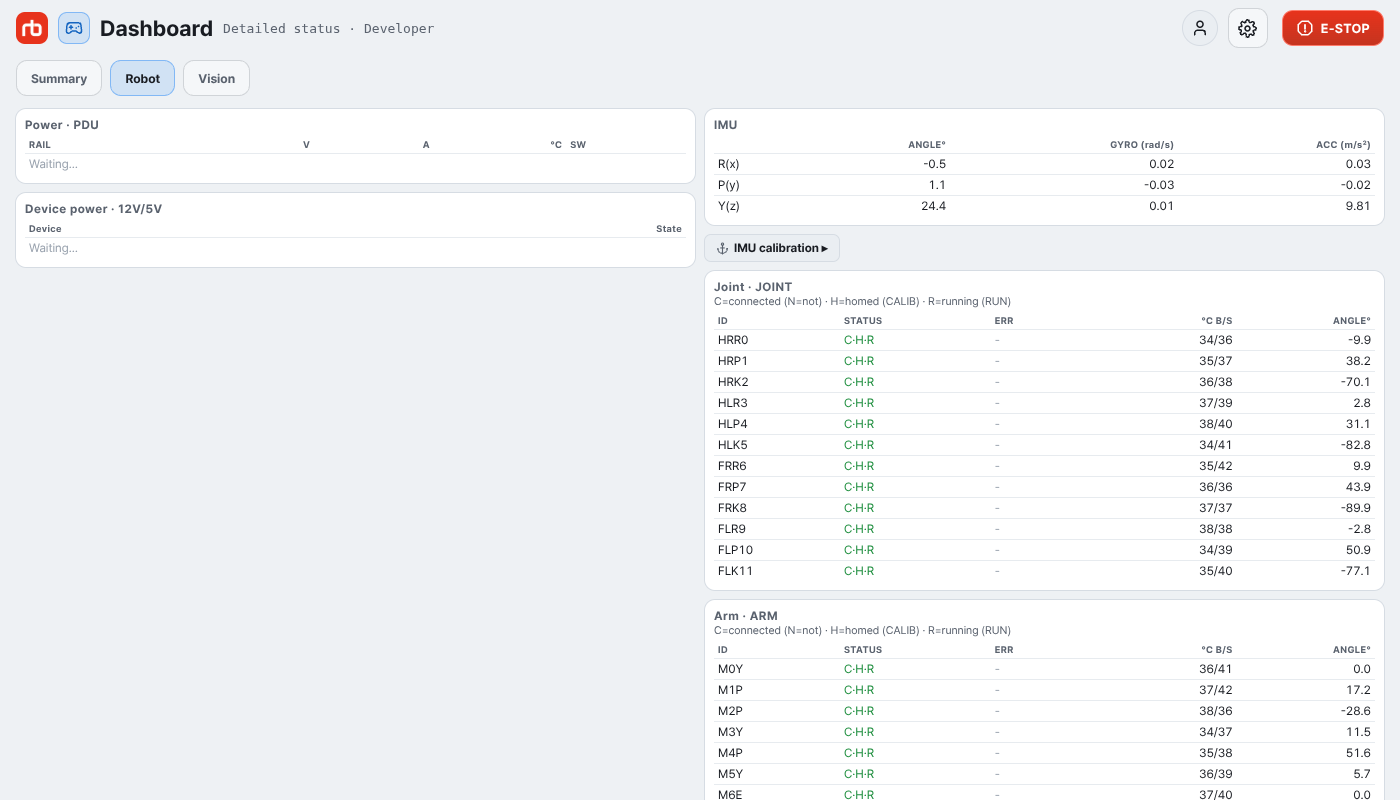
Dashboard ​

Robot state tables

Four tabs appear under the title: Summary, Robot, Vision and R-PC. The summary also gains Power maintenance ▸ (System card).

Robot tab tables:

  • Power · PDU — the title also shows the PDU battery percentage; per rail (TOTAL, BAT L, BAT R, LEGS, ADDON, EXTERN, CHARGE): voltage, current, temperature and Status (ON / OFF). On the CHARGE row the Status column names what is active: Dock / Port.
  • Device power · 12V/5V — Status (ON / OFF) of each device rail.
  • IMU — ANGLE°, GYRO (rad/s), ACC (m/s²) for R(x), P(y), Y(z), with an IMU calibration ▸ shortcut underneath.
  • Joint · JOINT — one row per joint: ID, STATUS, ERR, °C B/S (board / stator), ANGLE°, Nm (joint torque), A (motor current), KP (Nm/rad) and KD (Nm·s/rad) (joint gains in physical units). STATUS reads C·H·R — C connected (N not), H homed, R running. Green = running and homed, amber = running only, red = otherwise. Temperature turns amber at 60 °C and red at 70 °C, and current turns red past ±15 A. A robot running older software does not send current or gains, so on such a robot those columns mean nothing — update the robot to read them.
  • Arm · ARM — the same columns for the arm joints, shown when an arm is attached. Its current limit is ±5 A.

Vision tab — the Vision programs list with Vision maintenance ▸, and the Vision Sensors table (STATUS, RGB / IR / 3D fps, EMIT).

R-PC tab — everything the robot PC reports about itself, in four cards:

  • Host — Robot Software (the installed RBQ version); tap it (▸) for Hostname, OS, Kernel, Architecture and Package system. Then Last boot, Uptime, Boot history; a usage bar per disk under Storage; and under Memory, the MEM bar — tap it (▸) for the SWAP bar and Processes (memory), each RBQ program's memory, largest first. The badge reads PREEMPT_RT on a real-time kernel and Non-RT kernel otherwise.
  • CPU — Temp, Throttle and Cores; tap Cores (▸) for Model, Isolated cores, Clock (current / max MHz), Load (1/5/15 min) and Throttle count. Then a Usage bar — the whole CPU's usage, amber at 80 % or more. Tap the bar (▸) for Role core usage — one bar per core the robot software pins a job to, named by its core number and role (daemon, task, can, comm, irq, heightmap) — and Processes (CPU), each RBQ program's CPU share, busiest first.
  • Network — each network port with its state, IPv4, Link speed (amber Half duplex on a half-duplex link), Signal (dBm) on WiFi and Traffic (receive ↓ / send ↑, averaged over 5 s). Tap Detail ▸ for the rest (the folded row turns amber, Detail — errors present, when a hidden value has errors): MAC, then the same values as ifconfig: RX and TX (packets · bytes), RX errors and TX errors (errors · dropped · overruns · frame / carrier · collisions — amber when there are errors), Flags, MTU, txqueuelen, Device (driver · bus address) and Interrupt · Memory. A CAN port also shows CAN state (ERROR-ACTIVE green, ERROR-WARNING and ERROR-PASSIVE amber, BUS-OFF red), Bit rate (including the data phase), Error counters, Bus events and Auto restart.
  • Events — what happened to the robot PC in the last 10 minutes, newest first: Throttle (red), High temp (amber, from the CPU's warning temperature — 10 °C below critical when the CPU gives none), CPU load ≥ 80 % and Swap ≥ 50 %, each with how long it lasted and its peak. With none, it reads Nothing unusual in the last 10 minutes.

Under the cards, four tiles show the robot PC's CPU now, each with a line of the recent minutes: CPU usage, CPU temp, CPU power and CPU clock. A tile turns amber or red with a label (Overload, High temp, Throttle) when that value is out of range. Tap a tile to open its graph below; tap it again to close it. The robot keeps the last 10 minutes, one sample a second.

  • trend — the tile's value over 1 min, 5 min or 10 min, with a second dashed line (for example Hottest core). Throttling shows as a red band; CPU temp has a dashed Warning line (the CPU's warning temperature, or 10 °C below critical when the CPU gives none). Hover or drag for the value at that second. On CPU usage, CPU temp and CPU clock, tap cores under Cores to add each as its own coloured line; Clear selection removes them. The choice stays when you switch tiles.
  • Per core — every running thread over time, one row each in core number order, the robot's pinned cores in bold with their role. Show Usage, Clock or Temp, in Turbo or Heatmap colours. Tapping CPU usage, CPU temp or CPU clock switches this view to that value.

A robot running older software doesn't keep this record; the tiles are replaced by The robot runs older software and does not send performance history.

A robot running older software sends only the live values (temperature, cores, memory, processes, uptime); the card says so and the other rows read —. Update the robot to see them.

→ Dashboard

Connection ​

On Android and iOS, Add robot gains the Connect by address card (the web build, the desktop app and Steam Deck always show it). A collapsed Vision PC IP (optional) appears under it, for robots whose vision computer has its own address. Leave it blank to use the robot IP. It is saved with the robot IP when you connect.

Overall system status lists each problem on its own line with the part, the reading and the limit — for example HRK2 motor disconnected or HLK5 motor temperature 84°C (limit 80°C) — and the red Needs check: banner names the first fault and how many more there are (+2 more). Camera items open Maintenance › Vision.

→ Connection

Emergency stop — forced recovery ​

The Select motion grid — opened with the dashed Motion button — has a Position control group for cases where the normal recovery does not work. Lock Joints, Position Sit and Position Stand force a posture without a trajectory, so use them only on flat ground with the robot on the floor. The manual joint-by-joint recovery panel is reserved for internal use.

→ Emergency stop

Firmware update — board status ​

The Update › Firmware update screen also shows a Board status table at the bottom. It has six rows (PDU, IF, SIDE_F, SIDE_H, TOP and Motor), each with Board, Mode, hw, Board ver., File ver. and Verdict. The 16 leg motors must all run the same firmware, so they share the one Motor row.

  • Mode reads plain App while the board runs normally. Otherwise it shows a Boot, Boot (no app), Standby or Updater badge, and None for a board that does not answer. Updater is a motor left in the updater by an interrupted boot replacement. The motor row gives the number of motors left in boot.
  • Verdict is one of Latest, Updatable, Downgrade, Same version, No file, hw unknown, no response, Not managed and Not checked. The motor row reads Legs unpowered when leg power is off and no motor answers, and gets a Mixed badge when the motors run different firmware. A board left in boot with hw unknown gets an orange badge and can be updated.
  • Tap a body board row to expand its slot number, hw state, firmware target, boot version, the file the robot picked and the reason. What the update will do to the board (send it from boot to its app first, switch it to the matching variant) appears here too.
  • Tap the Motor row to expand the 16 motors with joint name, mode, app version and verdict. It is there to show which motor differs; you cannot update one motor from here.
  • Rows marked Updatable or Downgrade, and boards left in boot, have an Update button that updates that board. Update on the Motor row updates the motor group. It needs the same conditions as Update all above (the robot sitting or its control off, and no other device holding control) and opens the same confirmation. Other boards that need checking do not block it.
  • Power when updating one board: the PDU is updated with leg and arm power cut. The motor group turns leg power on and off again when done. Without control, IF, SIDE_F, SIDE_H and TOP leave leg and arm power alone. The confirmation says which case applies.

→ Update

PTZ Check — full checks ​

Maintenance › PTZ Check gains Start basic check and Start aging check next to Start check. Both run steps 1–18: step 6 measures the current zeros again and saves them, and the preset steps (11, 18) run only if you agree in the start dialog. The aging check then soaks the axes (30 min, 2 h or 12 h) and runs the recheck (20) before the final report.

→ Maintenance

Maintenance — developer sections ​

The Maintenance screen shows Vision, Config file and Arm only in developer mode. Power / System, Calibration, Robot Check (with remote check at its bottom), Firmware update and Software update are there for everyone.

Everything in the developer sections can cut the connection, drop the robot or change how its daemons start. Read each warning before you press anything.

→ Maintenance

This user manual is intended for RBQ users.