Skip to content

Media ​

Take photos and record video from the robot's cameras, record sound, and play sounds through the robot's speaker. Every file is stored on the robot; the app lists them, plays them, and downloads them.

On the control home ​

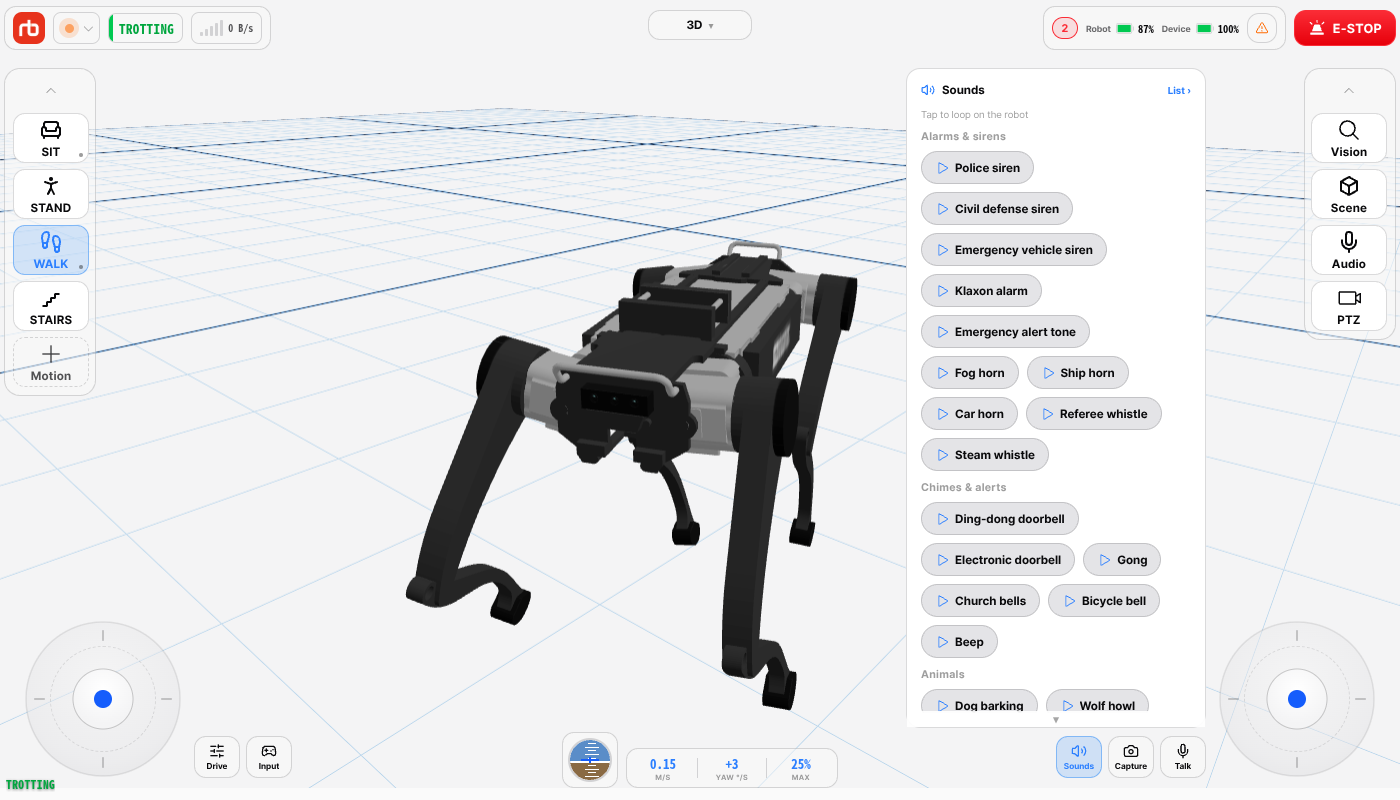
Two buttons sit to the left of the Talk button in the lower-right corner of the control home. On a narrow screen they stack above Talk.

ButtonWhat it does
SoundsOpens a sound list. Tap one and the robot plays it on a loop; tap it again or tap Stop to end it. A green dot on the button means a sound is playing. The robot stops on its own when every app disconnects or after 30 minutes.
CaptureOpens a choice between Photo and Record. Photo saves front and rear camera photos; Record starts a video recording. While it records the button turns red and shows the elapsed time; tap it to save.

A notice at the bottom of the screen reports each photo and recording.

Sounds popover

The Sounds list holds the built-in sounds, the sounds you uploaded (My sounds), and your eight latest recordings (Recent recordings). Tap List at its top right to see everything on the media screen.

Opening the media screen ​

Tap the Media tile on the hub. It opens only while a robot is connected. Pick Photo, Record, Black box, Recording, or Sounds from the list on the left. On a narrow screen such as a phone the list becomes tabs along the top. A red dot on an item means a recording is running there.

Photos ​

Tap Take photo to save front and rear camera photos together. Each shot is one card, grouped by day with the newest on top. Tap a card to view it large, and Download to save it on this device.

Recordings (video) ​

Tap Start recording to record the front and rear cameras together, at 10 frames per second for up to 30 minutes. Tap again to save; the front and rear cameras each leave one file. This is the same as Record under Capture on the control home.

In the list, the front and rear files of one recording share a row. Tap Front or Rear to watch, and switch cameras at the top while watching. Download saves both files.

Black box ​

Video the robot records continuously on its own, saved in 30-minute pieces. Tap a file to play or download it.

Sound recordings ​

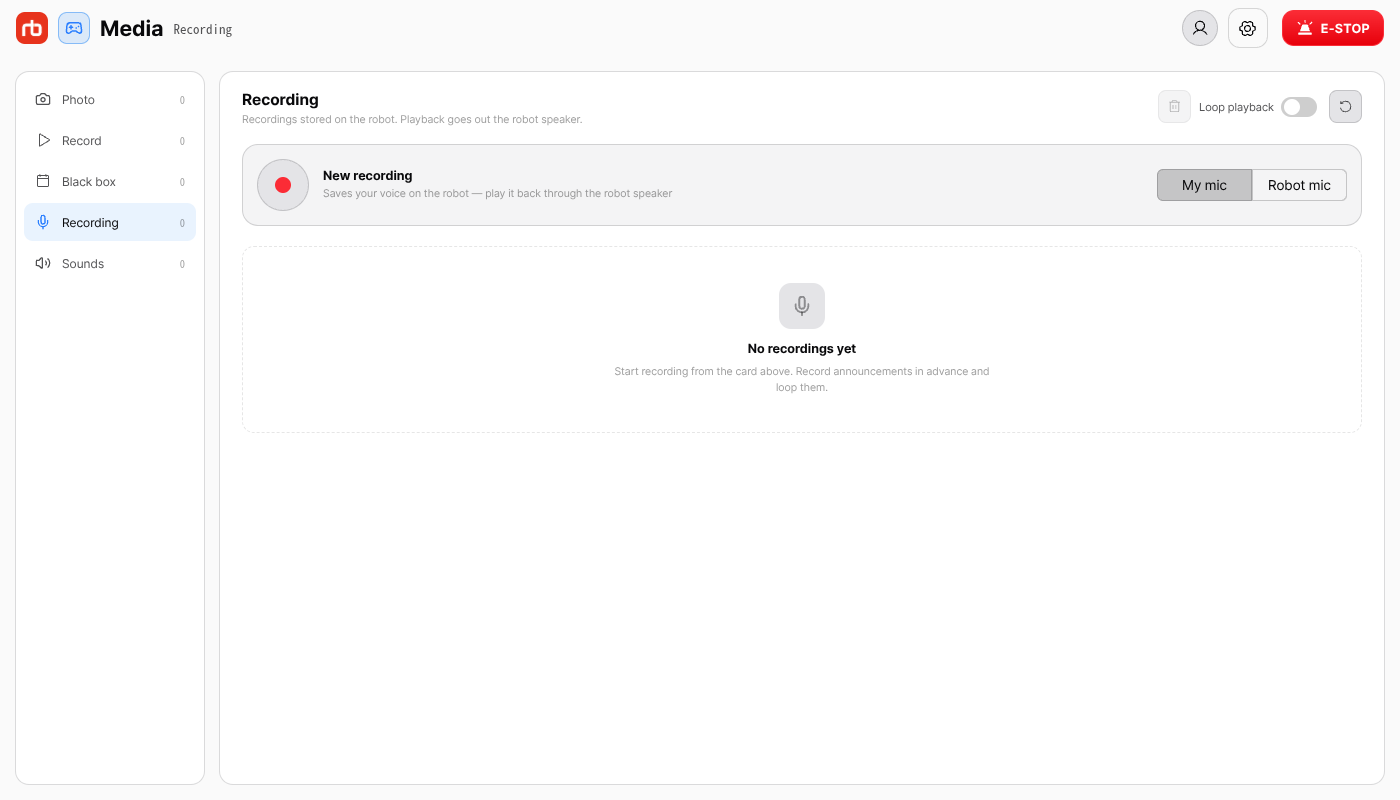
There are two kinds of sound recording. Choose one before you start.

ChoiceWhat it captures
My micWhat you say into Talk while the recording runs. Record an announcement ahead of time and play it on a loop through the robot's speaker.
Robot micWhat the robot's microphone hears.

If the robot has no microphone device, the choice does not appear and you record with My mic only. The robot briefly listens to its microphone input when it starts, and once a minute while you are on an audio screen. If it hears almost nothing, The robot mic is picking up almost nothing — check that a microphone is plugged in appears. This is only a notice — listening and recording still work.

If a recording turns out almost silent, a notice appears when you stop it. For Robot mic it reads That recording is almost silent — check that a microphone is plugged into the robot: the robot's audio board records even with no microphone plugged in, so this notice is how you find out. For My mic, make sure you held Talk and spoke while recording.

Recording

Tap Play on robot in the list to play a recording through the robot's speaker. Switch on Loop playback to repeat it until you stop it. You can also start a recording from the audio popover (Audio).

Deleting ​

You can delete files from the robot under Photo, Record, Black box, Recording, and My sounds. Tap the trash can (Delete files) at the top right of a section to start selecting. Tap the items to delete, tap Delete, then tap Delete again to confirm. To delete everything, tap Select all and then Delete. Tap Cancel to leave selection.

A photo or recording keeps its front and rear files as one item, so both are deleted together. Files that are still being recorded are skipped, and the app tells you how many were skipped. Deleted files cannot be recovered.

Sounds ​

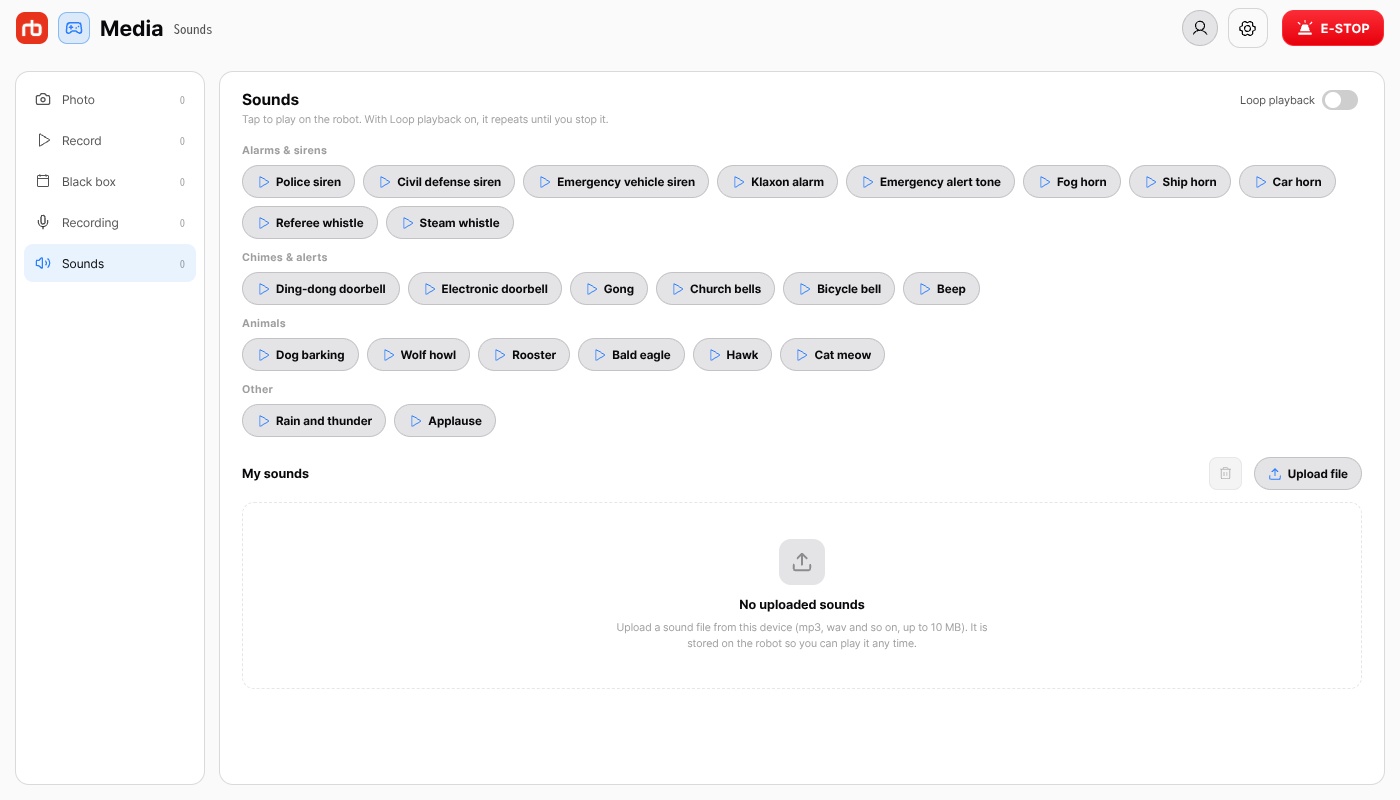
Sounds

Built-in sounds grouped into alarms and sirens, chimes, animals, and other. Tap one to play it on the robot. A sound you play for the first time is uploaded to the robot first, so it takes a moment. Switch on Loop playback to repeat it until you stop it.

Under My sounds, Upload file puts a sound file from this device (mp3, wav and so on, up to 10 MB) on the robot so you can play it any time.

Sound goes where audio goes: through the PTZ speaker when a PTZ camera is fitted (Where the sound goes).

This user manual is intended for RBQ users.