Skip to content

RBQ App ​

Downloads ​

Get the RBQ app from the Downloads page — Google Play for Android, the App Store for iPhone and iPad, and an AppImage for Linux desktop and Steam Deck.

What the app is ​

The RBQ app is the operator application for the RBQ quadruped. Once connected to the robot you can change its posture (sit, stand, walk, stairs and more), drive it with on-screen or physical joysticks, watch the robot's cameras or a 3D view, and check battery, connection and system status.

One app runs on every supported device:

PlatformPackageNotes
Android tablet / phoneAPKTouch joysticks; a Bluetooth/USB gamepad can be used instead
iOS (iPad / iPhone)App Store / TestFlight buildMFi gamepads are supported
Linux desktopAppImageKeyboard, mouse and gamepad input
Steam DeckAppImage (Gaming Mode)Built-in controller is used as the gamepad

Control home

The main screens ​

The hub

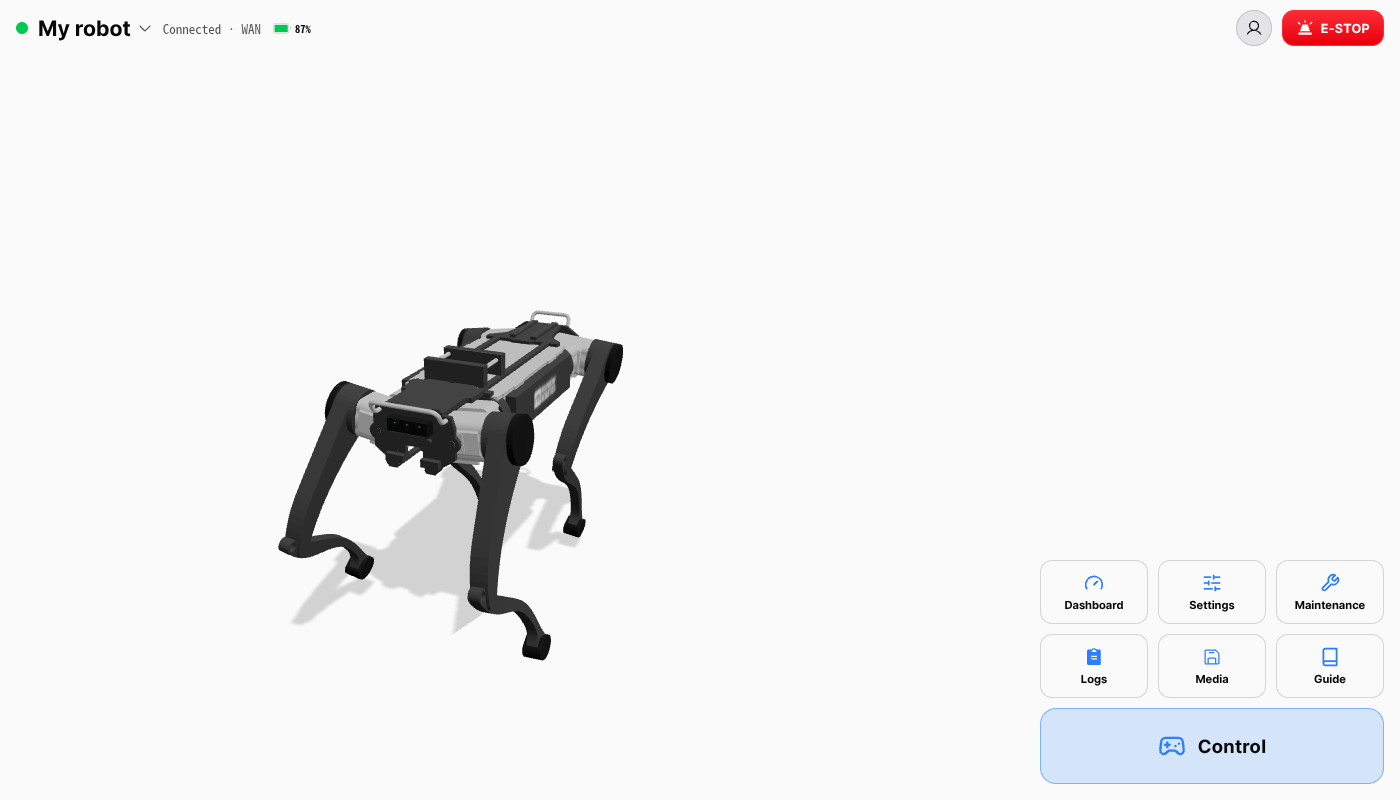
The app opens on the Hub. Its header shows the selected robot's name and connection state on the left — tap the name to open the robot list — followed by the robot battery once connected. At the top right sits the profile button, joined by the red E-STOP button while connected.

Every other screen carries the same header with the logo and a Control button at the top left: the logo returns to the hub, and Control goes straight to the control screen.

ScreenReach it withWhat it is for
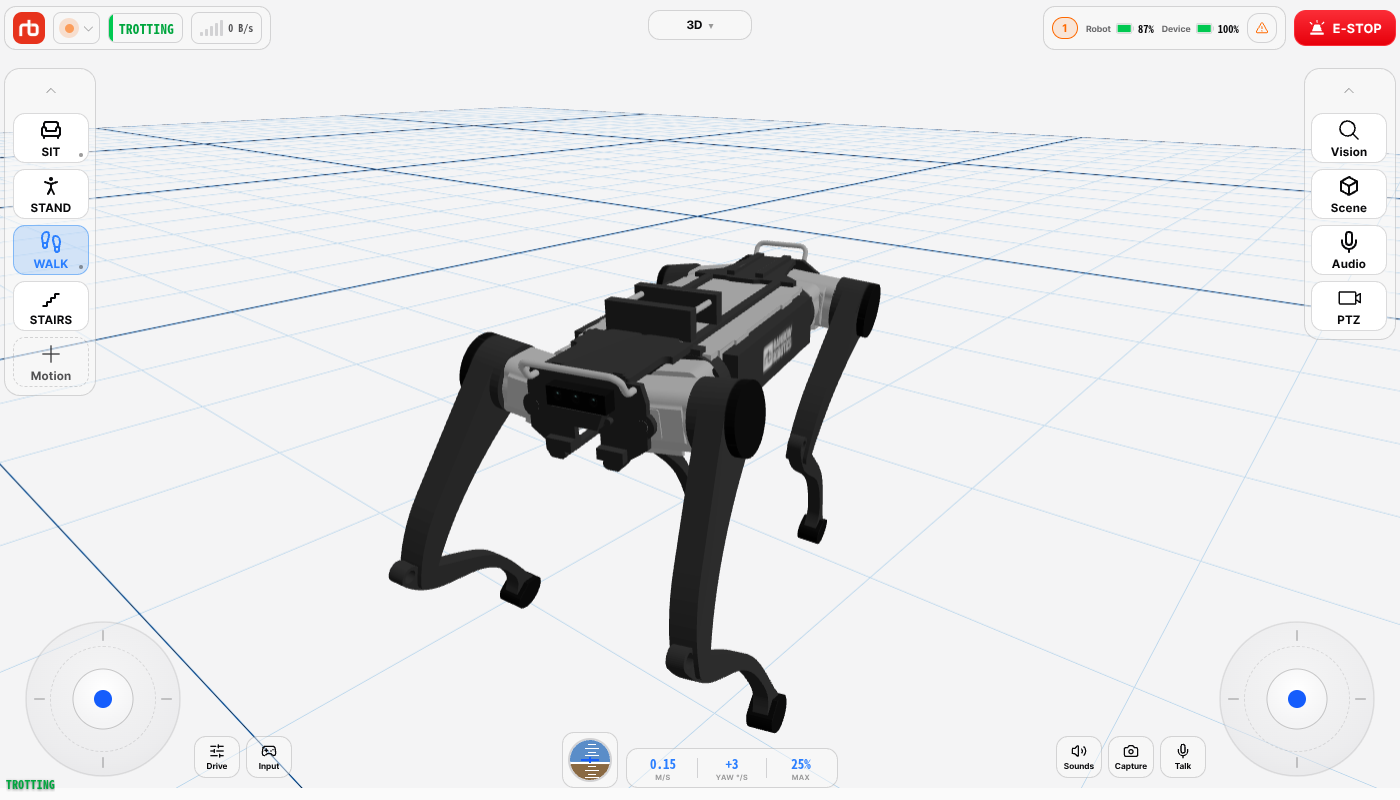
ControlControl button on the hubLive camera / 3D viewport, motion buttons, joysticks, drive settings — see Control home. Opens once a robot is connected or the sim is running
DashboardDashboard tileMonitoring cards: system, joints and posture, configuration
SettingsSettings tilePower, payload setup, gamepad, app settings — see Settings. The robot tabs are locked while spectating
MaintenanceMaintenance tileCalibration, robot check, software update; more sections in developer mode — see Maintenance. Locked while spectating
LogsLogs tileReal-time robot log, system log and black-box playback — see Logs
MediaMedia tilePhotos, recordings, black-box clips and voice recordings kept on the robot, and sounds to play through it. Opens once a robot is connected

The Guide tile opens this manual. Robots are connected and added from the robot list — see Connection.

The control screen's top bar comes in two groups. On the left: the logo, the status light (tap it for Overall system status), the current gait and the signal strength — plus a SLAM chip while an external program is driving. On the right: the warning count, the Robot battery, your device battery and the red E-STOP button.

Developer mode ​

The app runs at the operator tier by default, and every screen described in this manual is available there. Developer mode unlocks additional items intended for customer developers and integrators — extra motions, the developer sections of Maintenance, camera calibration and the external-control toggle on the control home, and a few advanced fields in Settings.

To enable it, open the profile menu (the round button at the top right), turn on the Developer mode toggle and enter the password. The password is issued by Rainbow Robotics and is not printed in this manual.

What each screen gains, how to turn it on and off, and which actions to be careful with are all collected on Developer mode.

This user manual is intended for RBQ users.