Skip to content

Calibration and tuning ​

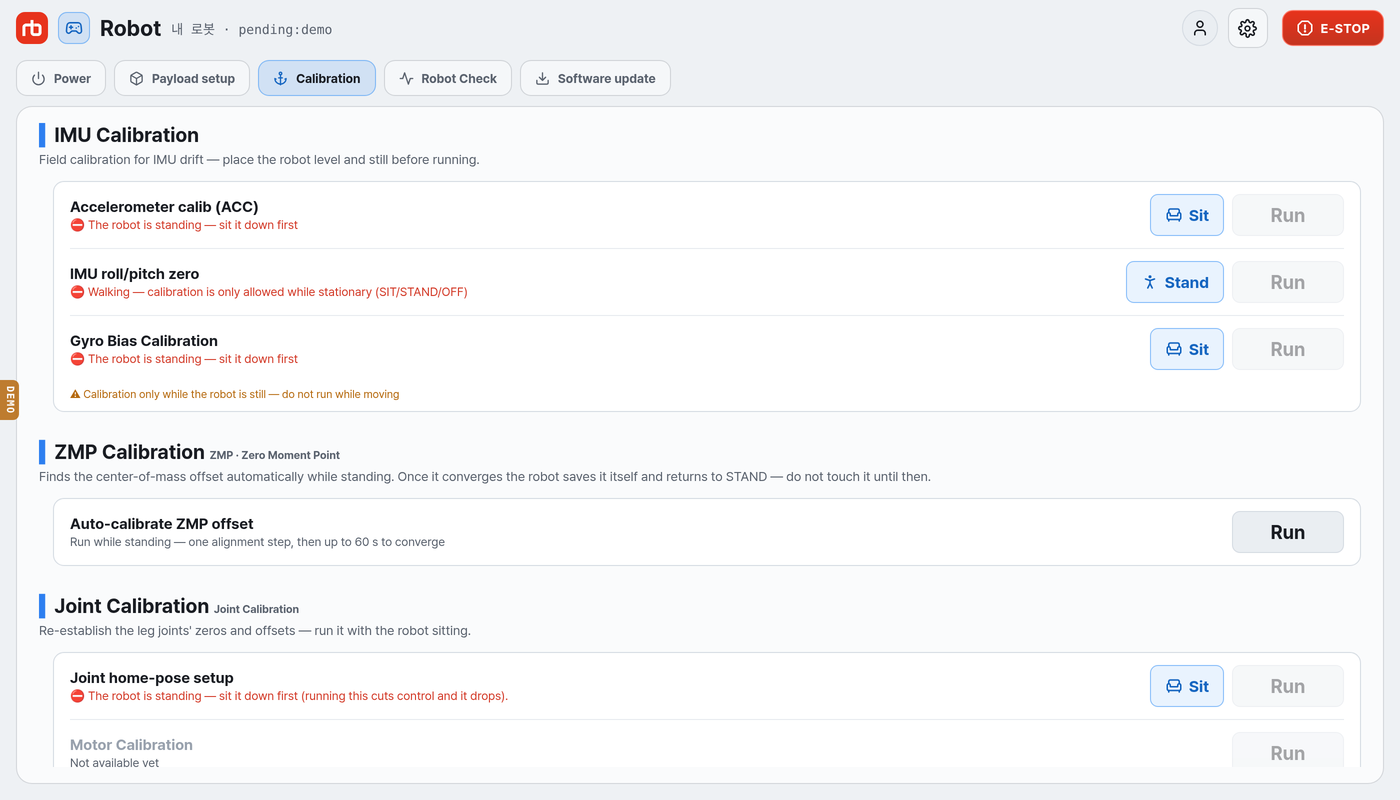
The calibrations that keep the robot walking steadily are collected under Maintenance → Calibration in the app.

Maintenance → Calibration

ZMP calibration ​

ZMP (Zero Moment Point) calibration finds the center-of-mass offset automatically while the robot stands. Run it after changing the load, or when the walk drifts to one side.

Before you start ​

  • Put the robot on flat, firm ground.
  • Leave room for the robot to take one step — it aligns its legs with a step before calibrating.
  • The app must be connected to the robot.
  • The robot must be standing. It cannot start while sitting or with control off.

Procedure ​

  1. Open Maintenance → Calibration in the app.
  2. Under ZMP Calibration, press Auto-calibrate ZMP offset. If the robot is not in a state where it can run, the button is locked and the reason is shown right there (for example The robot must be standing — ZMP calibration cannot start while sitting or with control off).
  3. Confirm in the dialog.
  4. The robot takes one slow step to square up its legs, then starts calibrating. The progress window shows Calibrating the ZMP offset… and it takes up to 60 seconds.
  5. On convergence the robot saves the value itself and returns to STAND. The window shows ZMP calibration complete. and closes after two seconds.
  6. Move the robot around and confirm it behaves normally.

CAUTION

Do not touch the robot until the calibration finishes. Putting anything on it or pushing it throws the calibration off. Closing the window does not stop it — the robot keeps calibrating.

If it fails ​

A failure leaves the previous calibration in place. Act on the reason shown in the window.

Message on screenWhat to do
The robot must be standing.Switch to STAND and run it again
Wait until the robot is completely still, then run it again.Wait for walking or turning to stop
Place the robot on level ground.The ground is sloped — move to a flat surface
The alignment step did not finish.Clear room for one step and run it again
It did not converge within 60 s.Check that the floor is not soft or slippery, then run it again
The robot is not responding.Check the connection

The reason is also written to the system log — see Logs.

  • If you changed the load, update the payload configuration first, then calibrate. The other order leaves the calibration tied to the old load.
  • The IMU zero, leg home pose (jig), camera and docking calibrations on the same screen are described in Settings.

Still stuck ​

Tell us which calibration failed, the reason shown on screen, and what was loaded on the robot at the time.

→ Support

This user manual is intended for RBQ users.