Skip to content

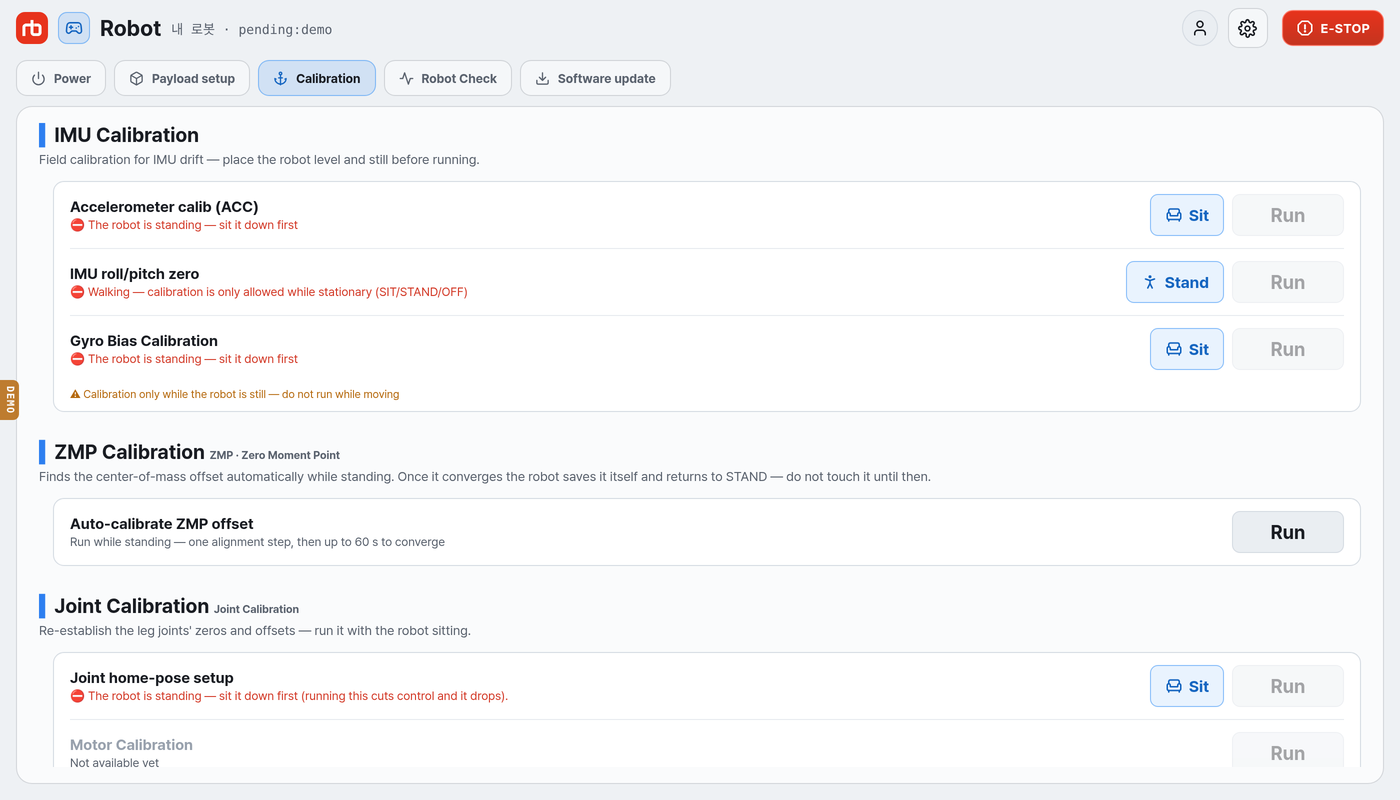
4. ZMP Calibration ​

Goal: Recalibrate the Zero Moment Point so the robot stays balanced under the weight the add-on module has changed.

Prerequisites: Step 3, Payload Setting, must be complete — the mass and center of mass have to be registered on the robot.

What ZMP calibration does ​

ZMP (Zero Moment Point) calibration aligns the center of the ground reaction force while the robot stands, so it stays balanced as it walks. A changed payload moves the center of mass, which is why this step is needed.

Before you start ​

  • Put the robot on flat, firm ground.
  • Clear the area so nothing and nobody touches the robot, and leave room for one step.
  • The app must be connected and the robot must be standing (STAND). It cannot start while sitting.

Procedure ​

  1. Open Maintenance → Calibration in the app.
Maintenance → Calibration
Step 1 — Maintenance → Calibration
  1. Under ZMP Calibration, press Auto-calibrate ZMP offset. If the robot cannot run it, the button is locked and the reason appears right there.
  2. Confirm in the dialog.
  3. The robot takes one step to square up its legs, then calibrates — up to 60 seconds.
  4. When it is done the robot saves the value itself and returns to STAND.
  5. Switch Stance → Walk and confirm the robot walks normally with the module fitted.

CAUTION

Do not put anything on the robot or push it during calibration. A failure leaves the previous calibration in place; what to do for each reason is listed in Calibration and tuning.

Done ​

The add-on module is fitted, the payload is registered and the ZMP is calibrated. You can send motion commands as usual — see Motion commands for driving the robot.

This user manual is intended for RBQ users.