Skip to content

Software Update over USB

This page explains how to update the GUI and the robot software from a USB drive, for closed networks with no internet access. You stage the installer files on a USB drive from an internet-connected PC, then plug that drive into the Steam Deck or tablet you want to update.

NOTE

A USB update replaces the internet connection only. To update the robot software, the GUI must still be connected to the robot over Wi-Fi. Installing the GUI app alone does not require a robot connection.

Step 1. Stage the files on the USB drive

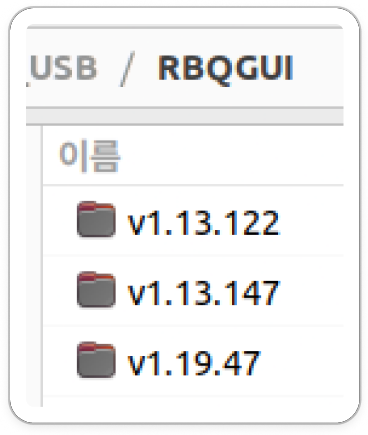
On an internet-connected PC, plug in the USB drive and create an RBQGUI folder at its root. Inside it, create a v{version} folder named after the version you want to install.

Version folders inside the RBQGUI folder on a USB drive
Version folders inside RBQGUI

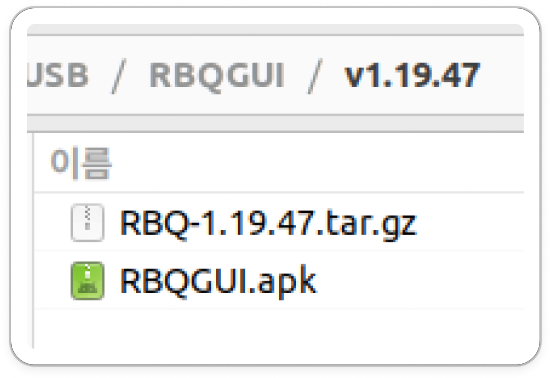
Download the two files for that version into the version folder. Both are available from the Downloads page.

FilePurposeWhere to get it
RBQ-{version}.tar.gzRobot softwareSource code (tar.gz) on the release
RBQGUI.apkGUI appRelease attachment
The tar.gz and apk files inside a version folder
Installer files inside a version folder

Staging several versions in advance lets you pick the one you need in the field.

Step 2. Plug in the drive and scan for versions

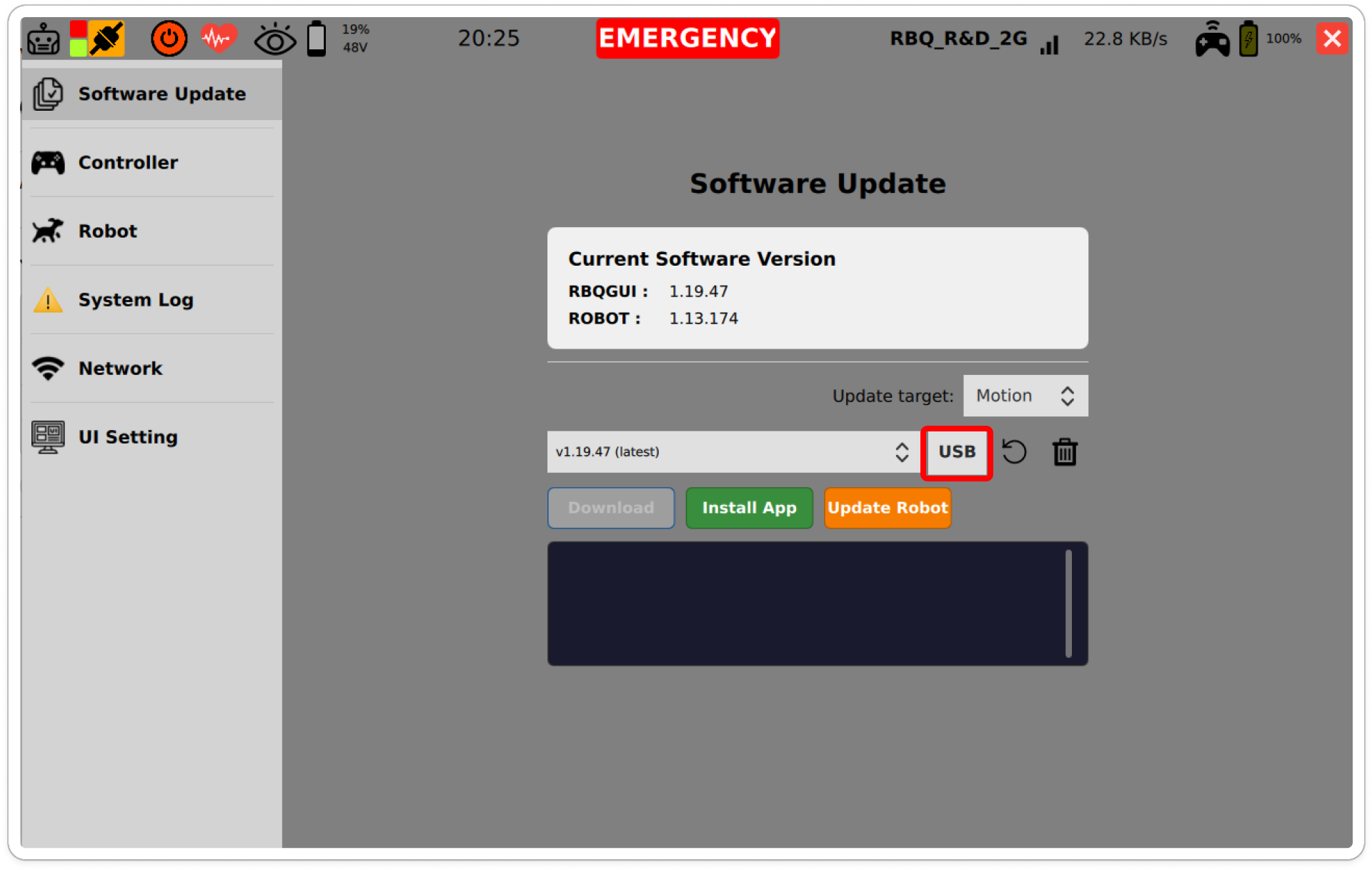
Plug the prepared USB drive into the Steam Deck or tablet you want to update, then press USB on the Software Update screen.

The USB button on the Software Update screen
USB button

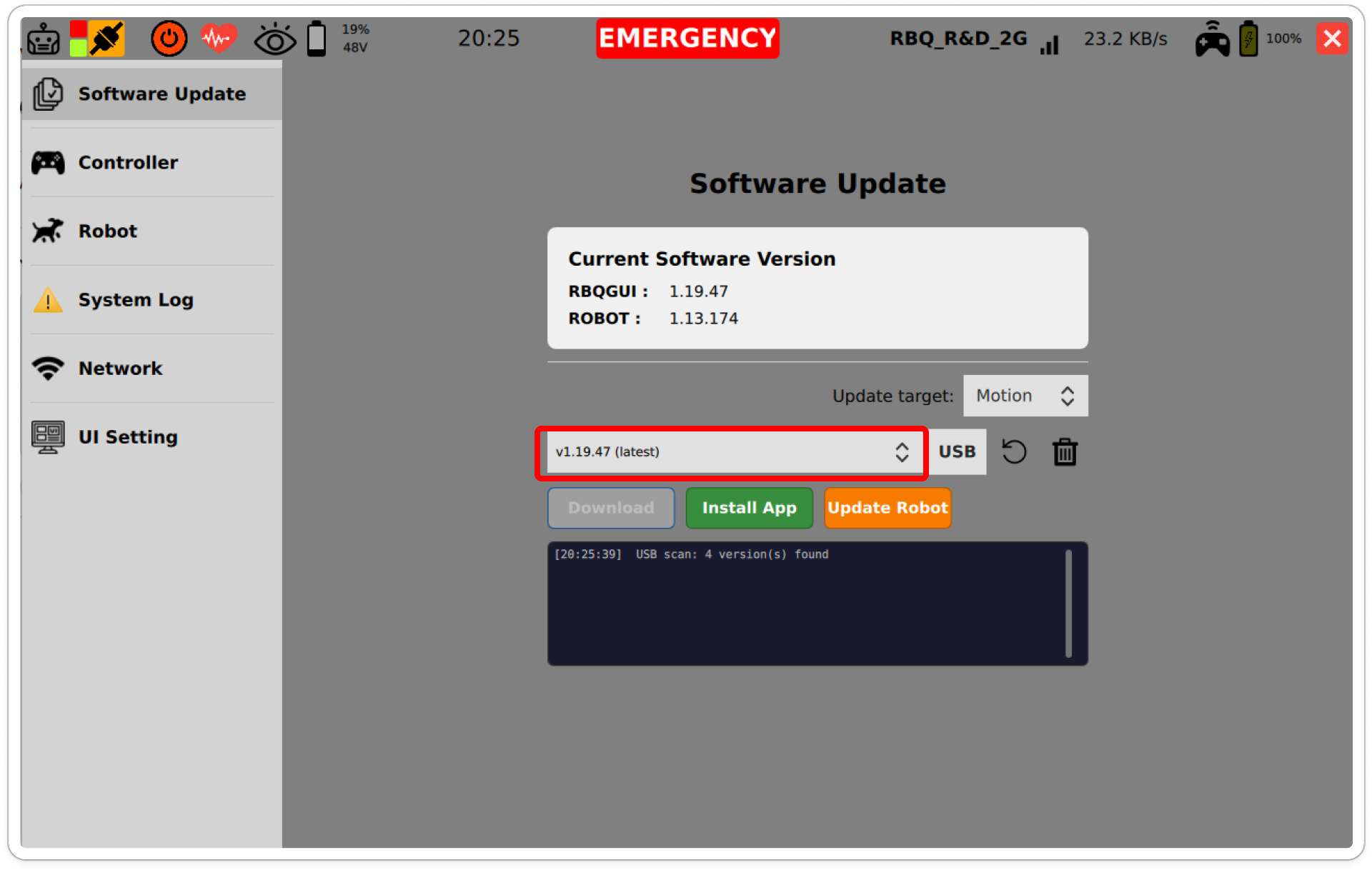
The log pane reports how many versions the scan found.

Scan result shown in the log pane
Scan complete

Step 3. Select the version to install

Open the version dropdown and select the version you want. Versions found on the USB drive are marked [USB].

Version list with [USB] markers
Selecting a version found on USB

Everything up to this point is the same for both updates. The steps below differ by target.

Step 4 (GUI). Install the GUI app

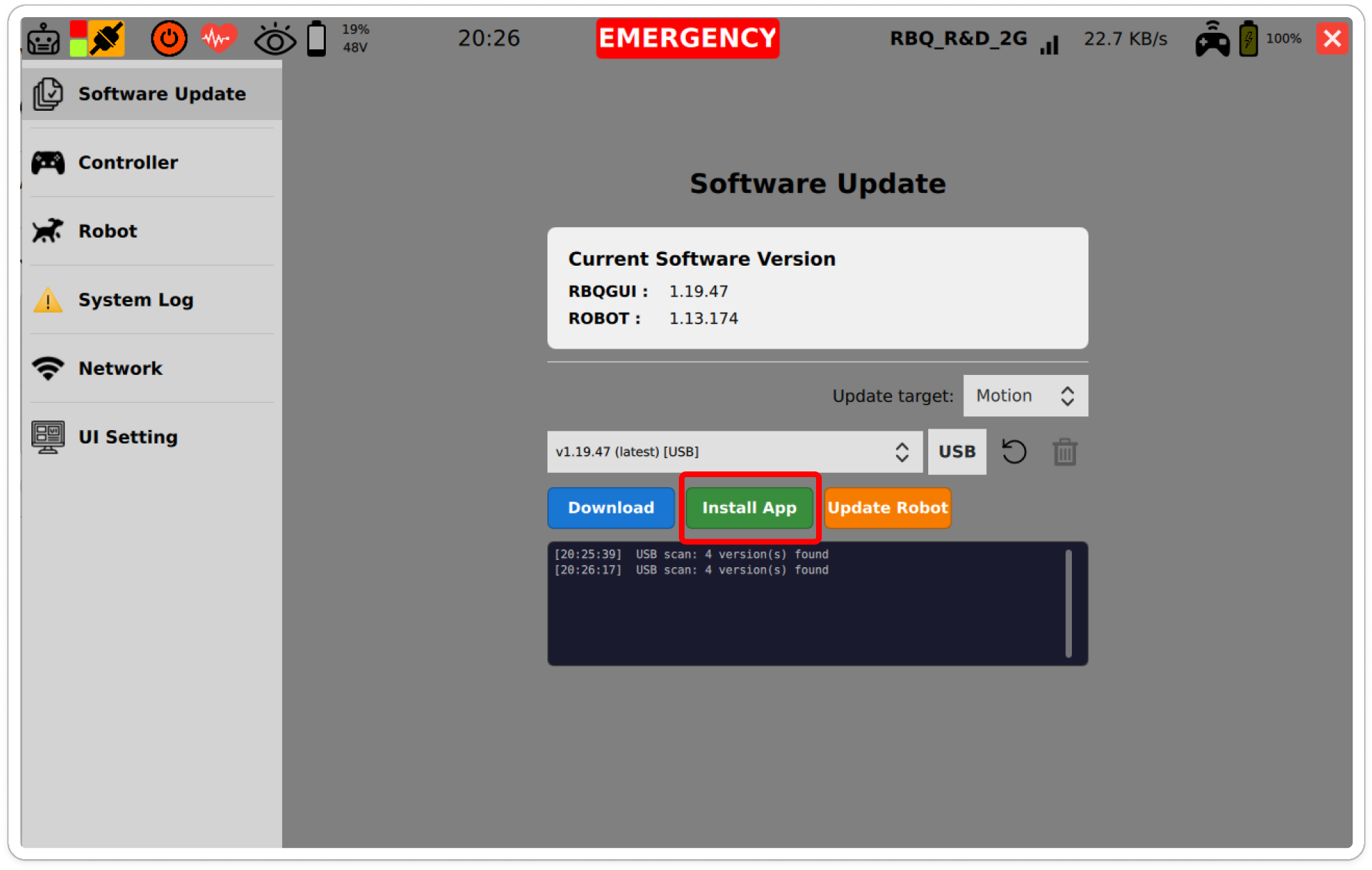
Press Install App to install the GUI from RBQGUI.apk on the drive.

Install App button
Install App

When the install finishes, check that RBQGUI under Current Software Version at the top of the screen now shows the version you installed.

Step 4 (Robot). Send the robot software

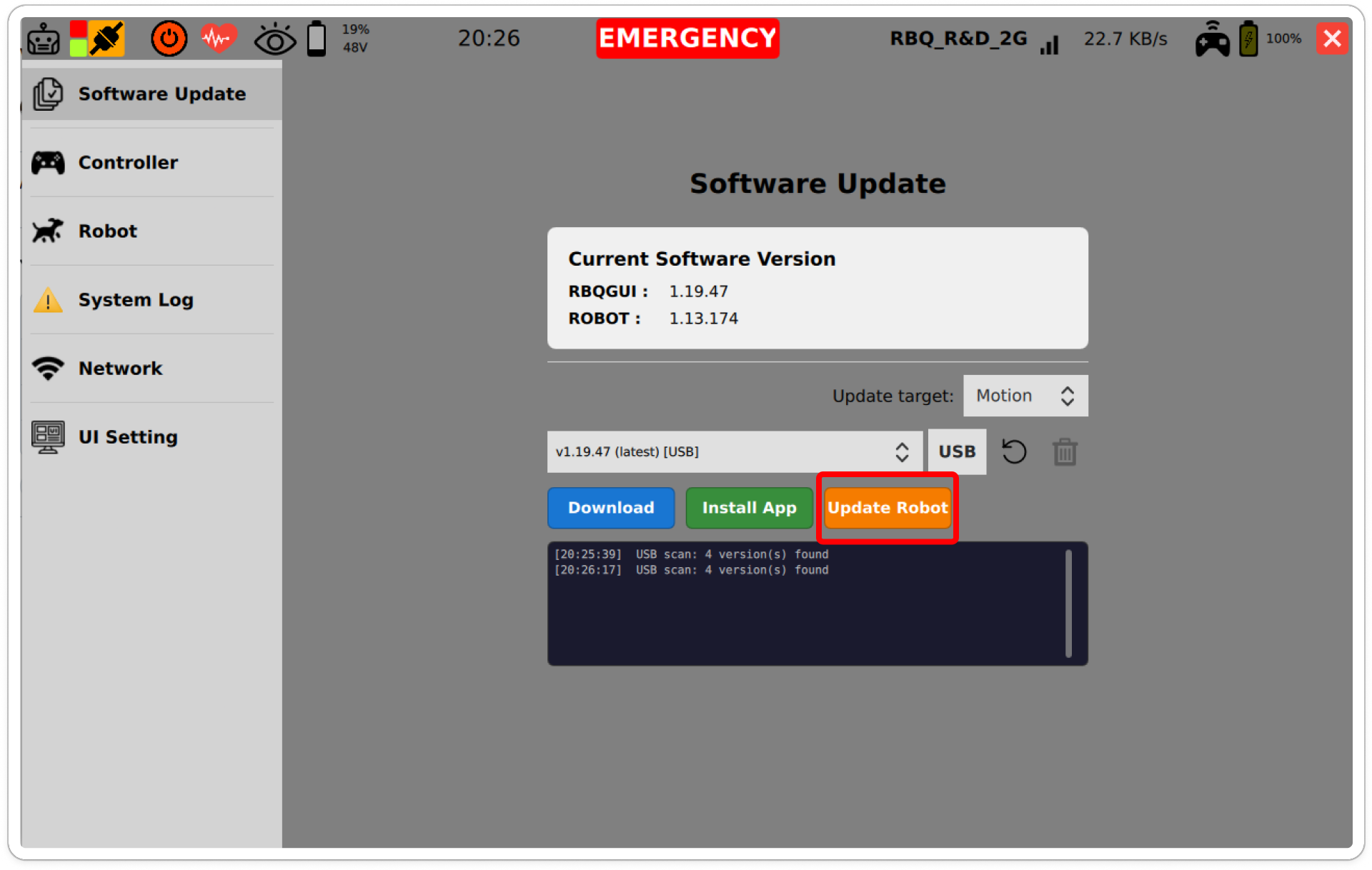
Press Update Robot. The RBQ-{version}.tar.gz file is copied from the drive to the device, then transferred to the robot.

Update Robot button
Update Robot

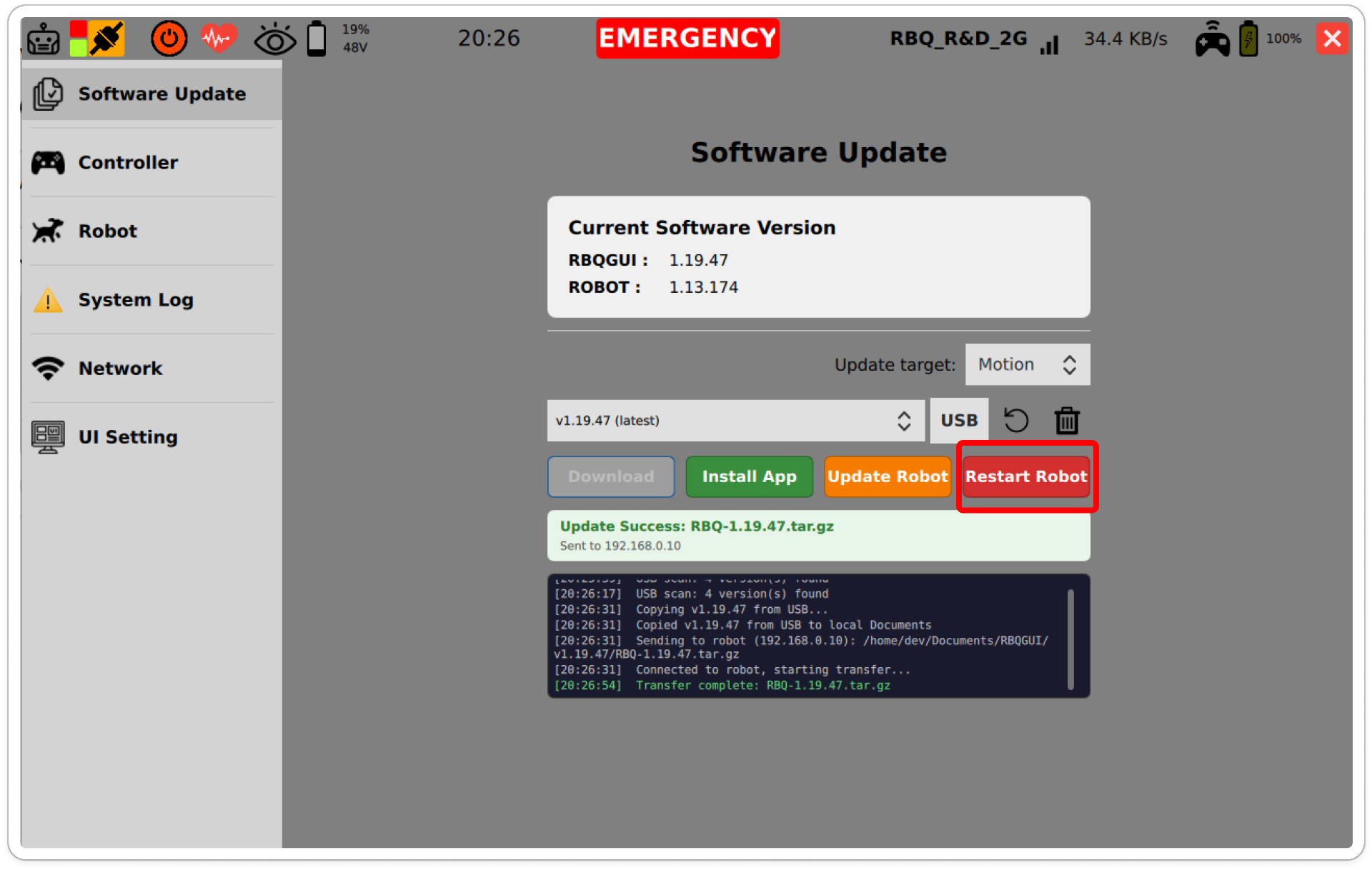
When the transfer completes, a success message appears along with a Restart Robot button. The log shows the copy-from-USB step followed by the transfer to the robot.

Restart Robot button shown after a completed transfer
Transfer complete · Restart Robot

CAUTION

Put the robot in the sitting state before restarting, and do not move it until the restart finishes.

Restart the robot with Restart Robot, then check that ROBOT under Current Software Version now shows the version you installed.

Notes

  • The version folder name must start with v and match the version in the tar.gz filename inside it.
  • Updating the robot requires the GUI to be connected to the robot. Installing the GUI app does not.
  • If EMERGENCY appears during an update, check safety immediately.
TopicLink
GUI update over the internetGUI Software Update
Robot update over the internetRobot Software Update

This user manual is intended for RBQ users.