5. State Monitoring
Goal: Understand how to read the robot's real-time status panels in RBQGUI.
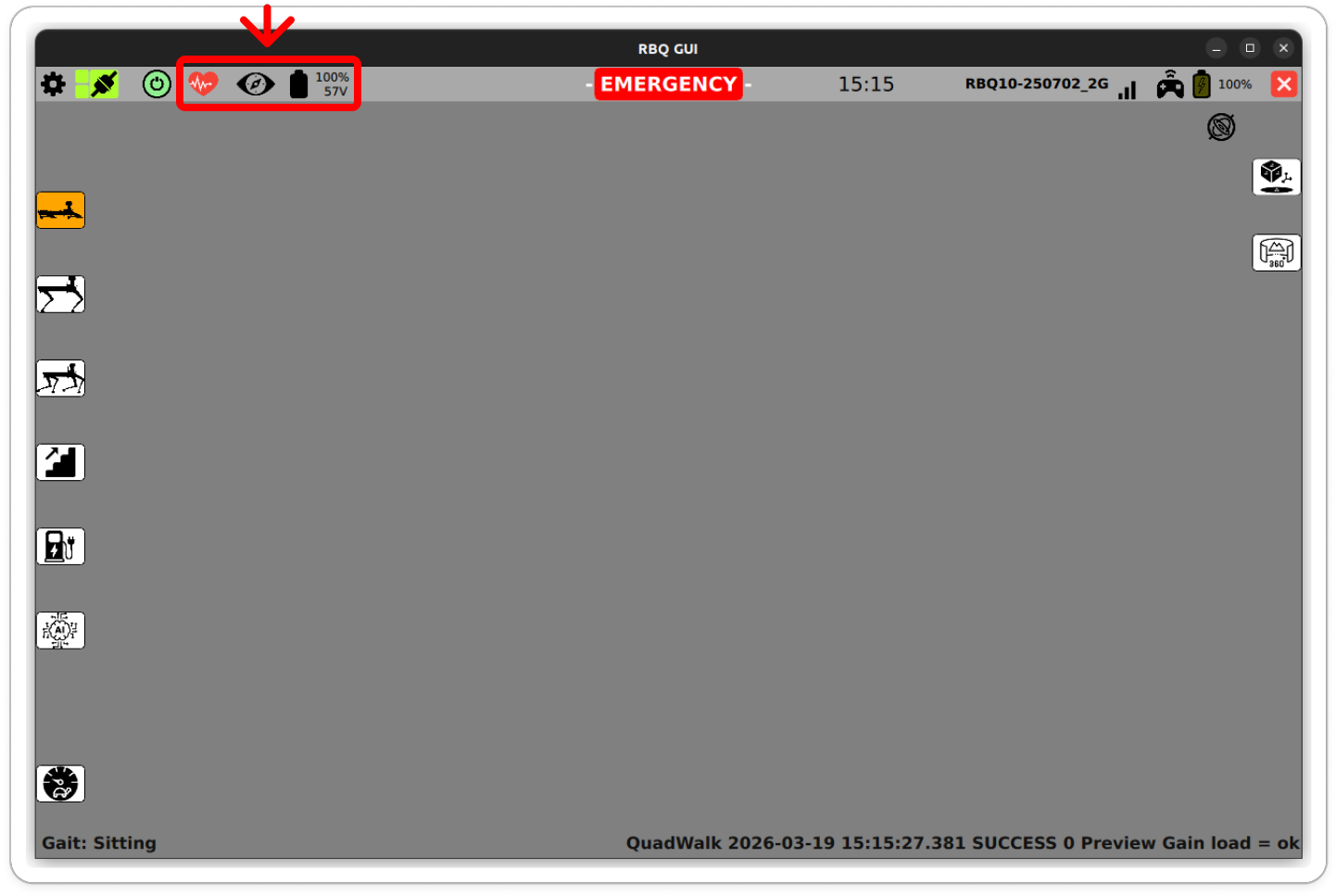
In RBQGUI, the State Monitoring view shows emergency status, battery level, sensor readings, and module health — all in one screen.
Top Status Bar
The top bar shows the EMERGENCY state indicator, battery voltage, connection status, and other system icons at a glance.

WARNING
If the EMERGENCY indicator is lit, stop all operation immediately and follow the Emergency Stop & Recovery procedure before continuing.
Joint & Sensor Diagnostics
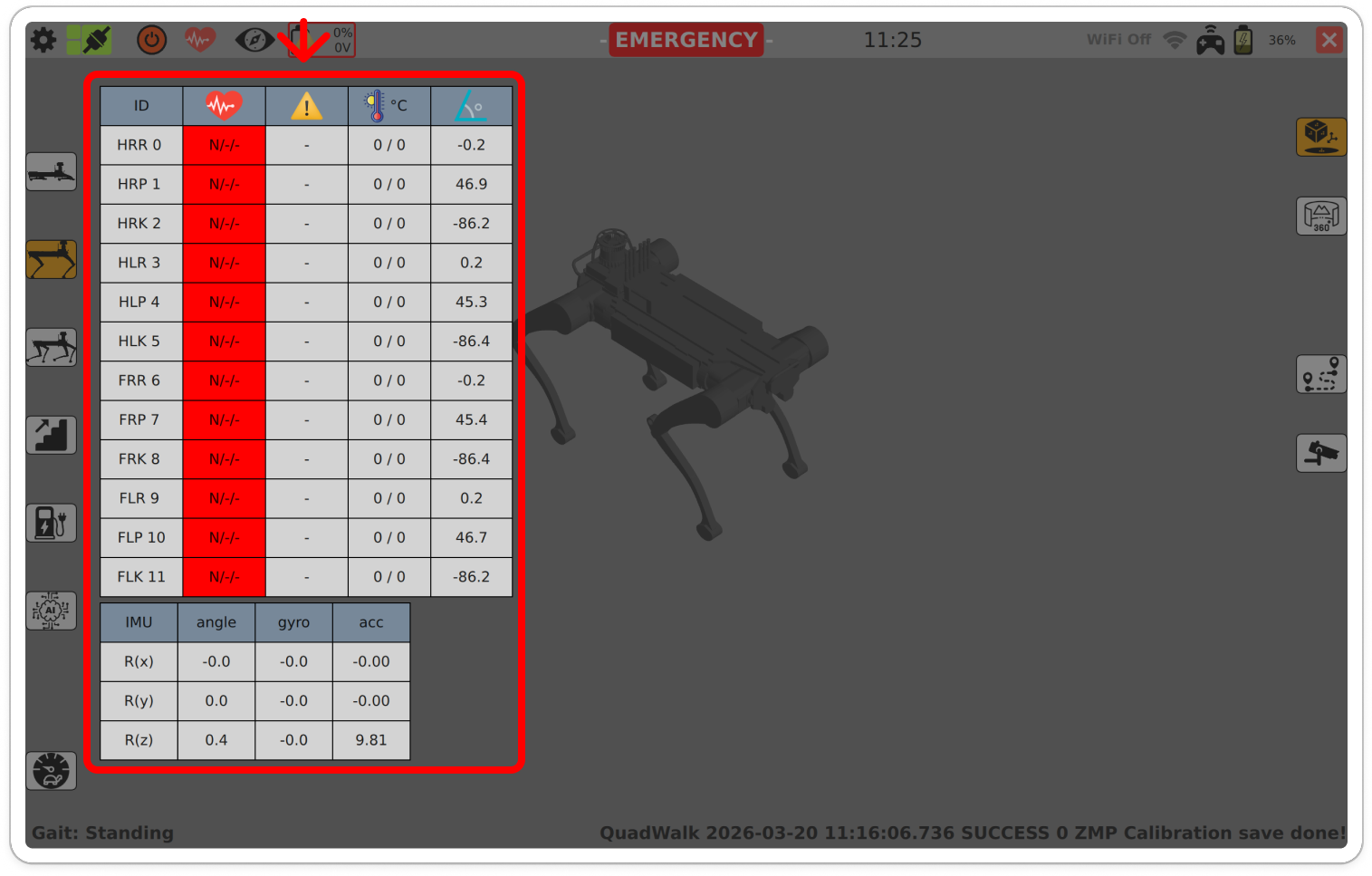
The diagnostics table shows per-joint values (temperature, position error, etc.) and IMU readings (gyro, acceleration) for every leg.

Joint naming convention
| Abbreviation | Joint |
|---|---|
| HRR / HRP / HRK | Hind Right — Roll / Pitch / Knee |
| HLR / HLP / HLK | Hind Left — Roll / Pitch / Knee |
| FRR / FRP / FRK | Front Right — Roll / Pitch / Knee |
| FLR / FLP / FLK | Front Left — Roll / Pitch / Knee |
Perception Module Status
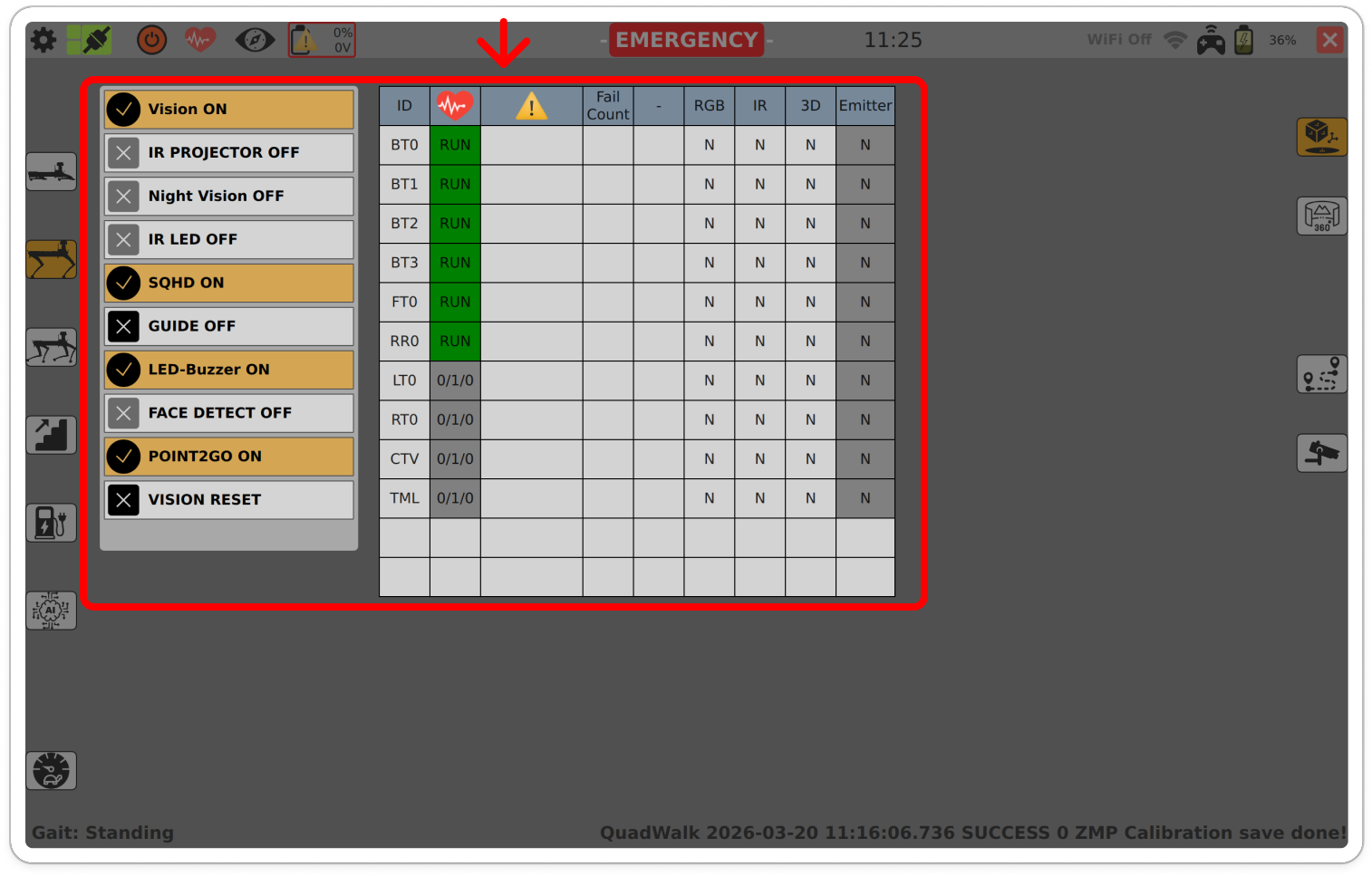
This panel shows the on/off state of vision and sensor modules (IR projector, night vision, LED, buzzer, etc.) and reports operation/error/count values (Fail / Count).

NOTE
If a perception module shows OFF or reports errors, vision-based features such as RL (Vision Trot) mode may be unavailable or unreliable.
Power Switch & Module Check
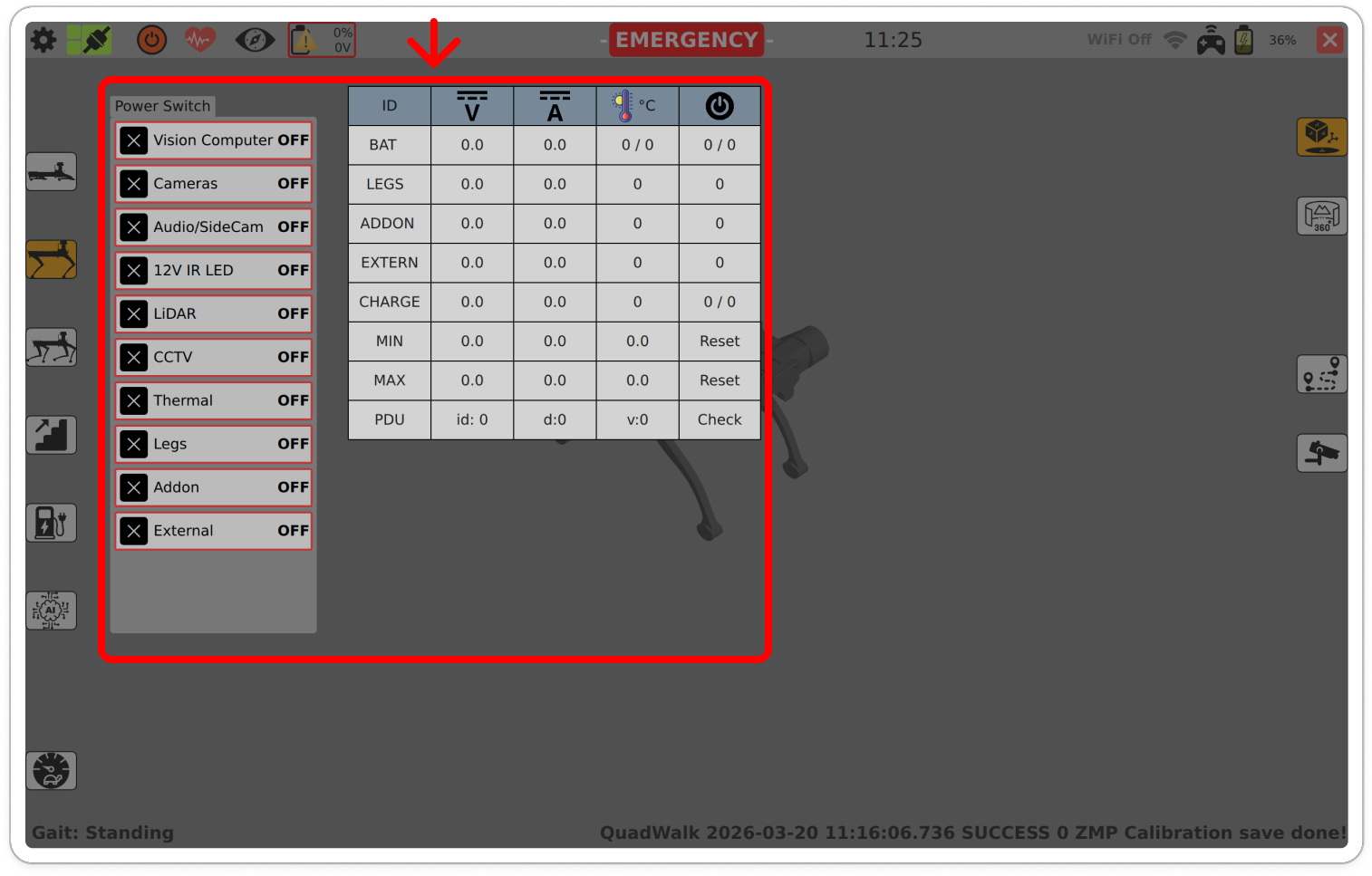
This panel displays power-switch states for the Vision Computer, cameras, LiDAR, and other peripherals, as well as load readings for BAT / LEGS / ADDON / EXTERN / CHARGE.
Use Reset to clear counters and Check to refresh status.

Next Step
After verifying the robot is healthy, proceed to charge or pack it for storage: