Skip to content

Logs ​

Logs has no menu entry — open it by tapping a red ERROR / FATAL toast or a row in the alert badge popover on the control home (see Real Time). Every user can open it. It has three tabs, and the same filter bar works in all of them.

Real Time tab

Tabs ​

TabContent
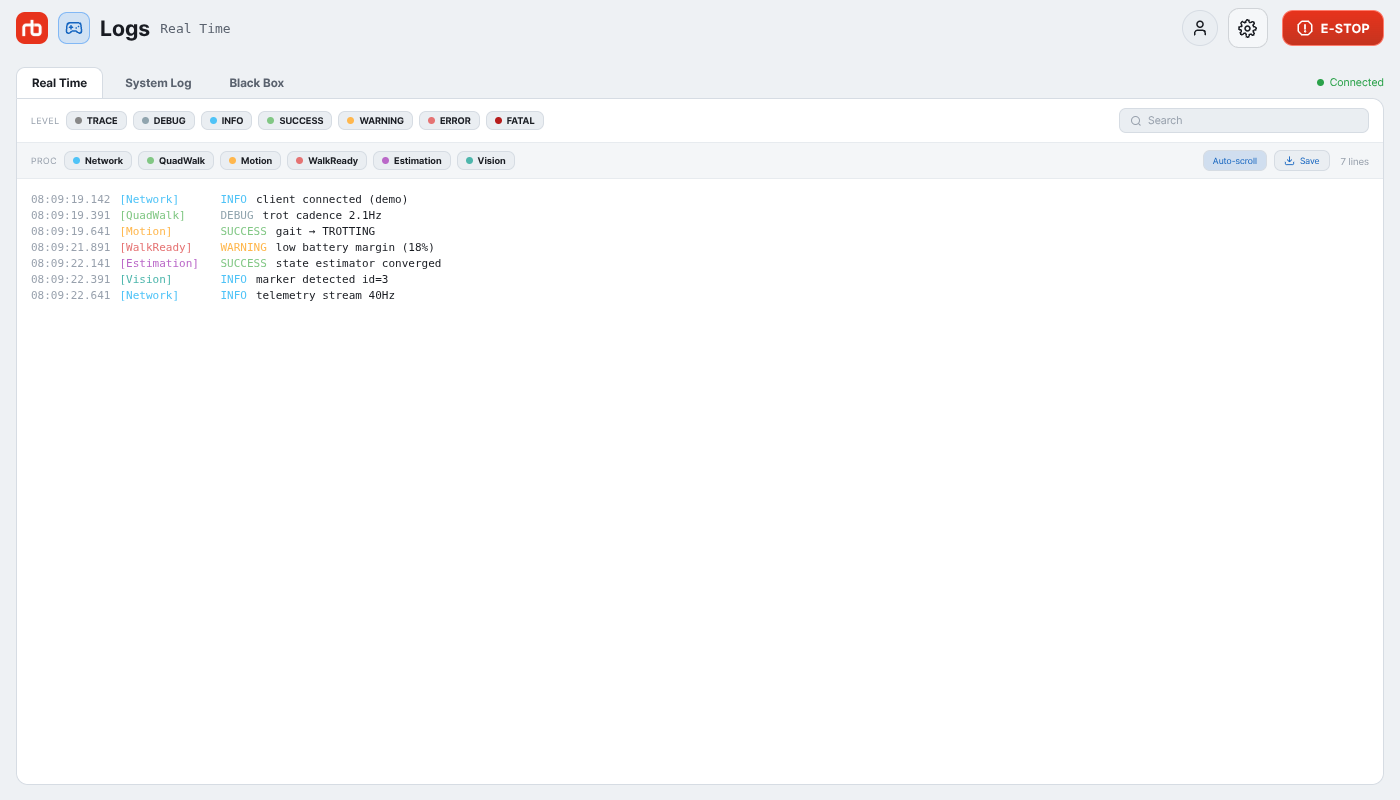
Real TimeMessages streamed from the robot while the app is connected
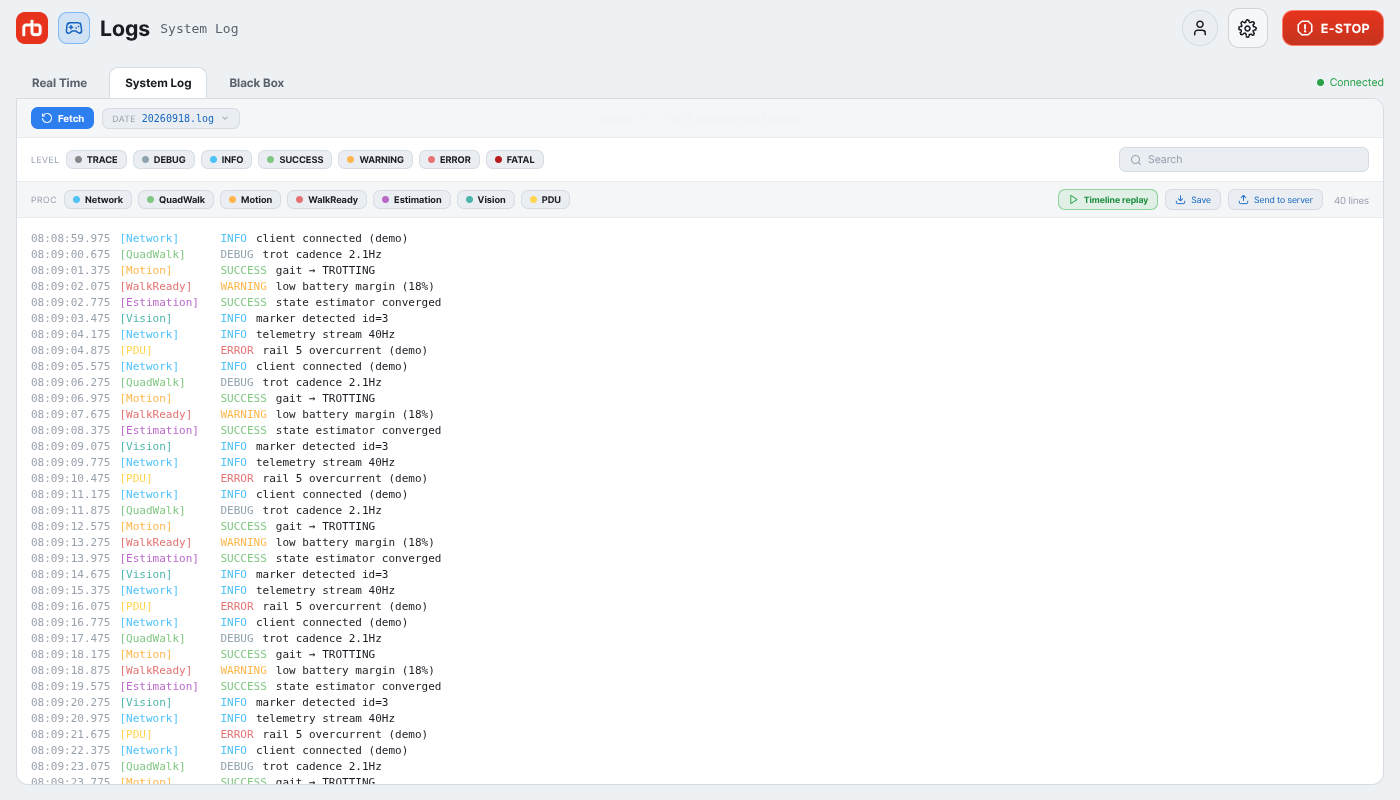
System LogLog files stored on the robot, one per day
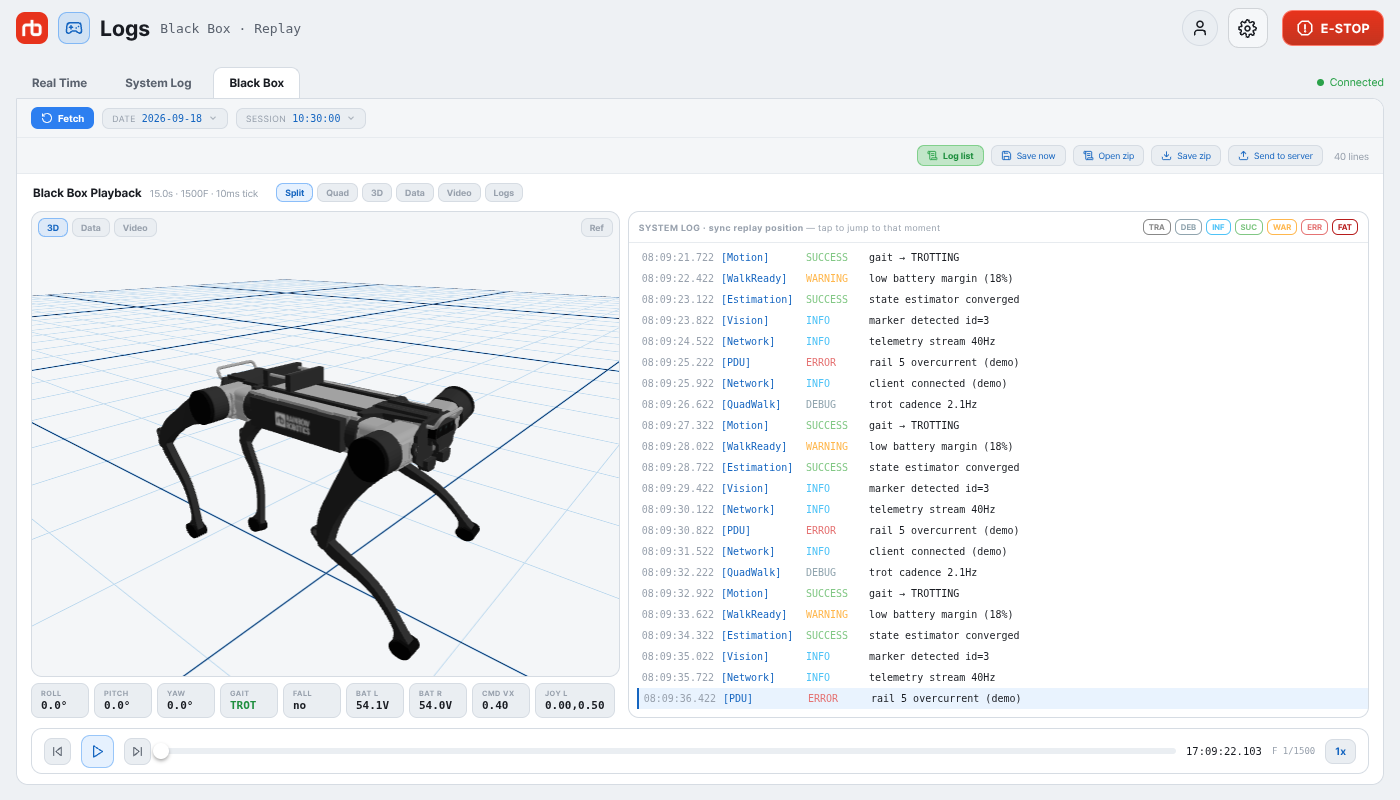
Black BoxRecordings saved when the robot fell, when control was turned off, or when you pressed Save now — 30 s of motion data plus the system log of that moment

A dot next to the tabs shows the log link: Connected, Connecting, or Disconnected.

Filtering ​

  • LEVEL chips — TRACE, DEBUG, INFO, SUCCESS, WARNING, ERROR, FATAL. Tap a chip to hide that level; tap again to show it.
  • PROC chips — one per process in the current source, each in its own color. Tap to hide or show.
  • Search — filters on the message text or the process name.
  • The count at the right of the action bar reads shown / total lines. Very long files show only the latest 2,500 lines, with a notice at the top.

Real Time ​

  • Auto-scroll — keeps the newest line in view; turn it off to read older lines.
  • Save — saves the currently filtered lines to your device.
  • Tapping a red ERROR / FATAL toast, or a row in the alert badge popover, opens this tab with that line highlighted so you can see what happened around it.

System Log ​

System Log tab

  1. Fetch — loads the list of days from the robot (this runs by itself the first time you open the tab, and the newest day is selected).
  2. DATE — choose a day; the file is loaded and shown with the filters above.
  3. Timeline replay — plays the day's log as a timeline: play / pause, step to the previous or next line, a position slider, and a speed button that cycles through 0.25× … 16×, 60×, and 300× (the fast speeds skip long quiet stretches). Tapping a line jumps to that moment. Close returns to the list.
  4. Save — saves the raw log file of the selected day to your device.

Black Box ​

Black Box replay

  1. Fetch — loads the list of sessions (this runs by itself the first time you open the tab).
  2. DATE and SESSION — choose a recording; the newest session of the day is opened first and the replay view is shown.
  3. Timeline replay / Log list — toggles between the replay view and the plain log list of that session.
  4. Save now — asks the robot to record a black-box session right now — use it right after something looked wrong.
  5. Open zip — replays a session zip saved earlier on this device, without the robot. Close — to robot session returns to the robot's list.
  6. Save zip — saves the selected session (data and log) to your device.

Replay view ​

  • The header reads Black Box Playback with the duration, frame count, and tick. View buttons: Split (3D pose + log), Quad (data, log, camera, and 3D panes), 3D, Data, Video (the event clip on its own), Logs.
  • The camera pane plays the event clips (front and rear) for that moment, and playback follows the data timeline. If the robot is still encoding them, the clips may not have arrived yet — try again in a moment. An exported zip carries the clips too, so it replays without the robot.
  • Ref (top-right of the 3D pane) overlays the reference pose as a translucent ghost so you can compare commanded and measured joints.
  • The Data pane shows the recorded channels of the current frame. A miss chip counts control deadline misses.
  • The bottom bar has previous / next frame, play / pause, a slider, the wall-clock time and frame counter, and a speed button cycling 0.25× … 16×.
  • The SYSTEM LOG pane scrolls in step with the replay position. Tap a line to seek there. A Time sync uncertain notice appears when the recording lacks timing metadata or the clocks differ.

Skimming for errors ​

Here is how to pinpoint the moment something went wrong in a whole day of logs, in seconds.

  1. In the LEVEL chips, press TRACE, DEBUG, INFO, SUCCESS, and WARNING to hide them. Only ERROR and FATAL remain.
  2. Press the next line button in the timeline replay repeatedly — it steps only between the lines that are still shown, so it jumps from error to error.
  3. Write down the timestamp where you stop (for example 19:30:48.855).
  4. If you need the surrounding context, turn WARNING or the relevant PROC chips back on there.

When you do not know which process started the problem, skim with every PROC chip on, then narrow to that one process once the range is clear.

What to send when you contact us ​

These three together make the cause far quicker to find.

  1. The error messages — the ERROR and FATAL list you found with Skimming for errors. Use Save to write a file, or capture the screen.
  2. The timestamp — note when the message appeared.
  3. Video from around that time — nothing settles it faster than seeing what the robot was doing.

The software version and the steps to reproduce help too. For a momentary problem such as a fall or an emergency stop, include the Black Box session as well, saved with Save zip.

→ Support

  • The battery, joint, and sensor status behind many log messages is on the Dashboard.

This user manual is intended for RBQ users.