Skip to content

Audio (walkie-talkie) ​

The robot carries a speaker and a microphone. The Audio tool on the control home turns the app into a walkie-talkie: listen to what the robot hears, and hold a button to talk through its speaker.

Opening the popover ​

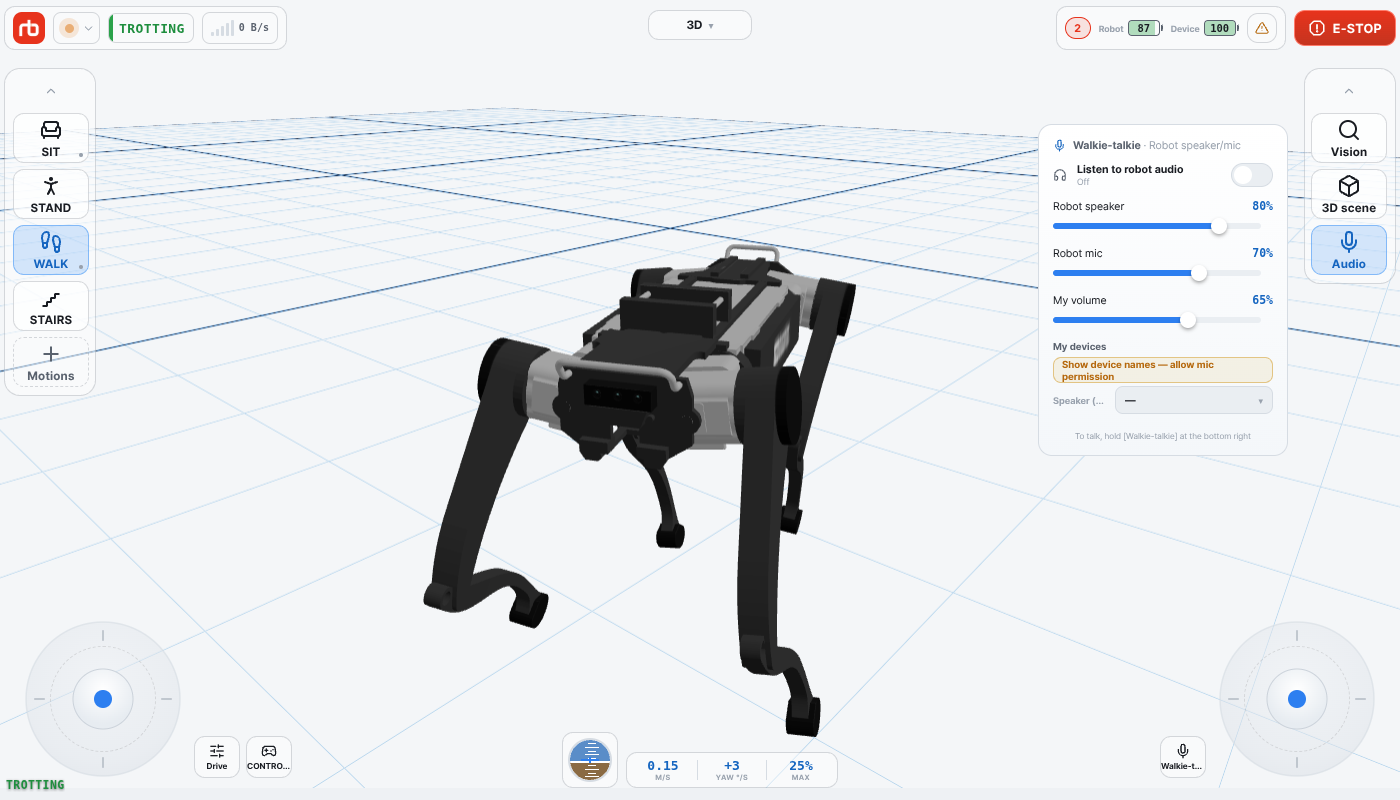
Tap Audio (the microphone icon) in the right card (OBSERVE). The popover is titled Walkie-talkie · Robot speaker/mic. A green dot on the Audio button means listening is currently on.

Walkie-talkie popover

Listening ​

Listen to robot audio is a toggle. Switch it on and the robot's microphone streams to your device until you switch it off. The label under it reads Listening or Off. Listening stays on when you close the popover — the dot on the Audio button reminds you.

Volume ​

Three sliders, each showing its value in percent (defaults 80 / 70 / 65 %):

SliderControls
Robot speakerLoudness of your voice out of the robot.
Robot micGain of the robot's microphone (what you hear when listening).
My volumePlayback level on your own device.

The app stores the last values you set and restores them on the next start.

Push to talk ​

Talking is not in the popover. Press and hold the Walkie-talkie button at the bottom right of the control home — next to the right joystick, or at the right edge when a gamepad is connected. While you hold it the button turns green and reads Talking. Release it to stop. The app sends your voice only while you hold the button, so nothing goes out by accident — the popover's footer reminds you: To talk, hold [Walkie-talkie] at the bottom right.

The first time you press the button the app asks for microphone permission. If you refuse (or no microphone can be opened), the Walkie-talkie button turns amber and the popover's footer changes to No mic permission — allow it in app settings. Grant it in the operating system's app settings and try again.

Robot speaker power ​

If the robot's speaker amplifier is switched off you will see Robot speaker power is off in the popover, and the Walkie-talkie button is dimmed and cannot be pressed. Tap Turn on in that banner to power the amplifier and talk again.

Platform notes ​

  • Audio channel — Robot audio channel failed — check the robot connection in the footer means the audio link to the robot could not be set up. Check that the robot is connected (video is streaming) and press Walkie-talkie again.
  • Choosing your own speaker/microphone — only when the app runs in a web browser: a My devices block lists Speaker (output) and Microphone (applies from next PTT). Each list appears only when the browser reports devices of that kind, and the speaker list also needs a browser that supports output switching — Chrome does, some others do not. If no device has a name yet (Device 1, Device 2…), tap Show device names — allow mic permission. The Android, iOS, and desktop apps use whatever audio devices the system is on, so this block is hidden.
  • My mic Send gain — shown only in browsers that still support a microphone volume constraint. Current Chrome does not, so most people never see it.

This user manual is intended for RBQ users.