Skip to content

Steam Deck reset & reinstall ​

The Steam Deck ships fully configured, so this procedure is not normally needed. Follow it after a factory reset, or to install the RBQ app on a Steam Deck of your own. It also gets you back to a known state when the controller will not boot properly or its configuration has been messed up.

CAUTION

A factory reset erases all user data and configuration and reinstalls SteamOS. Back up your settings and files first.

1. Factory reset ​

If the device still boots normally, you can restore it to factory state from the OS settings.

  1. Press the Steam button.
  2. Select Settings.
  3. Go to the System tab.
  4. Scroll to the bottom and select Factory reset under Advanced.
  5. Press the Factory Reset button to confirm.

When the reset finishes, create a Steam account and sign in.

2. Switch to desktop mode ​

  1. Press the Steam button.
  2. Select the Power menu.
  3. Press Switch to Desktop.

3. Download the app ​

In desktop mode, open the Downloads page in a browser and download RBQ Controller (Linux · Steam Deck). The file is rbq-controller-x86_64.AppImage.

NOTE

This first download can go in any folder. Run it once as described below, then press Install online inside the app: it creates its own install folder under /home/deck/Documents/RBQ/ and points a latest link at it. Later updates only move that link, so the shortcut you add to Steam keeps working.

4. Make it executable ​

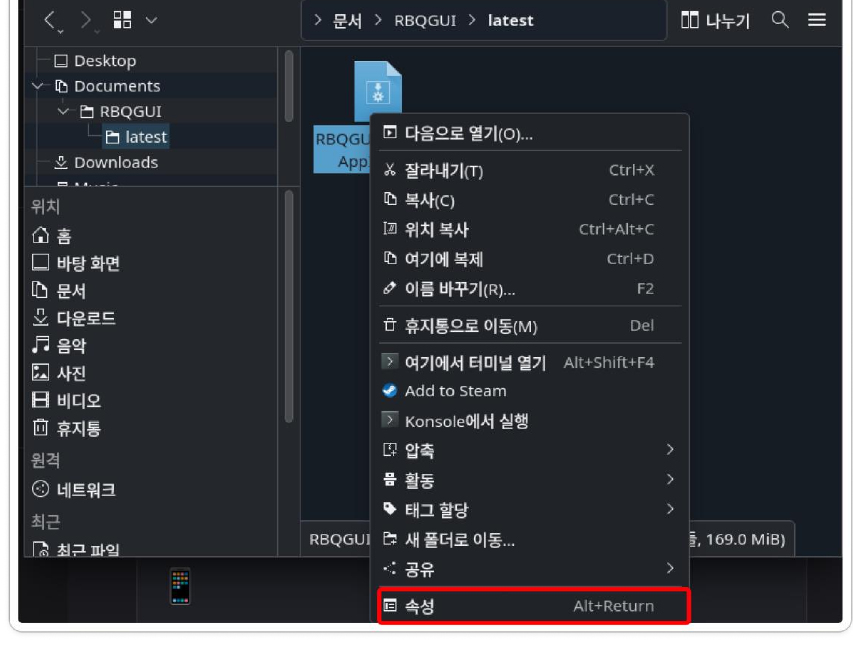
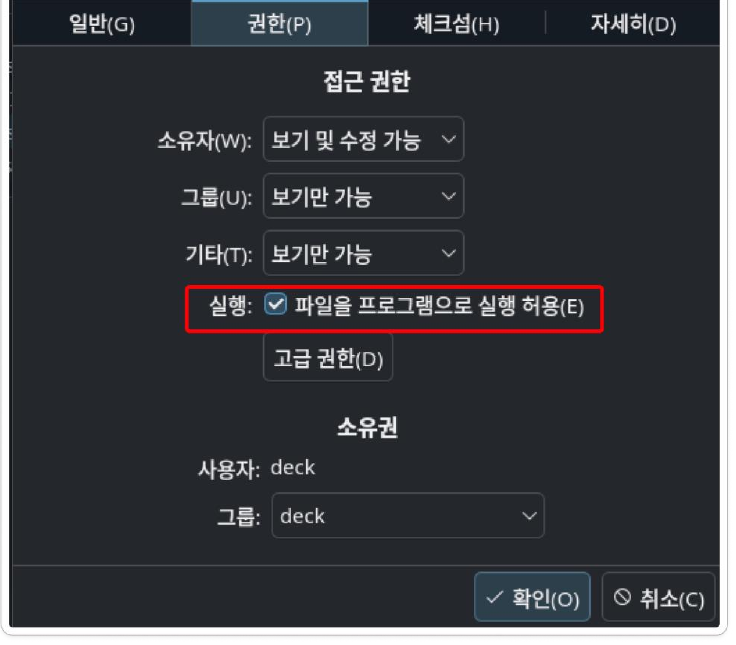
Once downloaded, right-click rbq-controller-x86_64.AppImage, go to Properties → Permissions, and tick Is executable.

Selecting Properties from the AppImage right-click menu
Right-click → Properties
Ticking the executable permission on the Permissions tab
Permissions → Is executable

5. Add it to Steam ​

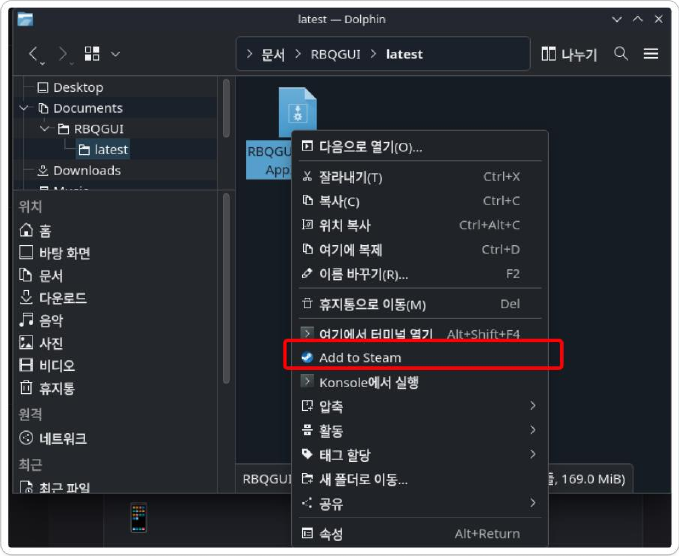
Right-click the same file again and choose Add to Steam.

Selecting Add to Steam from the AppImage right-click menu
Right-click → Add to Steam

6. Boot into SteamOS and launch ​

  1. Use the Steam icon at the bottom left → Shut Down, then boot back into SteamOS.
  2. Press the STEAM button at the bottom left and go to Library → Non-Steam.
  3. Launch rbq-controller from the list.

Once the app is up, press Install online under Robot settings → Software update to create the install folder — app updates then happen from that same screen.

For connecting to the robot from here, see Controller and Wi-Fi Connection.

This user manual is intended for RBQ users.