Skip to content

PTZ camera ​

TIP

This panel appears only on robots fitted with the optional PTZ camera unit. CCTV is listed when the robot reports the PTZ color camera. Thermal and PTZ Mix also need the thermal sensor, so a PTZ unit without one shows CCTV only. If all three are missing from the viewport source list, no PTZ unit was detected.

Opening the panel ​

There is no separate PTZ screen. Switch the viewport source to CCTV, Thermal, or PTZ Mix and the PTZ control panel floats over the video. Switch to any other source and it disappears. You control the camera while looking at its picture.

Pan / tilt ​

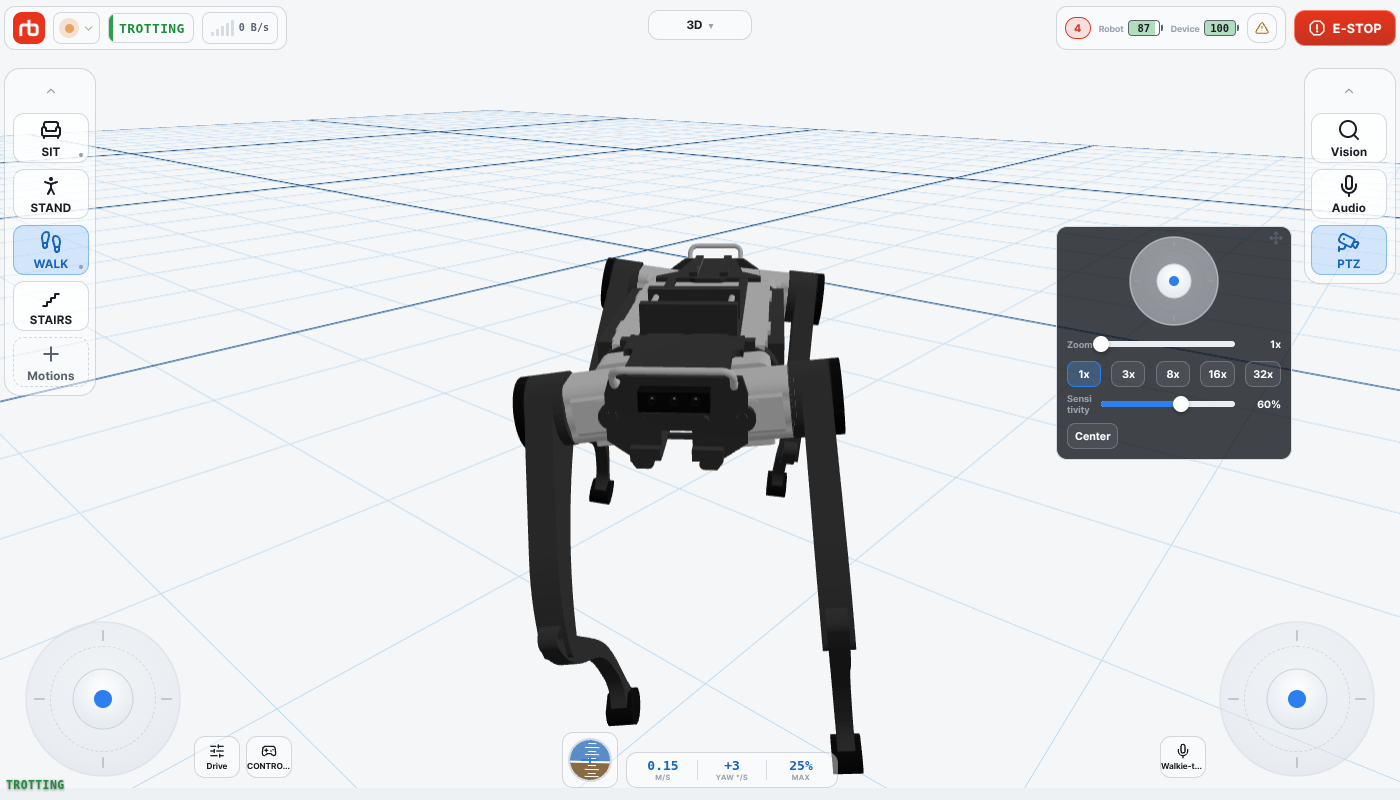
PTZ panel over the viewport

Drag the small joystick at the top of the panel to move the camera: left/right pans, up/down tilts. The camera keeps moving as long as you hold the stick and stops when you release it. Use small, slow inputs to settle on a target. The Sensitivity slider at the bottom of the panel — default 60 %, minimum 10 % — scales the stick output. It stays separate from the robot's own joystick sensitivity because gimbal work needs finer steps.

Zoom ​

Optical zoom has five fixed steps — the camera does not accept values in between:

  • 1x, 3x, 8x, 16x, 32x — tap a step button to jump straight to it.
  • The Zoom slider above the buttons scrubs through the same five steps, and the current step appears to its right.

Center ​

Center returns the camera to its home position: pan and tilt to the middle of their range and zoom fully out. The Zoom slider and step buttons do not follow this reset — tap 1x if you want the panel to match the camera again. Use it when you have lost track of where the camera is pointing.

Face temperature ​

On the PTZ Mix source only, a FaceTemp OFF / FaceTemp ON button appears next to Center. Turn it on to read the temperature of detected faces from the combined color + thermal view. Switching to any other source turns it off automatically.

Moving the panel ​

The panel starts to the left of the PTZ row in the OBSERVE card, so it is next to the button that opens it. Drag it by the handle in its top-right corner to any spot that does not hide what you need to see — the bottom corners are reserved for the virtual joysticks. On a short screen the panel is pulled back inside the viewport, because a handle off the screen would leave you no way to move it.

This user manual is intended for RBQ users.