Skip to content

Emergency Stop Procedures ​

How to stop the robot immediately in an emergency and how to recover. Routine emergency stop and recovery are also on Emergency Stop and Recovery.

The robot may stop automatically or cut motor power in the following cases:

  • Fall detected
  • Low battery
  • Controller (app) stop command received
  • Interrupt signal during an automatic mission

The RBQ has emergency stop (E-Stop), remote stop, speed limit, posture stabilization, and other safety-related features. On flat ground, assume a stopping distance of up to about 1 m for safety-related stops; on slopes or uneven floors it can be longer.

Using the emergency stop button ​

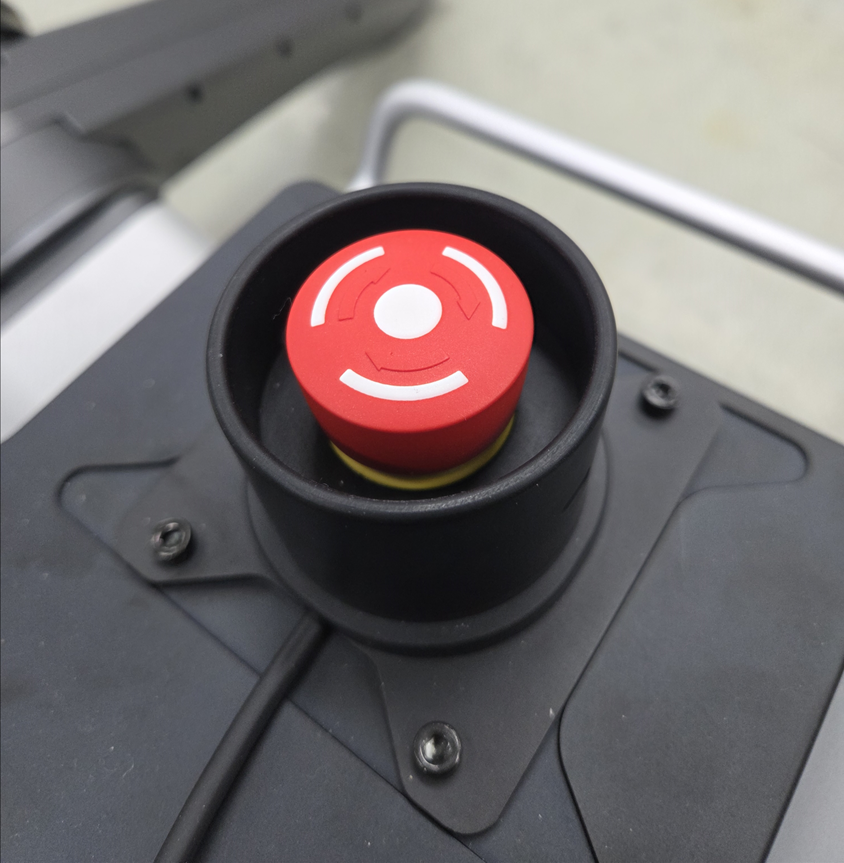
Emergency stop push button on rear of robot
[ Emergency stop push button on the rear of the robot ]

Pressing the emergency stop push button on the rear puts all joints into High Damping. In this state the robot resists external forces but does not accept torque or position commands-control is disabled and the robot may settle to the floor.

WARNING

Emergency stop protects people and the robot. Press the button immediately if there is abnormal motion, collision risk, shock, or pinch risk. It is for real emergencies-not for everyday stopping. Repeated unnecessary use can add risk by losing controlled stability.

Recovery after emergency stop ​

  1. Release the button: Turn the emergency stop button clockwise back to its normal position.
  2. Restore posture: Run Auto start in the app, or set the initial posture per Robot Initial Pose Setting.
  3. Find the cause: Remove or fix the cause of the stop (obstacle, error, wrong settings) before operating again.

Stop from the app ​

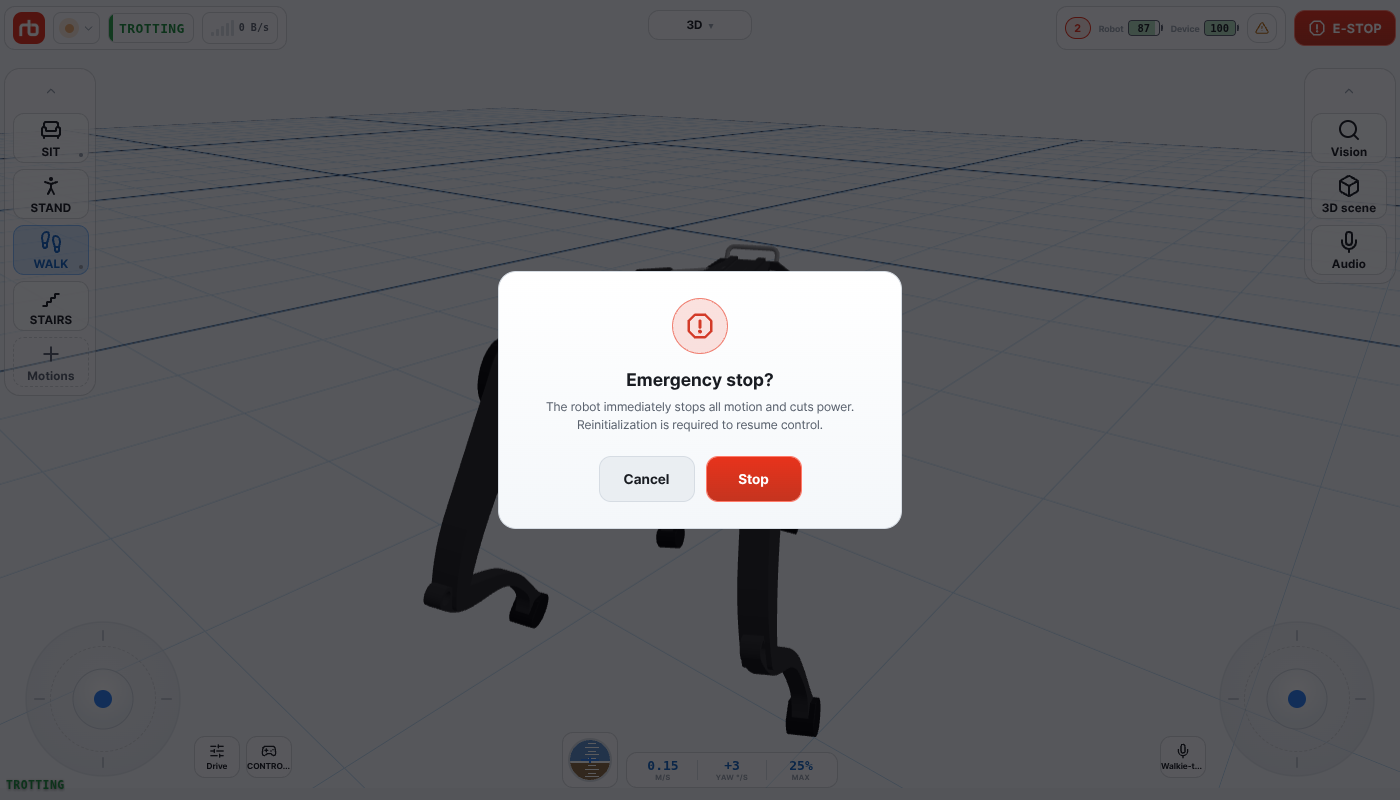
The E-STOP button in the app top bar with its confirmation
[ E-STOP at the right of the top bar, with its confirmation ]

The red E-STOP button sits at the right of the top bar on the control home, and at the right of the header on the other screens — but only while a robot is connected, or is reconnecting after a dropped link, where it stays live for 8 seconds. It is not drawn while the app is not connected to a robot, so in that state reach for the physical button on the robot (above). Pressing it opens a confirmation; the stop is only sent once you press Stop. There is no path that skips it.

You do not need robot ownership — the robot accepts an E-STOP from any connected device. The full behavior is described in Emergency stop.

CAUTION

E-STOP cuts power to all motors, so the robot sags where it stands. Use it only in critical situations. If the robot does not respond, the app log records E-Stop send failed — no response. Use the physical E-Stop — do not wait, press the physical button.

Residual motion after power off ​

CAUTION

After power is off, RBQ legs do not auto-lock. On slopes, stairs, or slippery floors the robot can still slide, roll, or move by inertia-power off does not immediately mean fully safe.

On slopes, stairs, or slippery floors after power off you may still get:

  • Sliding
  • Rolling or falling
  • Continued motion from inertia

Before approaching, check floor condition and posture; approach only from a safe direction.

This user manual is intended for RBQ users.