Skip to content

Software Update ​

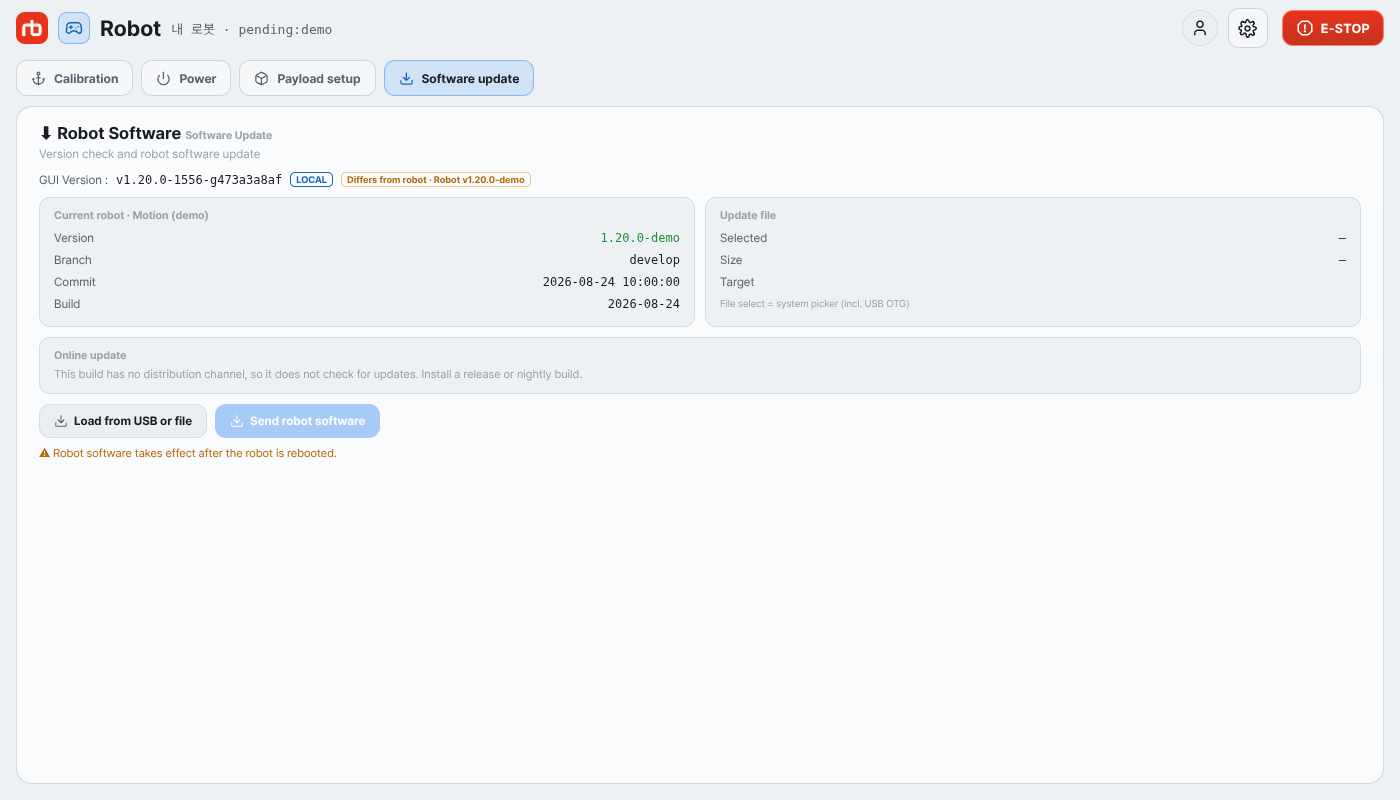
Open Maintenance → Software update. The section updates two things: the software running on the robot, and this app itself.

Software update section

Robot software ​

The top of the panel shows two cards:

  • Current robot · Motion — Version, Branch, Commit, Build as reported by the robot.
  • Update file — the package you are about to send: Selected file name, its Version, Size, and the Target.

Choosing a package ​

There are two ways to get a package onto the device.

Online — the list below the cards shows the versions published for this app's release channel (Online update · internet required). Press Check versions (or Refresh) to fetch the list, then Download on the version you want. The download pulls the robot package onto this device, along with the app build on desktop. The row then shows the package size, plus Latest and In use badges where they apply. Downloaded files stay on the device, so you can download on the internet network and switch to the robot network before sending. Remove deletes a downloaded package. The Release notes under the list cover the selected version, or the version the robot is running when nothing is selected.

From USB or a file — press Load from USB or file. The system file picker opens (a USB OTG drive shows up there like any other storage). Pick the package file; it must be named RBQ-<version>.tar.gz (the robot also accepts the RBQ-<version>.zip package). The Update file card fills in with the file's name, version, and size.

Target ​

Target selects which robot PC receives the package: Motion (the robot IP you are connected to) or Vision. Vision matters only on older robots that have a separate vision PC. If the robot has no vision IP set — the Vision IP field in its profile on the hub, or Vision PC IP (optional) when you add it by address, both developer mode — the app falls back to the default vision address and says so in a note.

Sending ​

  1. Press Send robot software.
  2. The dialog Send to the robot? lists the file, size, and target. If the file name follows RBQ-<version>.tar.gz, the dialog warns that the robot will unpack and deploy it as soon as the transfer completes, replacing the running software. The dialog says files with any other name are only stored on the robot, but current robot software refuses them outright with a "Rejected file name" error — send only properly named packages.
  3. Press Send. The progress bar shows the percentage, and Cancel aborts the transfer.
  4. On success the panel shows ✓ Transfer complete and asks Deploy transfer complete — reboot now?. With a Vision target the dialog only says the vision PC cannot be rebooted from the app and closes with Check.

Reboot ​

Robot software takes effect only after you reboot the robot. For a Motion target the reboot prompt offers Later and Reboot now.

WARNING

Rebooting cuts motor power and the robot will sag to the ground. The robot must be in the sitting state before you reboot — sit it down first and make sure it is resting on the floor, and do not move it during the reboot. If the robot is standing it ignores the reboot command, and the app shows no error. The app connection drops while the robot restarts. Reconnect afterwards and check that Current robot shows the new version.

The vision PC cannot be rebooted from the app. If the target was Vision, reboot that PC by hand.

This app ​

The GUI Version line shows the version of the app you are running, followed by a badge:

  • no badge — a release build,
  • NIGHTLY — a nightly build (its list shows Nightly builds · last 10 kept instead of the release list),
  • LOCAL — a local build with no release channel; it does not check for updates.

Next to it, Matches robot (with a check mark) or Differs from robot compares the app version with the robot version. Keeping the two the same is the intended pairing.

Once the version list has loaded, an update button appears if a newer app is available:

  • Update in store — store installs (Google Play / App Store). The store app opens; install from there.
  • <version> Update — APK and desktop installs. The app downloads the build and installs it (Android hands it to the system installer; desktop switches to the new build). You're on the latest version is shown when nothing newer exists.

On desktop, Install online registers a build you downloaded but never installed, and Use this build switches to any downloaded build in the list.

Nightly builds only see nightly releases and release builds only see releases — the channel is fixed when the app is built.

This user manual is intended for RBQ users.