
PTZ GUI
If a PTZ camera (optional) is installed, you can control the camera direction (Pan/Tilt), zoom, and video mode (Thermal/Color) from RBQGUI.
1) Screen entry
- Run RBQGUI and connect to the robot.
- Move to the camera screen, then open the PTZ control screen.
- When the PTZ is connected normally, you can use the control area at the bottom.
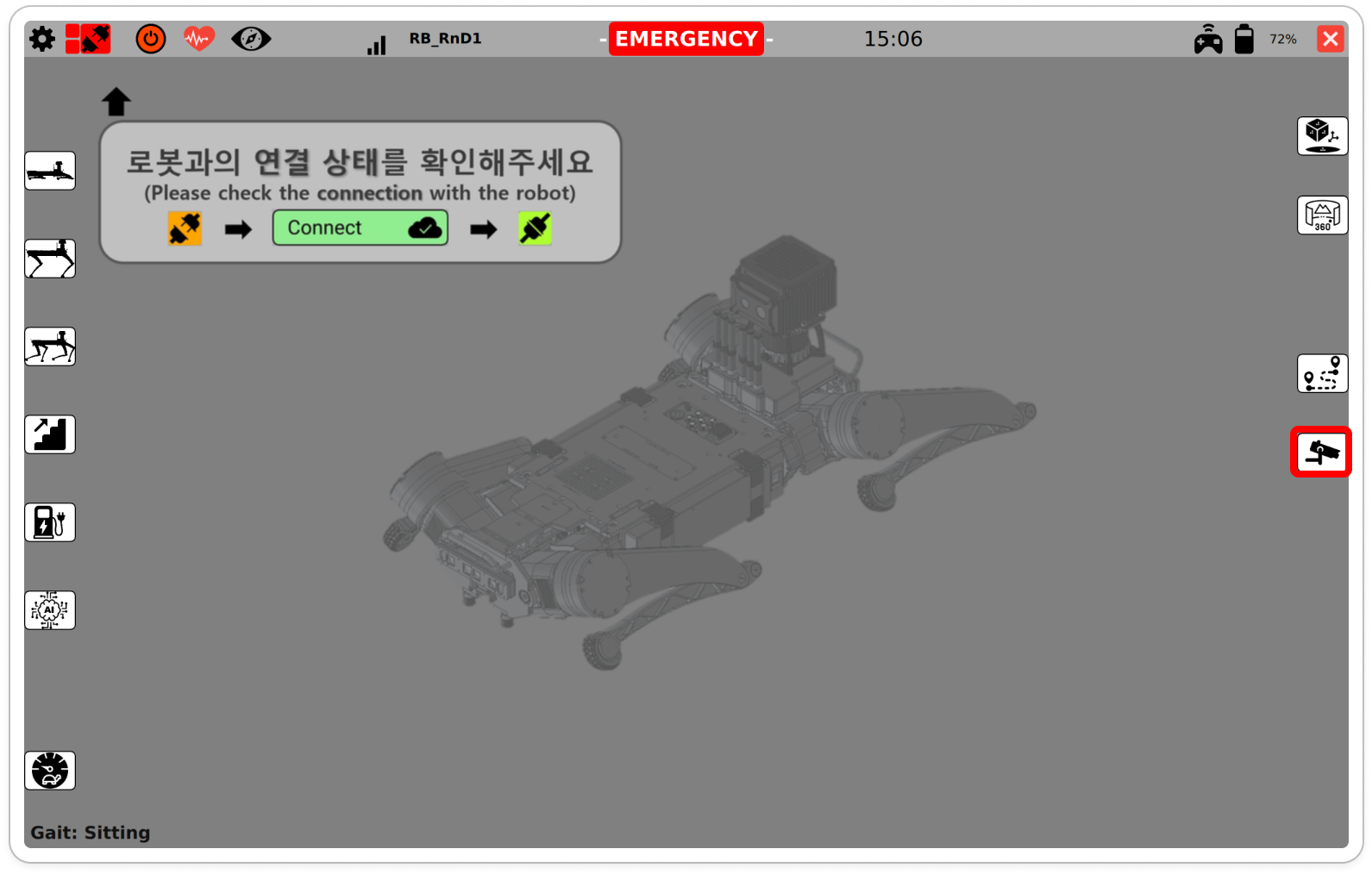
2) Basic operation (Pan/Tilt)
- Drag the PTZ control area (virtual joystick) on the screen to move the camera left/right (Pan) and up/down (Tilt).
- When you release your hand, input stops. If needed, drag again for fine adjustments.
- For more accurate positioning, move slowly using smaller inputs instead of fast movements.
3) Zoom control
Use the bottom Zoom buttons to change the optical zoom immediately.
1x,3x,8x,16x,32x: fixed zoom selectionCenter: return the camera direction to the default center position
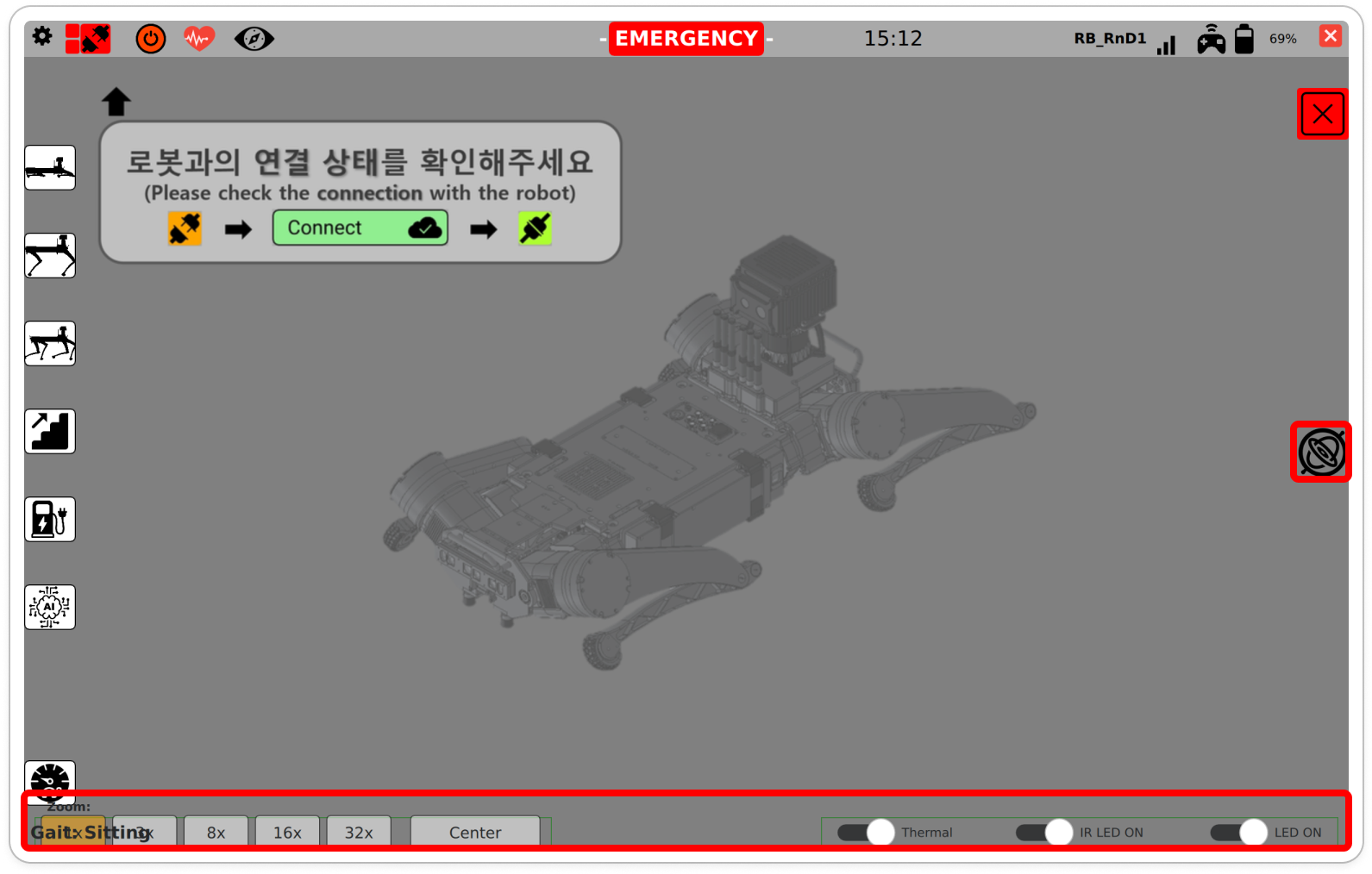
4) Video mode & joystick
On the bottom-right, you can control the Thermal/Color switch and the virtual joystick display.
- Thermal / Color: switch between thermal (
Thermal) and color (Color) video - Joystick icon (center of the right side of the screen): tap to show/hide the virtual joystick panel
5) Exit
Press the Exit button at the top-right to close the PTZ screen and return to the basic GUI screen.