
Payload Configuration
In RBQGUI, use Payload Configuration to enter the mass and offsets of attached payloads and improve walking stability.
Preparation
- Place the robot on a flat, safe surface.
- Make sure RBQGUI is connected to the robot.
- Check the payload center position in advance (X/Y/Z offsets).
Procedure
- Open Payload Configuration in RBQGUI.
- Enter the following values in the top input fields:
- Mass (kg): Mass of the attached payload
- Offset X/Y/Z (m): Payload center position in the robot coordinate frame
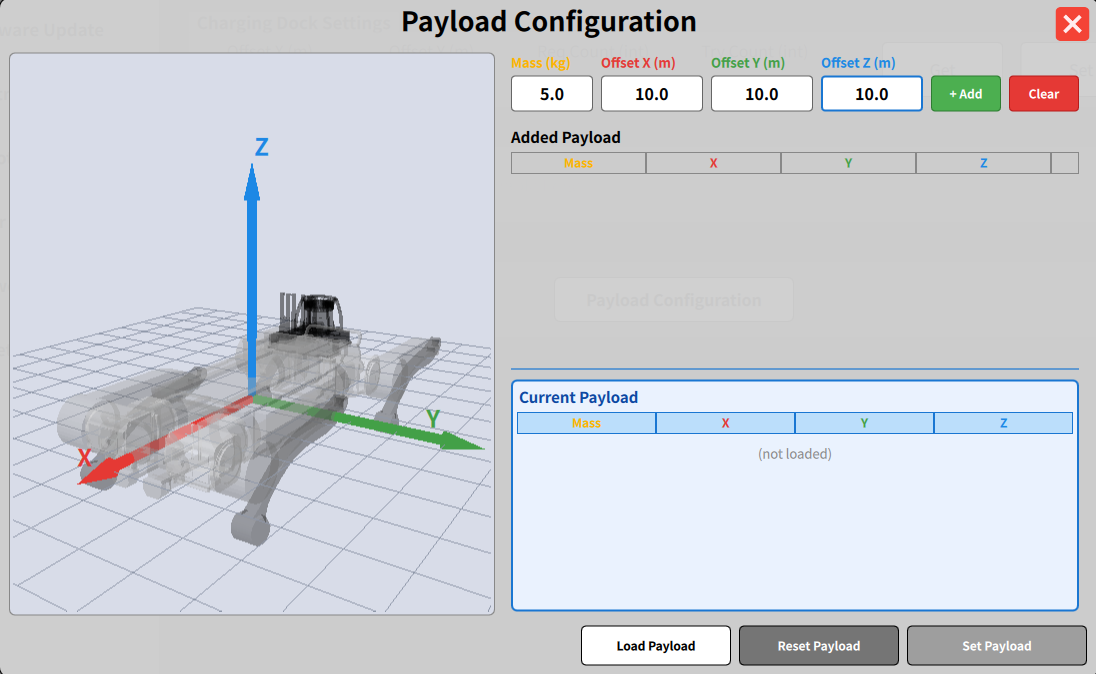
- Click + Add to add the values to the Added Payload list.
- Confirm the values were added correctly, then click Set Payload.
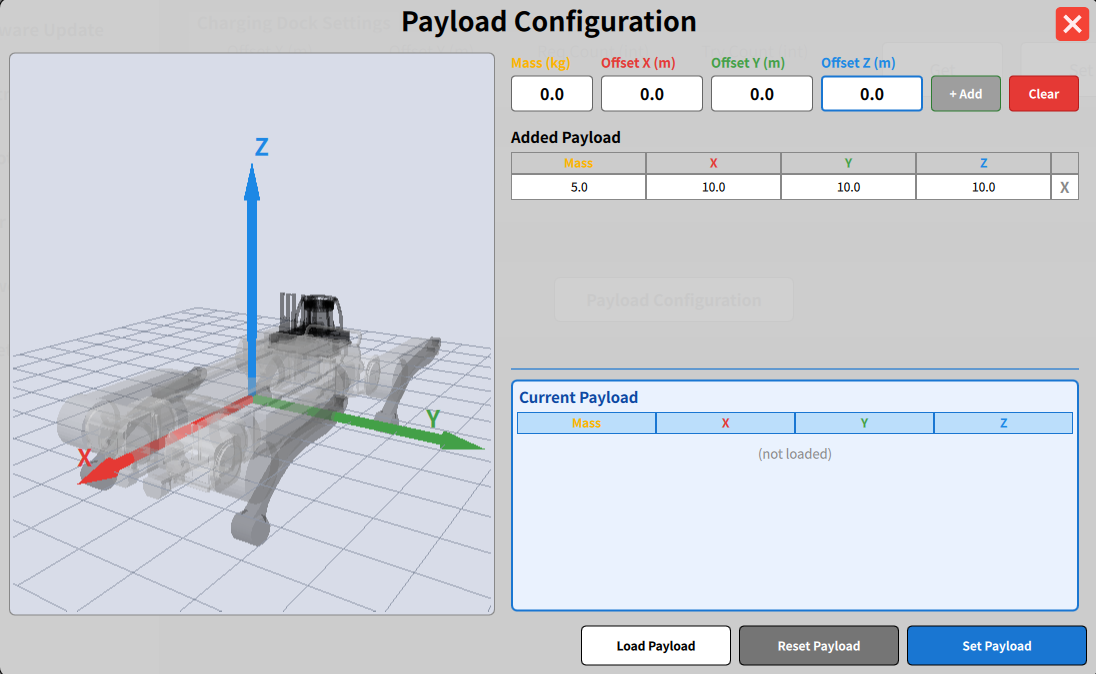
- When the confirmation popup appears, verify the values (mass and offsets) and click Confirm to apply them to the robot.
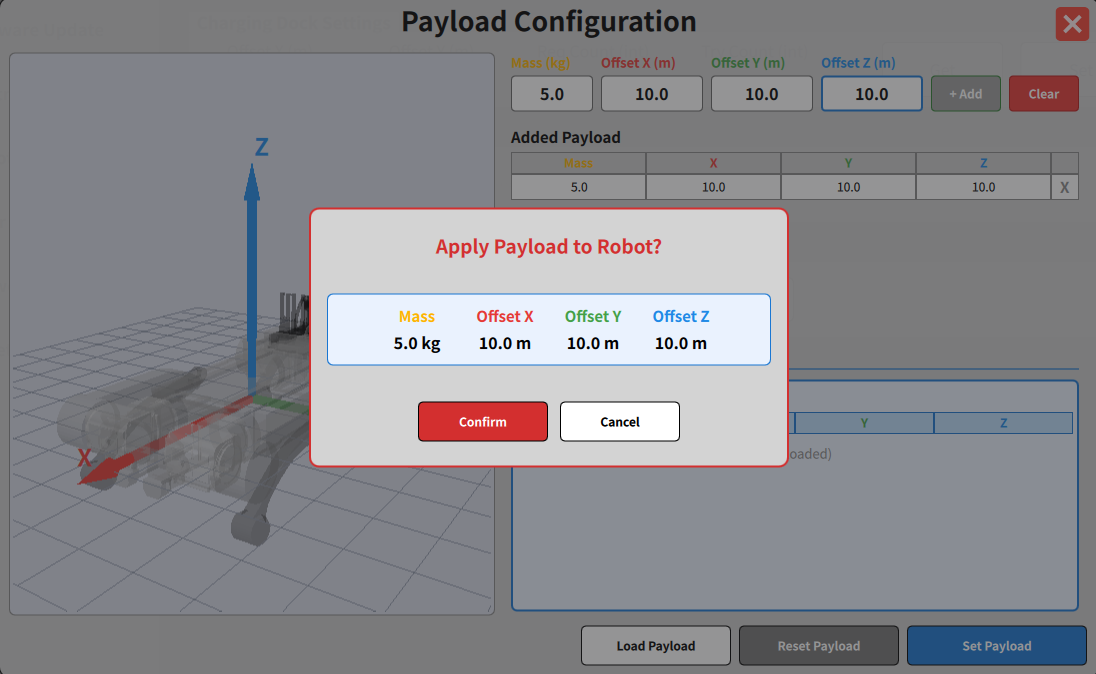
- After applying, use Load Payload if needed to reload and verify the currently applied value.
Button Functions
- + Add: Add entered mass/offset values to the candidate list
- Clear: Clear current input fields
- Set Payload: Apply the Added Payload value to the robot
- Load Payload: Load the payload value currently applied on the robot
- Reset Payload: Reset payload values to default state