
Docking calibration
You can adjust docking-related parameters in RBQGUI for stable docking behavior.
Preparation
- Move the robot to a location where you can test docking.
- Keep the area clear of obstacles.
- RBQGUI must be connected to the robot.
Procedure
Launch RBQGUI and connect to the robot.
Open Settings → Robot, then press Get to load the current values.
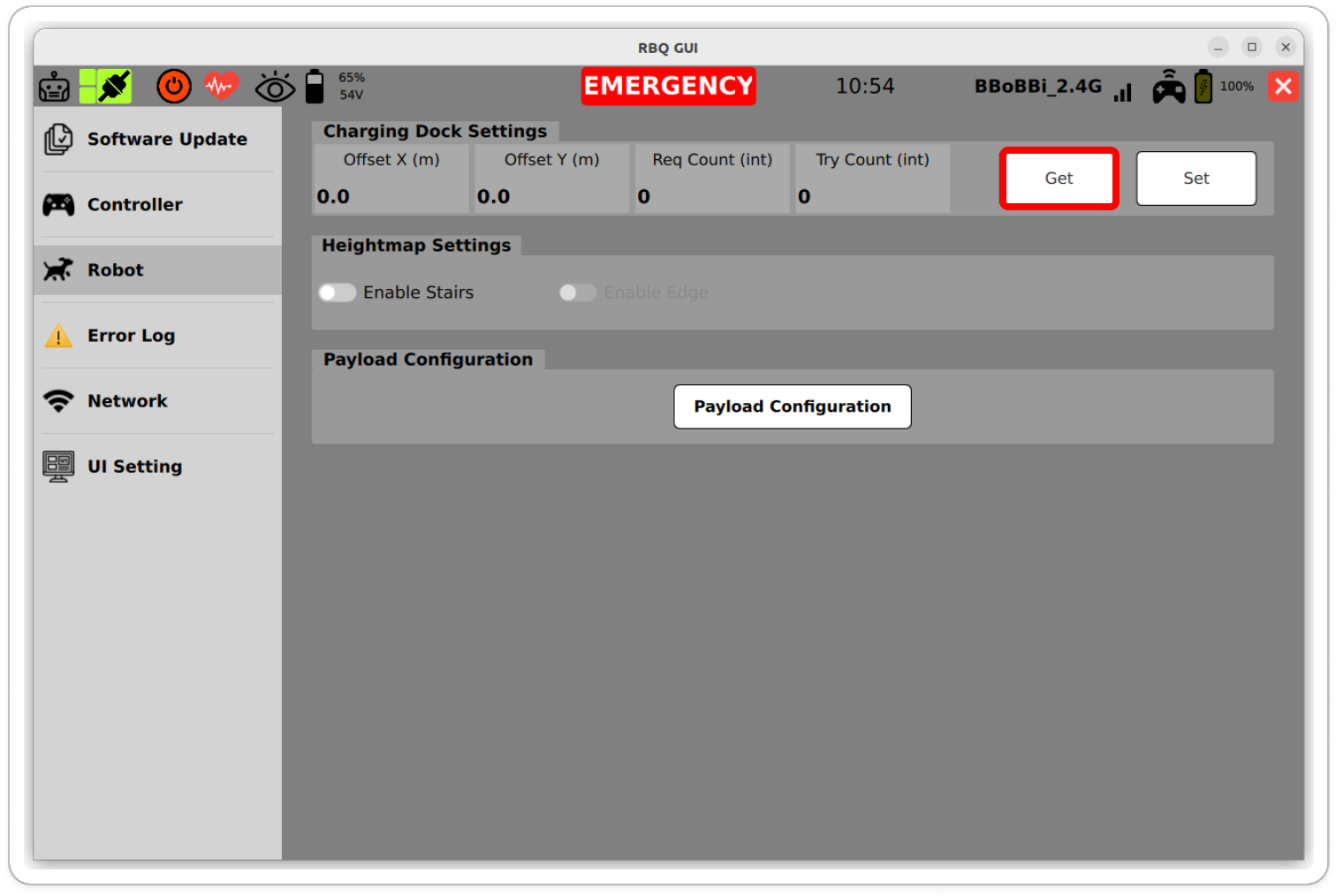
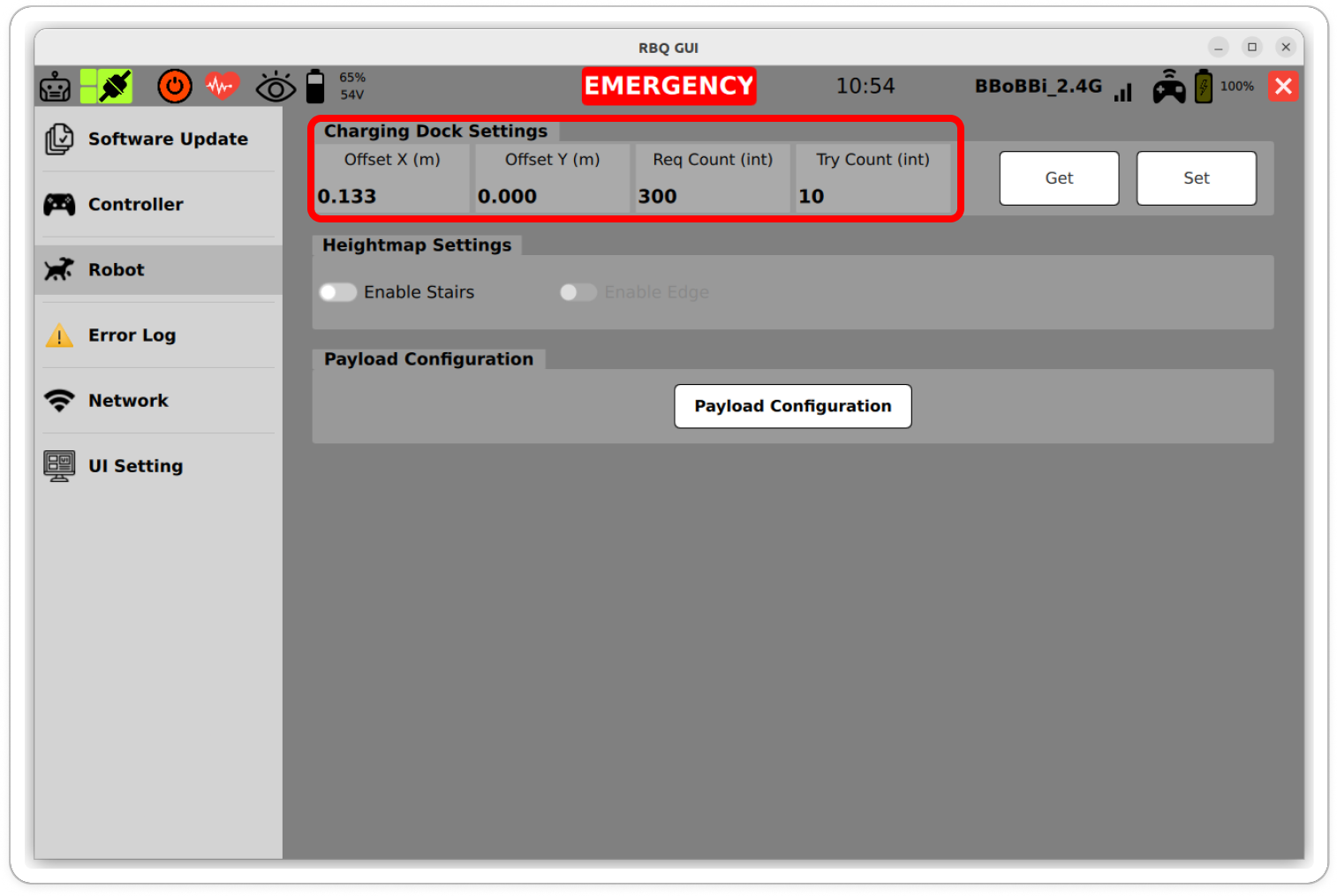
- Edit parameters that show error, then press Set to apply the changes.
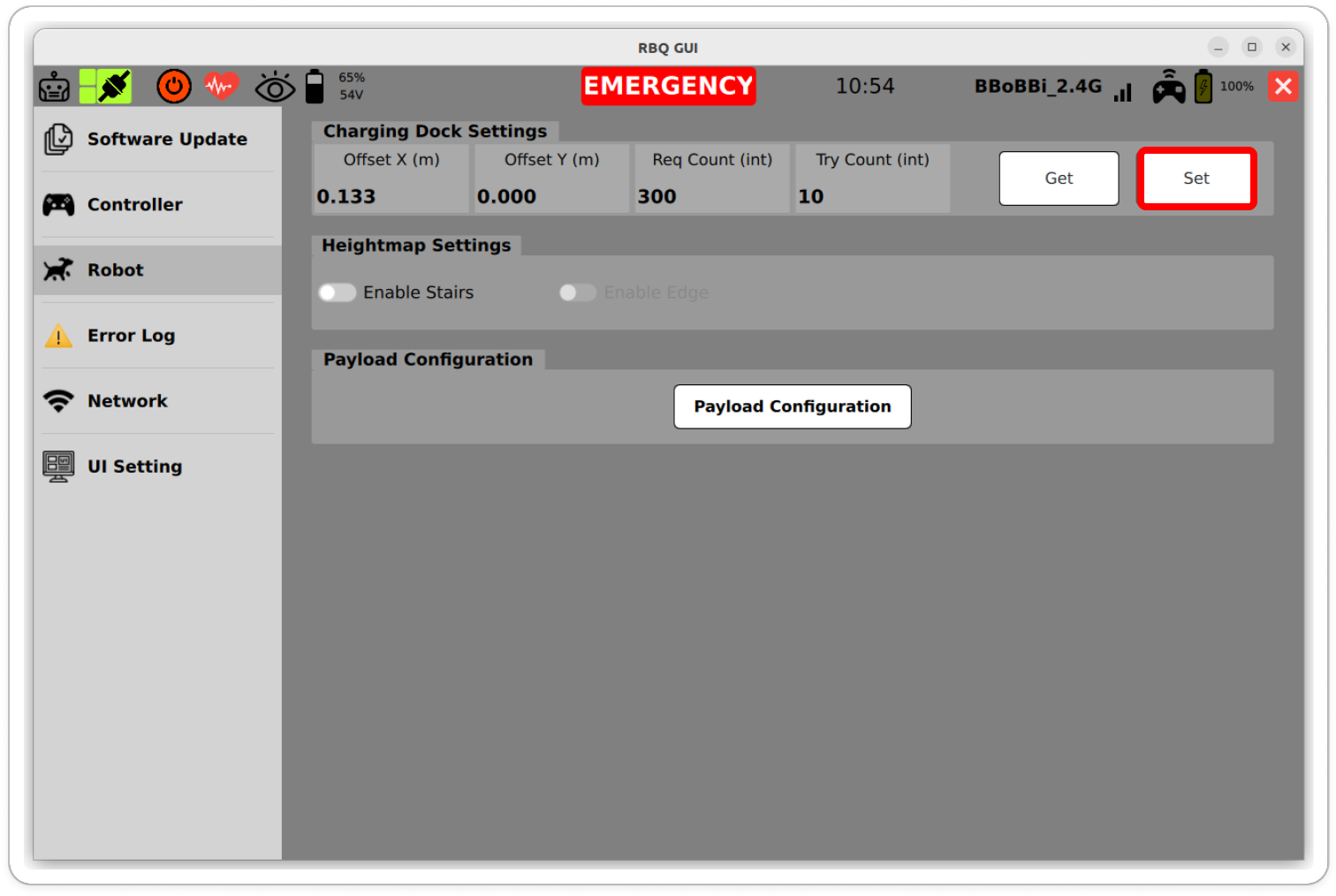
- Repeat steps 2–3 until docking is stable.
- When you are done, use docking as usual.
Adjustable parameters
- Offset X (m): Position correction along the robot X axis.
- Offset Y (m): Position correction along the robot Y axis.
- Req Count (int): Upper limit on consecutive failed responses when requesting the marker (charger) pose.
- Try Count (int): Value related to how many docking failures or retries are allowed.