
Controller (Steam Deck) and Wi-Fi Connection
This page describes how to connect the STEAM DECK to the robot Wi-Fi, communicate with the robot in RBQGUI, and proceed through auto start. Complete Robot Initial Pose Setting (initial pose and power on) first.
Step 1: Open RBQGUI app
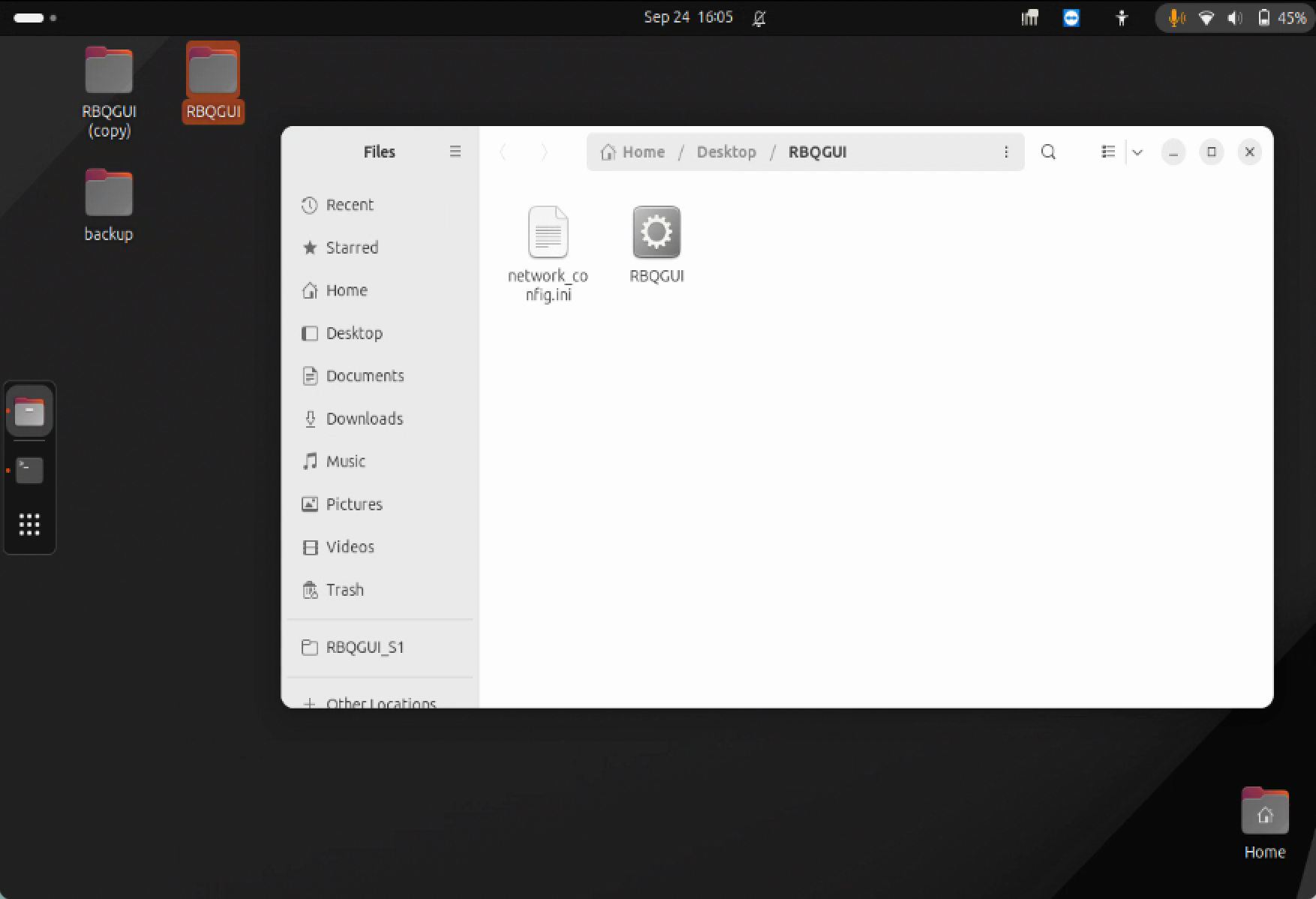
Run the RBQGUI app from the STEAM DECK desktop.
Step 2: Wi-Fi connection
The robot provides a Wi-Fi access point named RBQ_{XX} (XX differs by unit). Connect the STEAM DECK to that network.
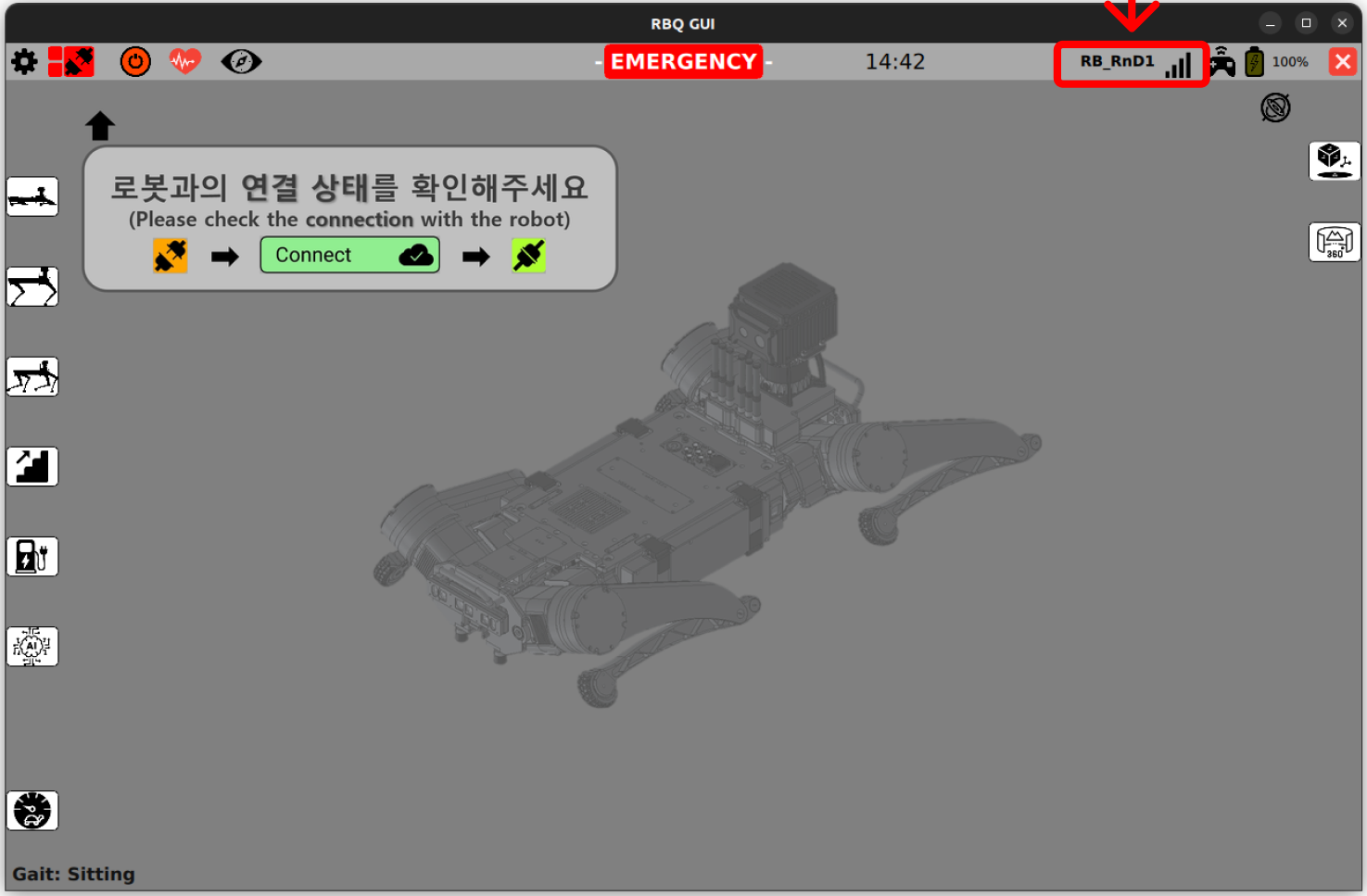
- Check Wi-Fi - After connecting the Steam Deck to the robot AP (
RBQ_{XX}), confirm the top-right of RBQGUI shows the network name and signal icon.
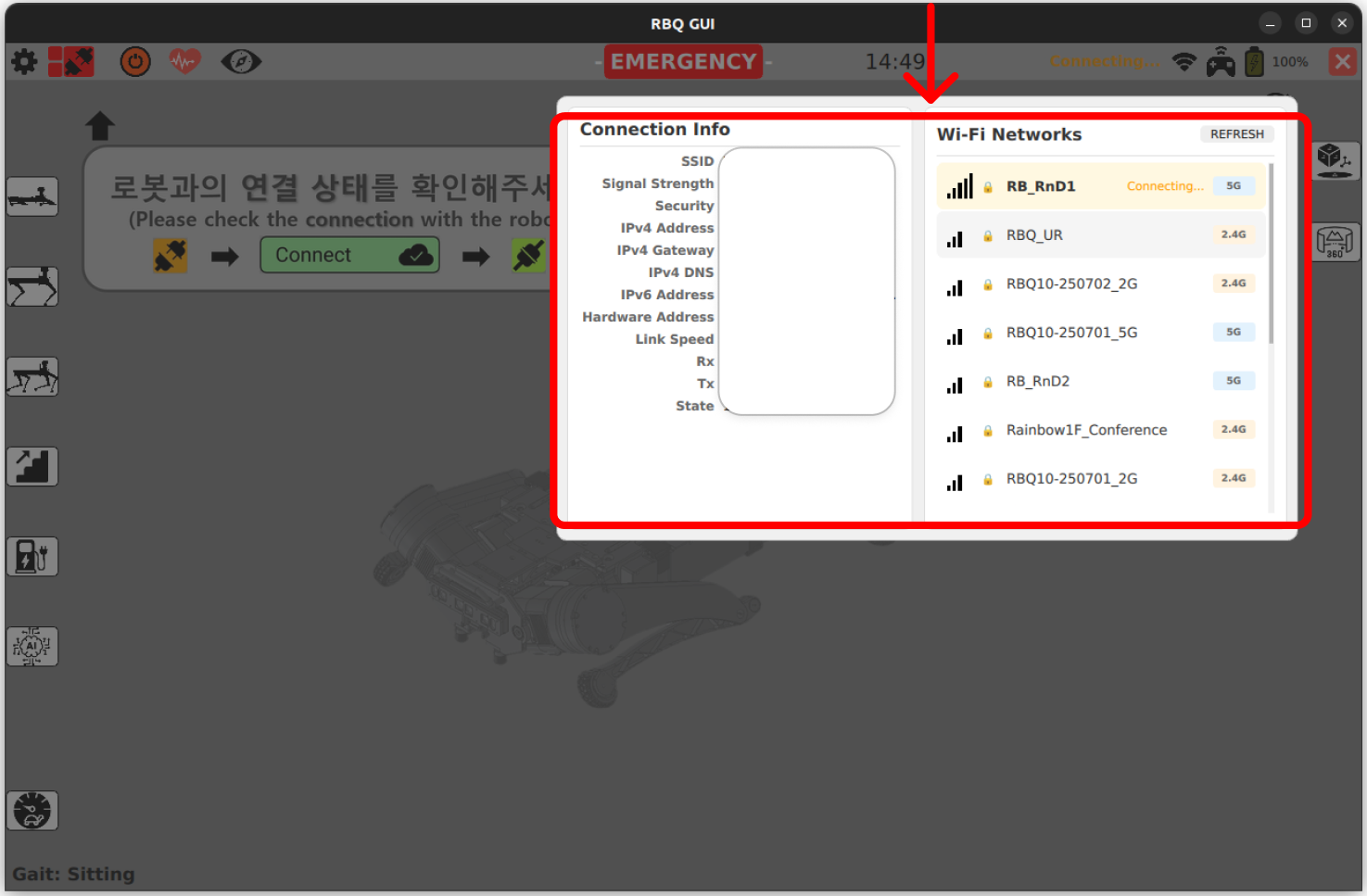
- Select the robot network - Choose
RBQ_{XX}in the list. (If it does not appear, check robot power and Wi-Fi operation.)
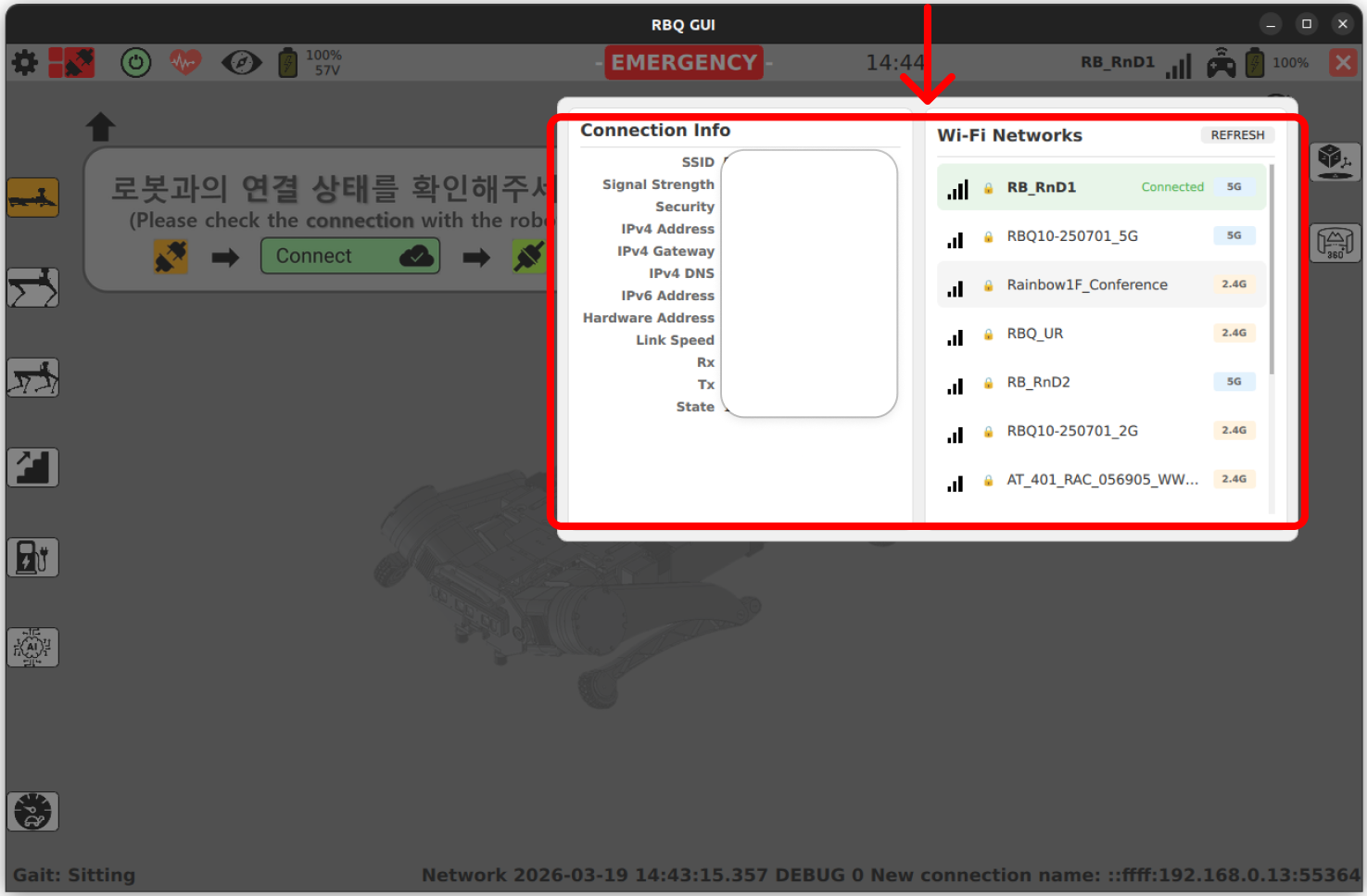
- Verify connection - Confirm the deck shows Connected to
RBQ_{XX}.
Step 3: Connect STEAM DECK and robot
For RBQGUI to talk to the robot, you must also establish remote controller-robot communication inside the app.
- Open the connection dialog - Press
Remote Controller-Robot Communication Connection(orange) on the left of the top bar. A connection pop-up appears.
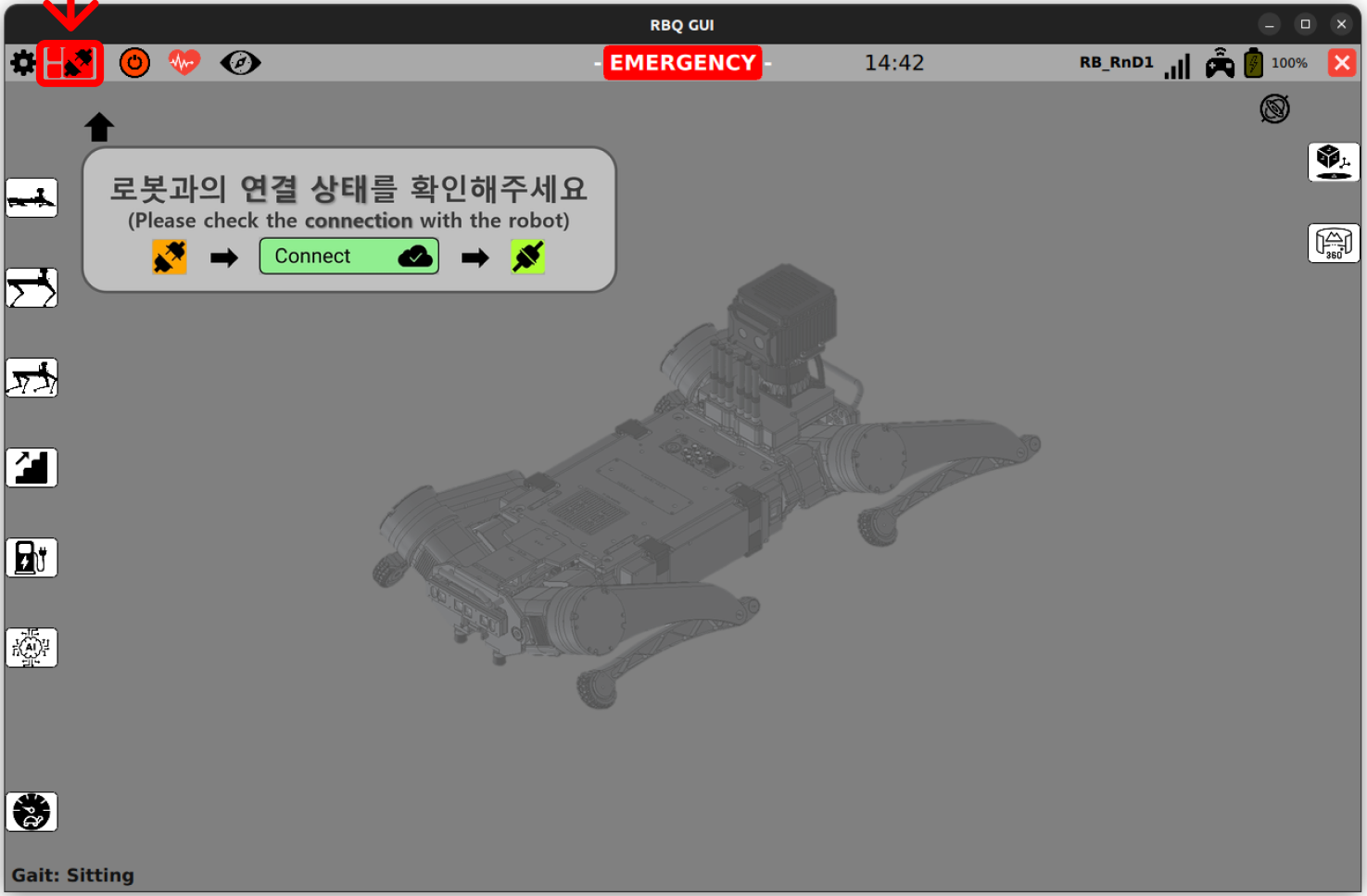
- Connect - In the pop-up, press
Connectto attempt communication with the robot.
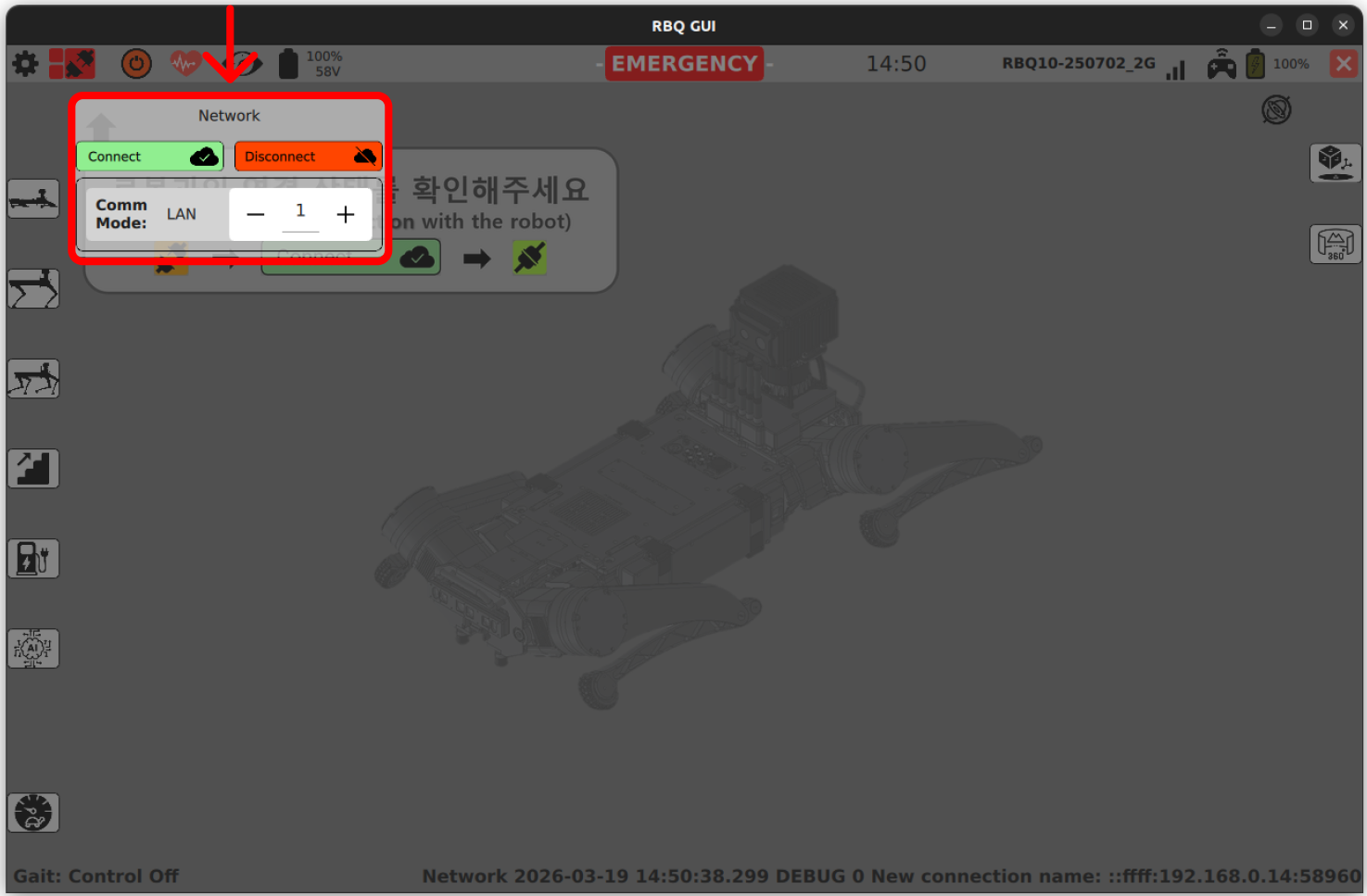
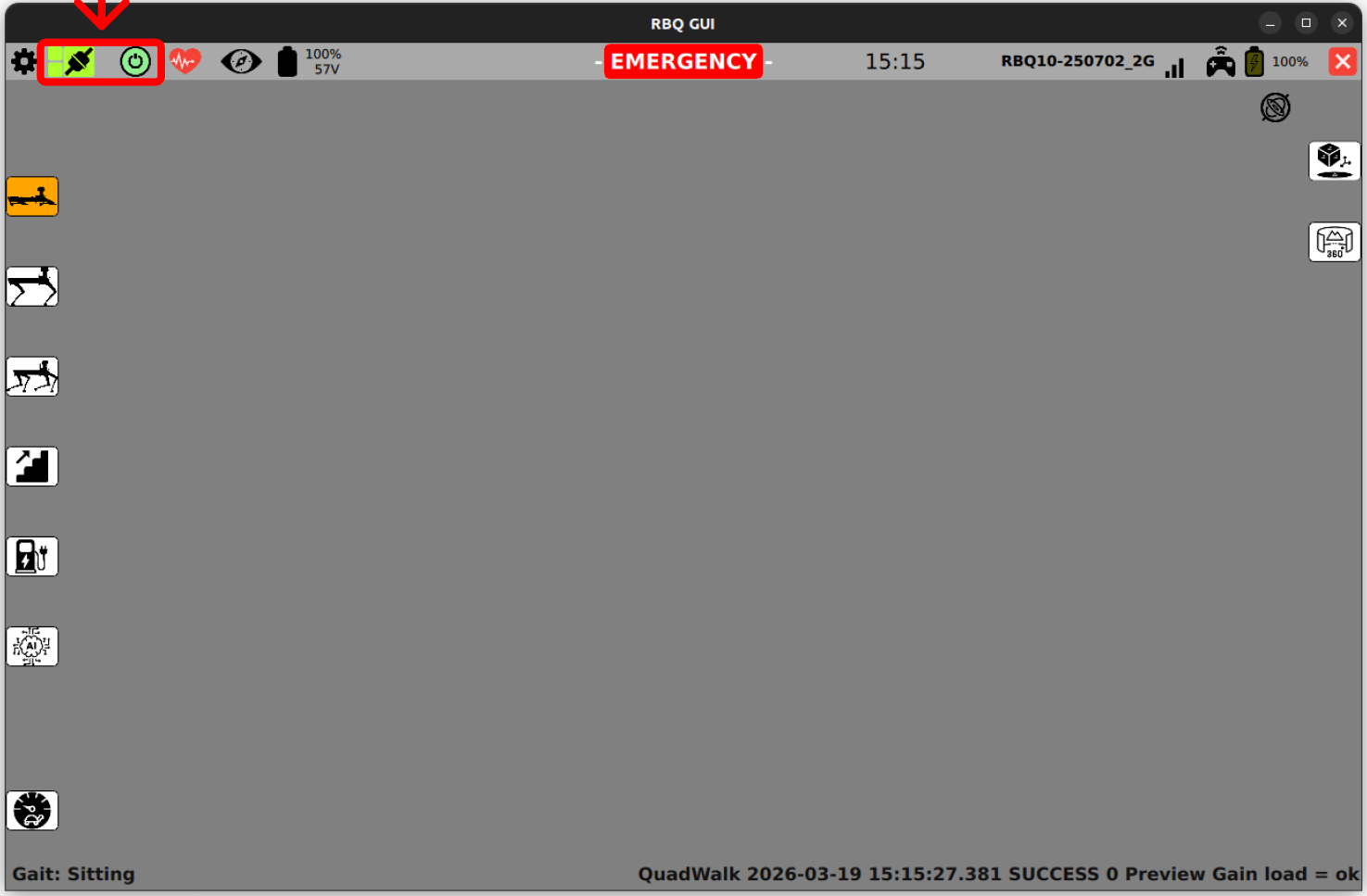
- Confirm result - When connected,
Remote Controller-Robot Communication Connectionat the same position turns green, and the pop-up shows a connected state.
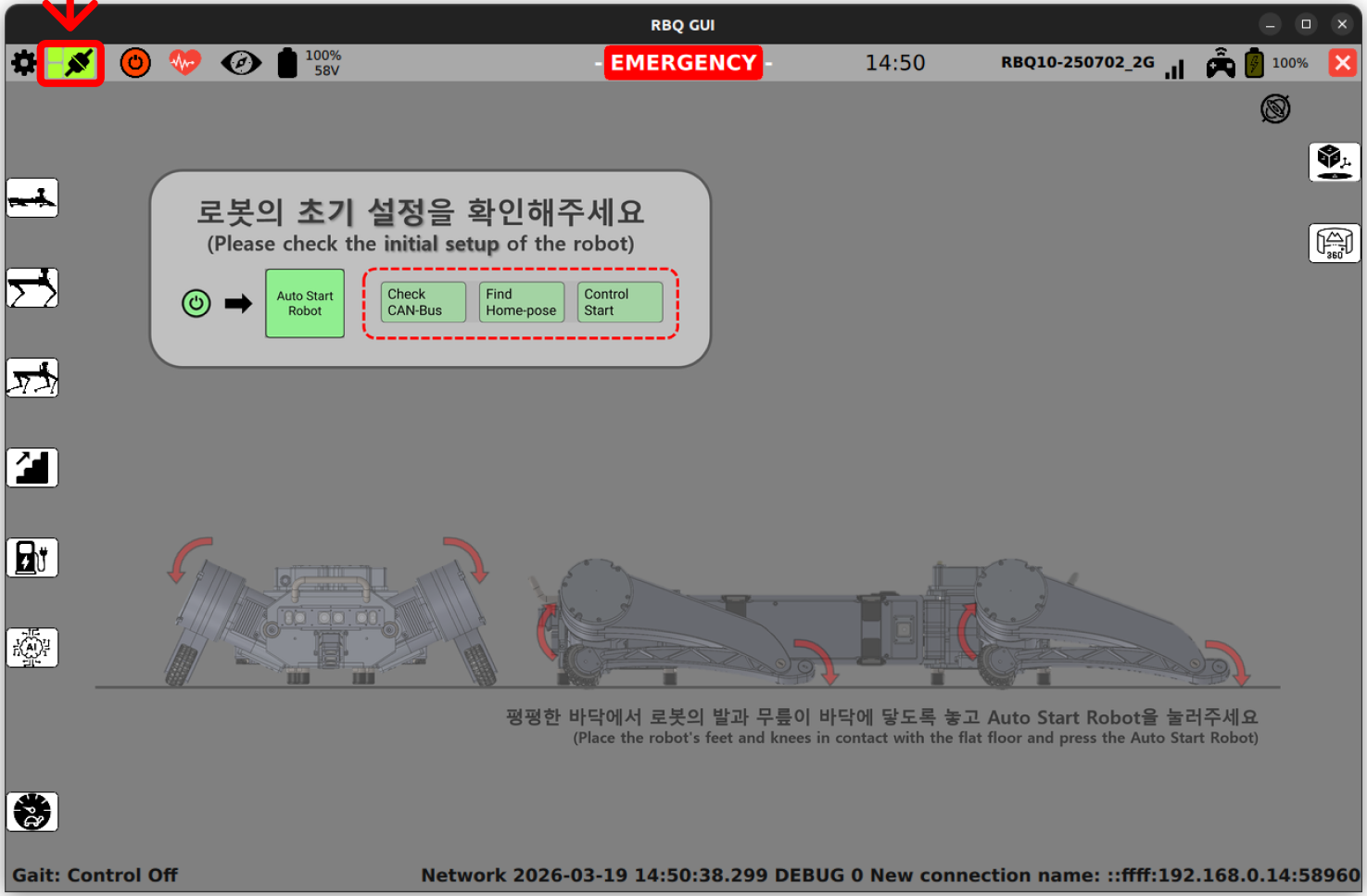
Step 4: Auto start
To bring up robot software and state in one flow, use the auto start procedure.
- Open initial setup - Press
Robot Initial Setup(red) on the left of the top bar.
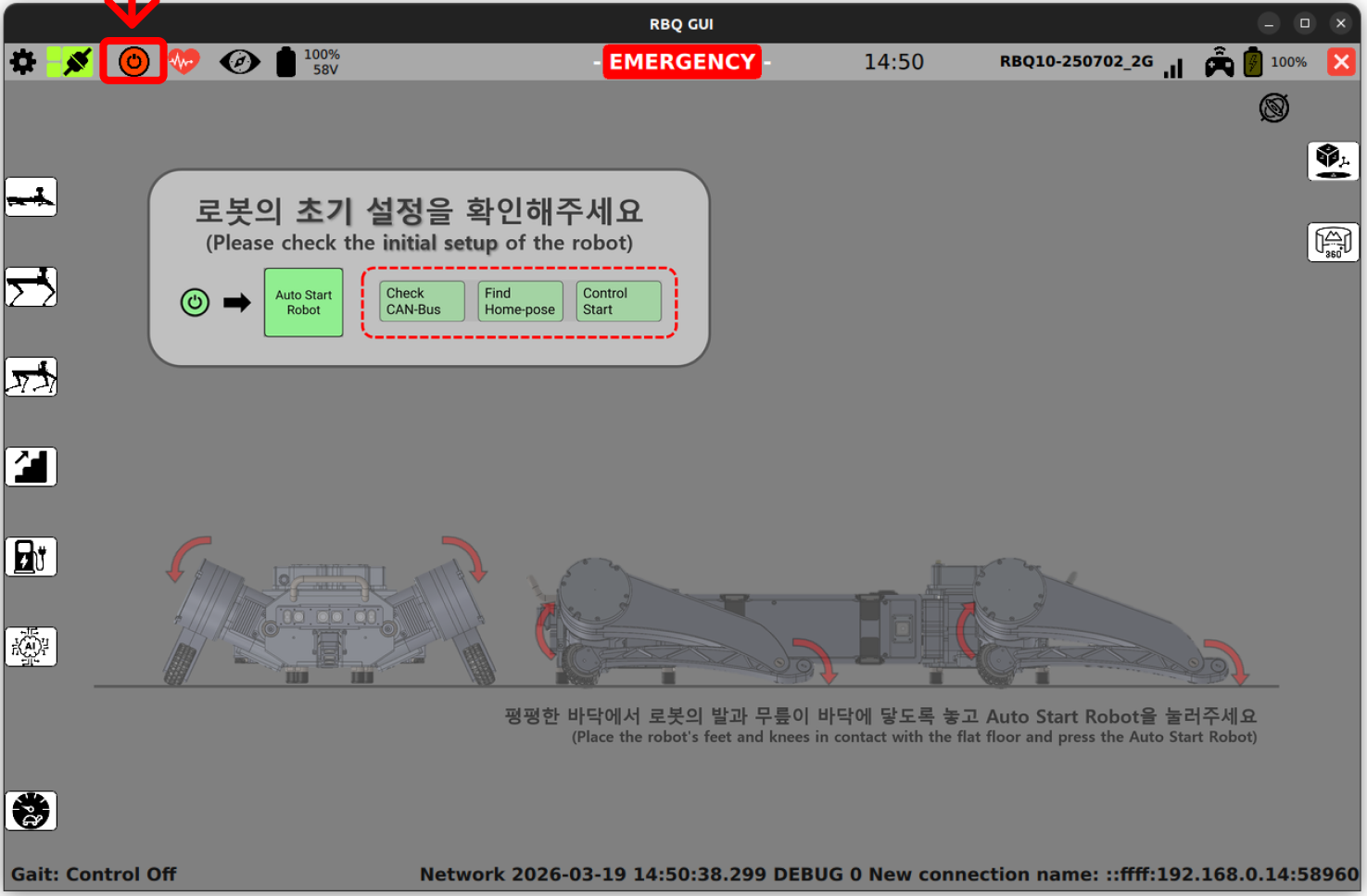
- Run auto start - In the pop-up, press
Auto Start Robot. After a short wait, progress appears on screen.
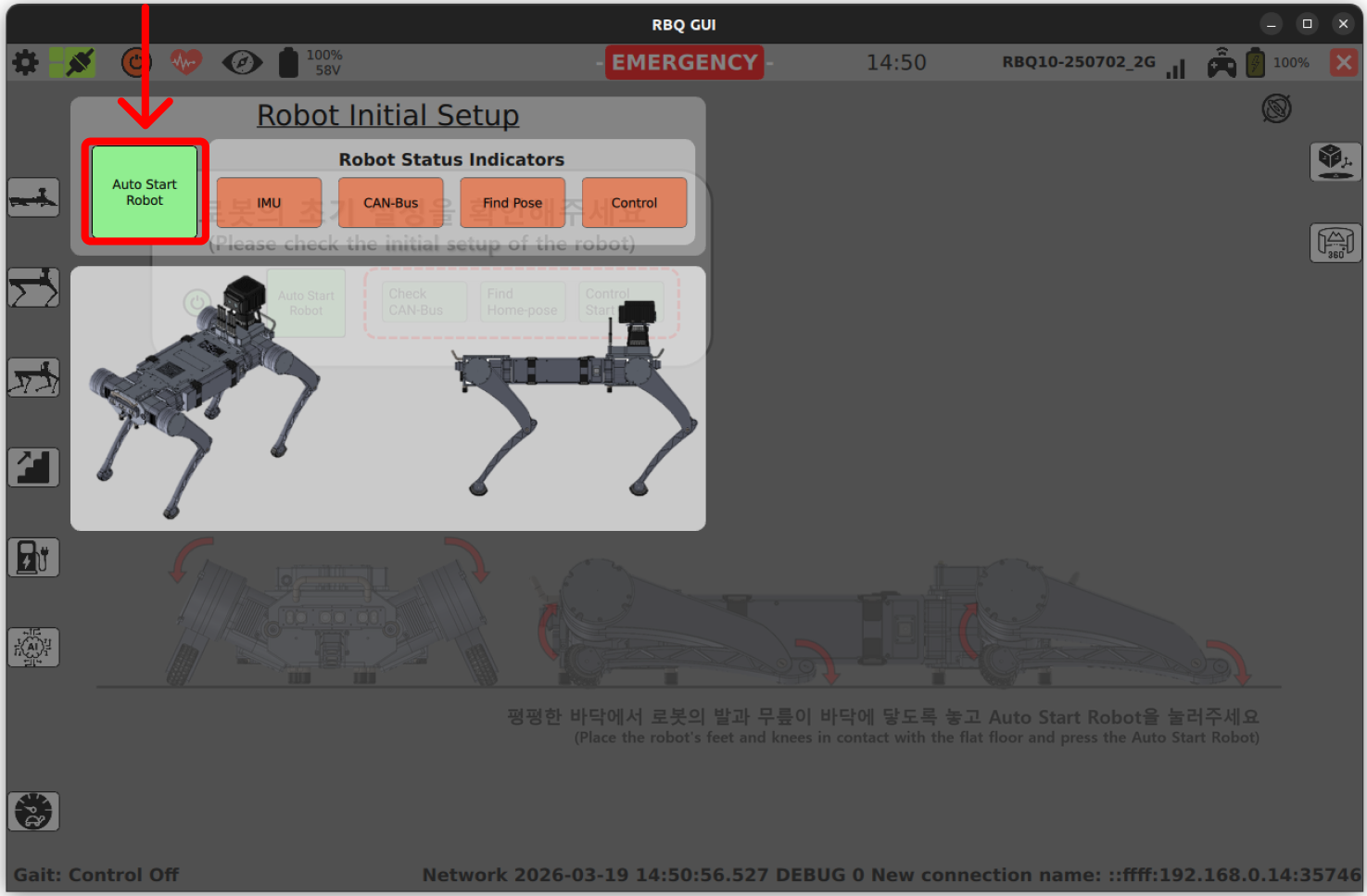
- Check progress - Confirm each item such as
Manual Setupupdates. (Some items may show green before others for a while.)
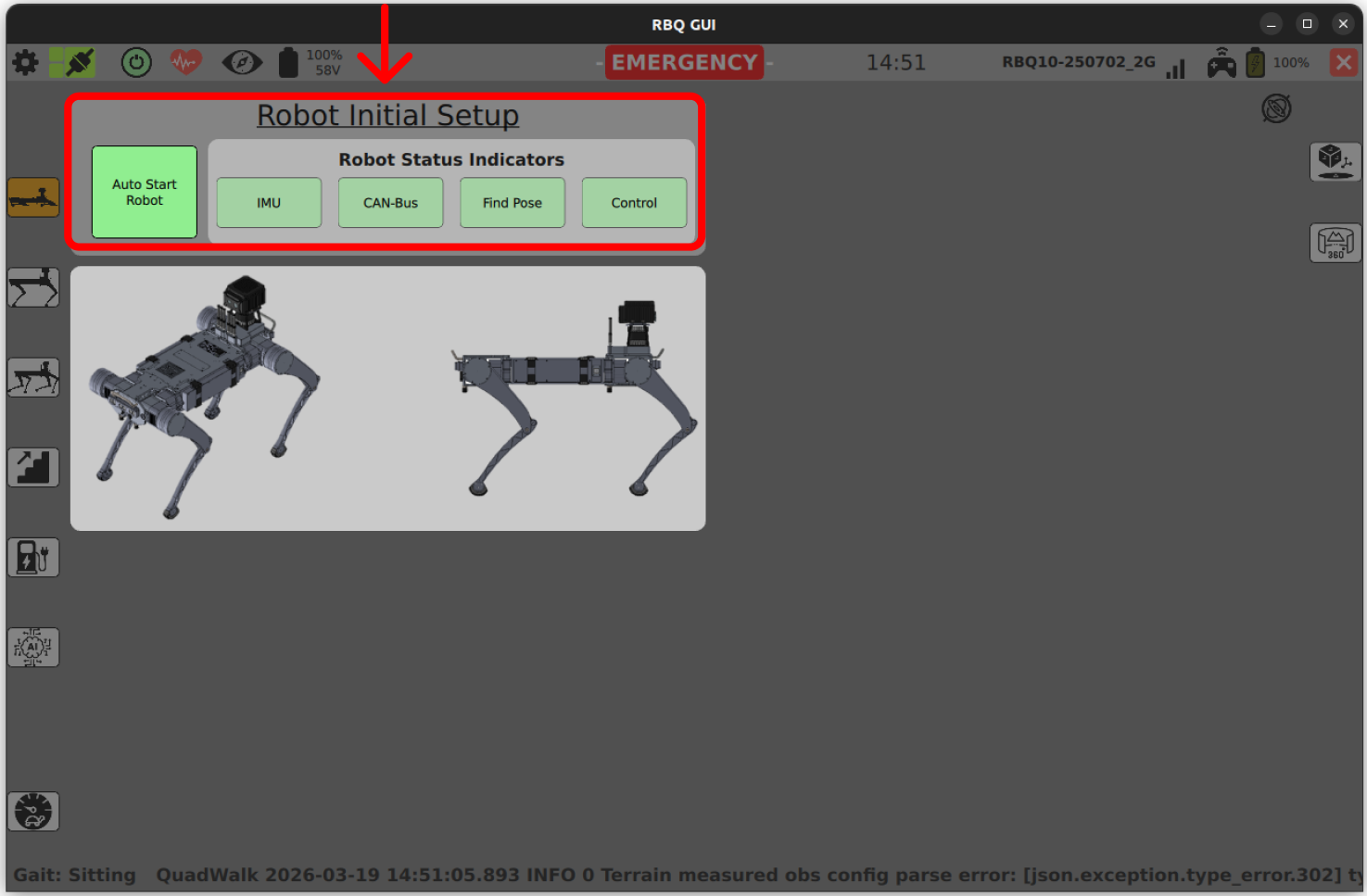
- Confirm completion - When all setup items shown on screen are green, auto start has completed successfully.
WARNING
If, after auto start, not all setup items turn green or an error is shown, confirm no people are nearby, review the emergency stop procedures, then follow the steps below. Before operation, always comply with the general safety guidelines.
- If
Check CAN-Busfails: power off the robot safely, then restart. - If
Find Home-posefails: on a flat, stable surface per maintenance safety, check leg pose, then restart.
If the problem persists, contact Rainbow Robotics via error reporting.