
State Monitoring
In RBQGUI, you can check the robot’s current status (emergency/power/sensors/perception modules) in real time.
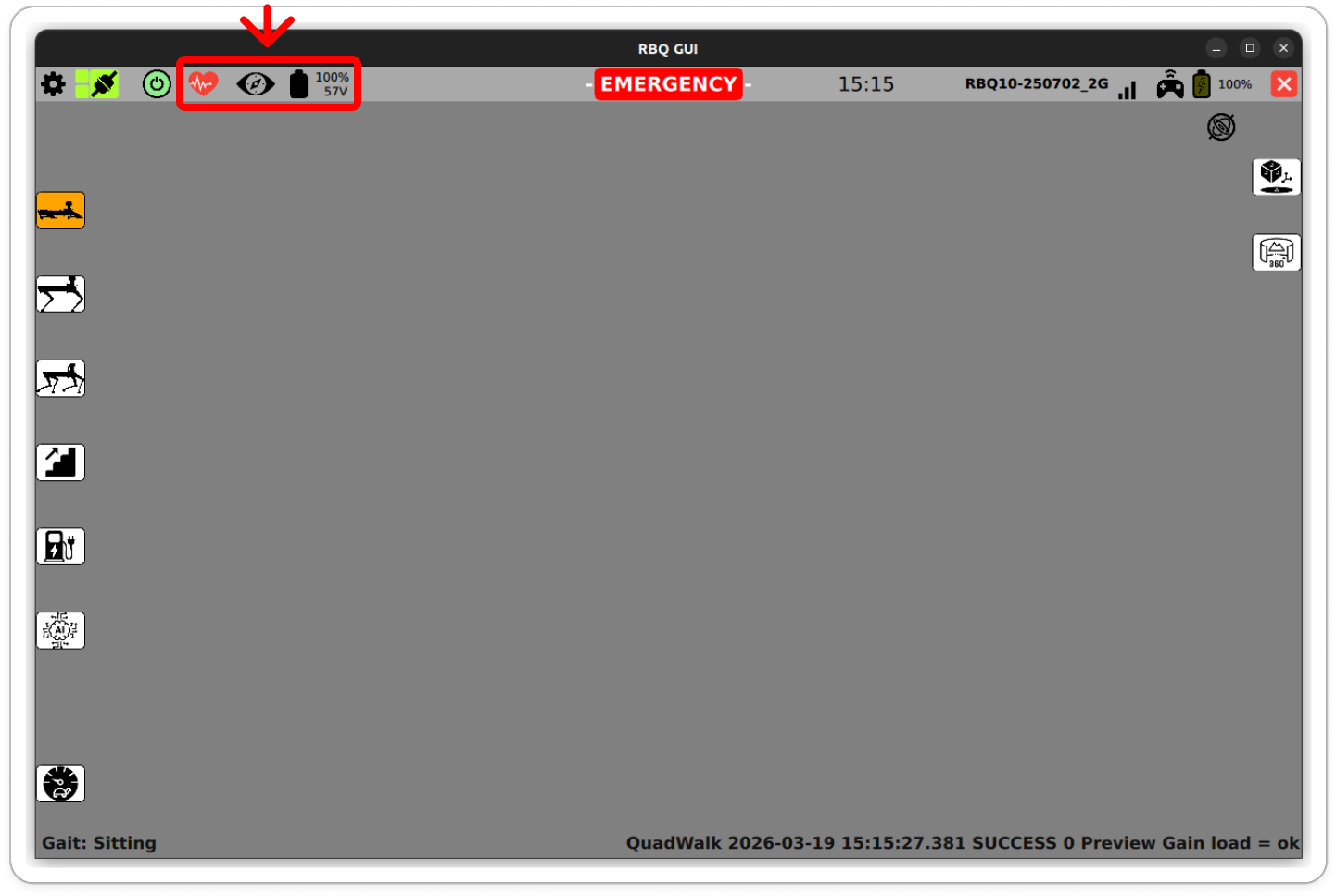
1) Top Status Area
You can check the EMERGENCY status and various system status icons (battery/connection/power, etc.) at a glance.
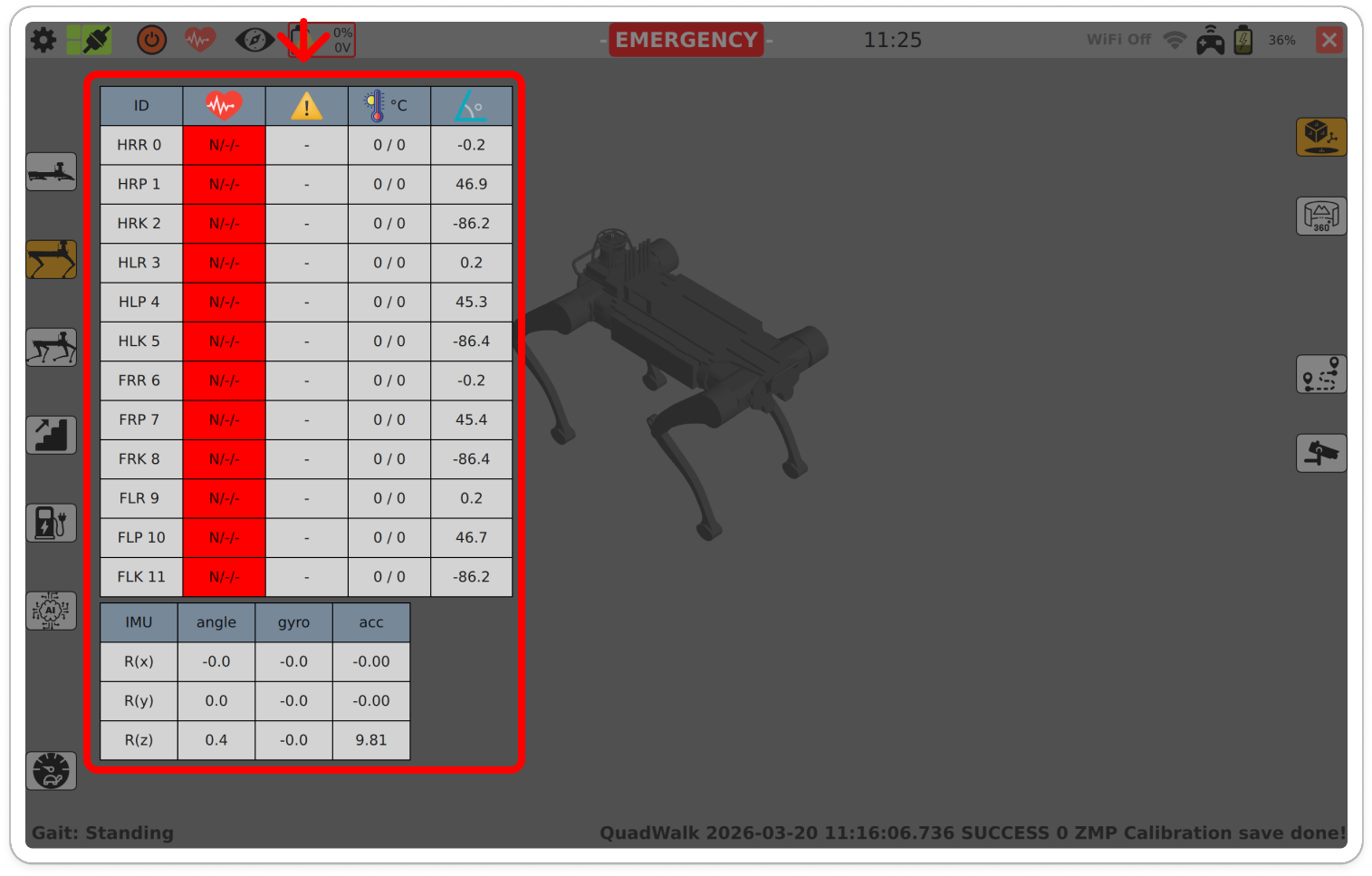
2) Diagnostic Table (Motors/IMU, etc.)
Review diagnostic values per leg/joint (e.g., HRR/HRP/...) along with temperature, gyro, and acceleration (ACC) readings in a table.
Joint Naming
Joint IDs in the diagnostic table use the following abbreviations:
- HRR : Hind Right Roll, HRP : Hind Right Pitch, HRK : Hind Right Knee
- HLR : Hind Left Roll, HLP : Hind Left Pitch, HLK : Hind Left Knee
- FRR : Front Right Roll, FRP : Front Right Pitch, FRK : Front Right Knee
- FLR : Front Left Roll, FLP : Front Left Pitch, FLK : Front Left Knee
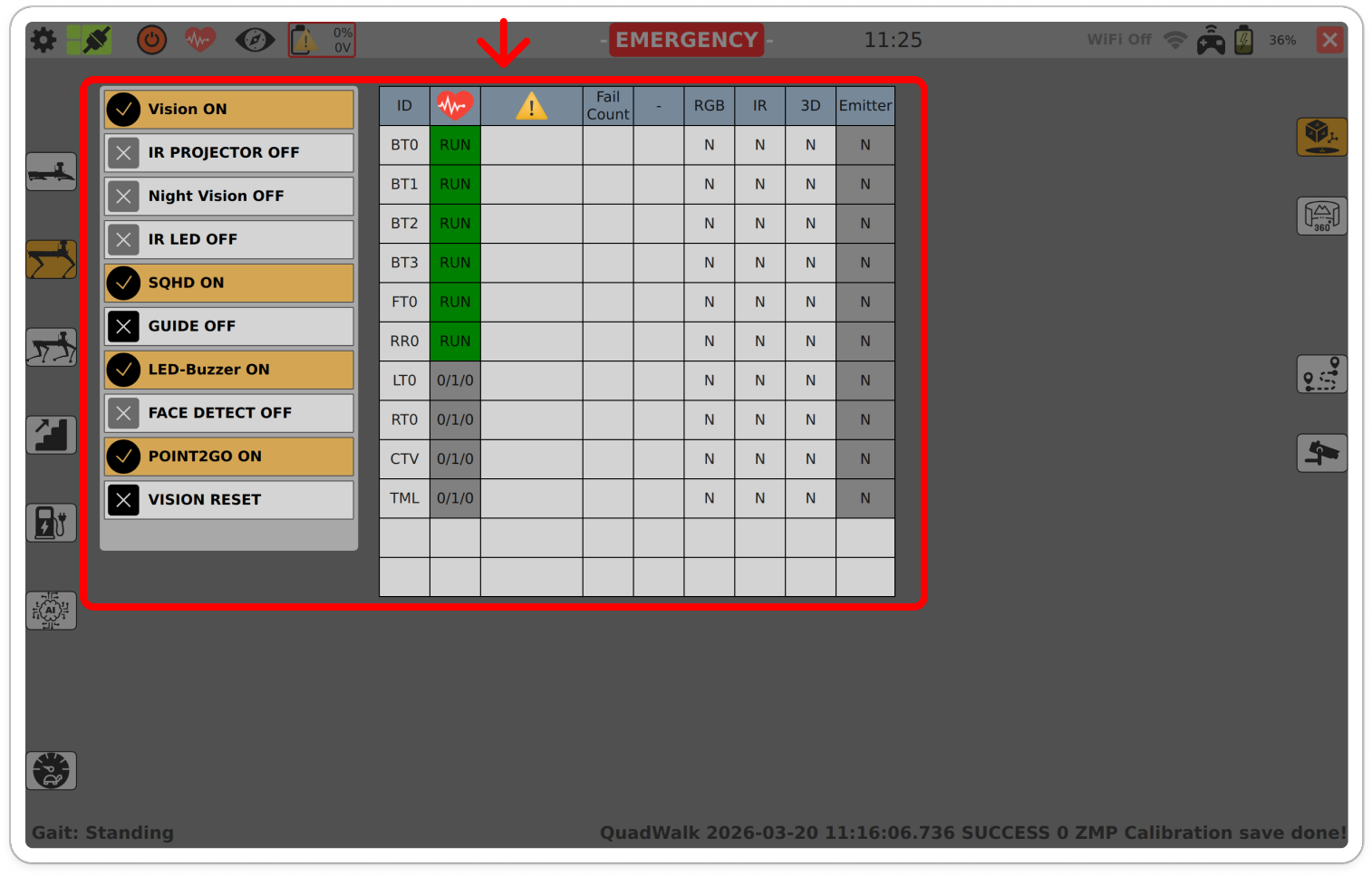
3) Perception Status
Check the ON/OFF state and operation status, errors, and Fail/Count information for perception-related modules such as the IR projector, night vision, and LED buzzer.
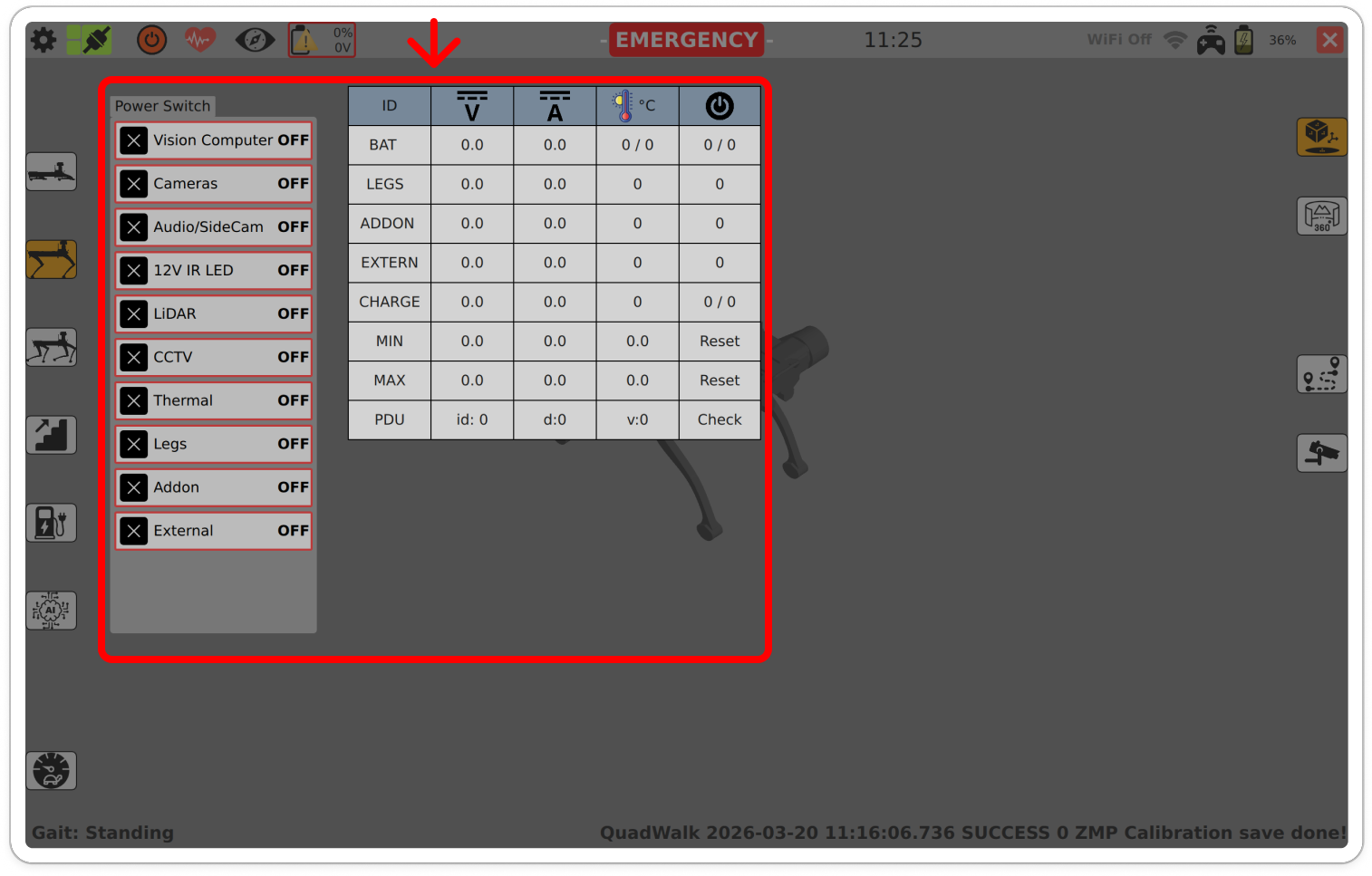
4) Power Switch & Module Check
You can check power switch states (Vision Computer/Cameras/sensors such as LiDAR) and review major power/load status like BAT/LEGS/ADDON/EXTERN/CHARGE. Press the button to refresh the status.
Notes / Warnings
- If
EMERGENCYor an abnormal state is shown, secure safety first and then check the cause (sensor/power/perception module operation, etc.). - If perception/sensor modules are OFF, the corresponding features (e.g., vision-based walking) may be limited.